Image editing

Image editing

Modify images via text

Getting started

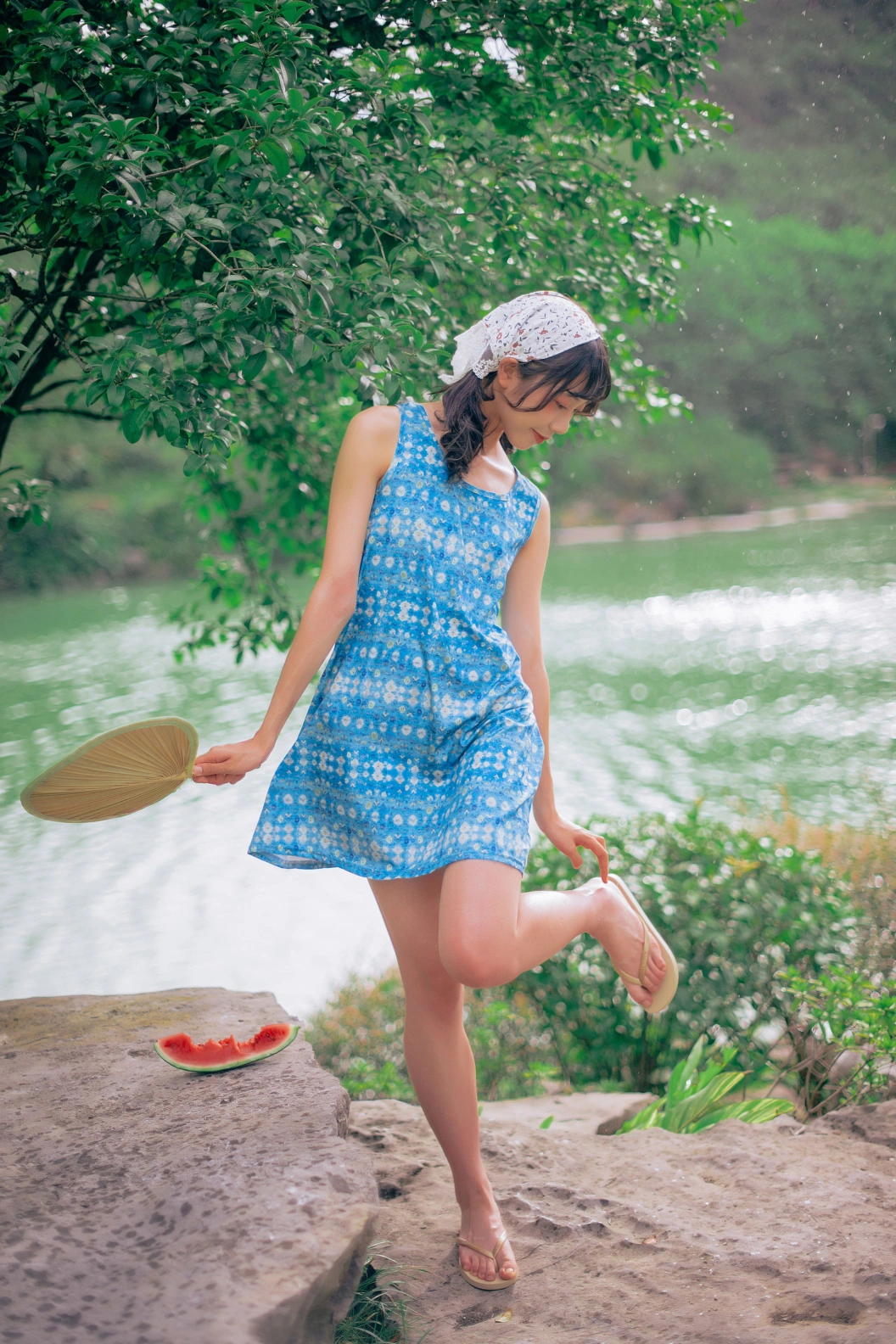
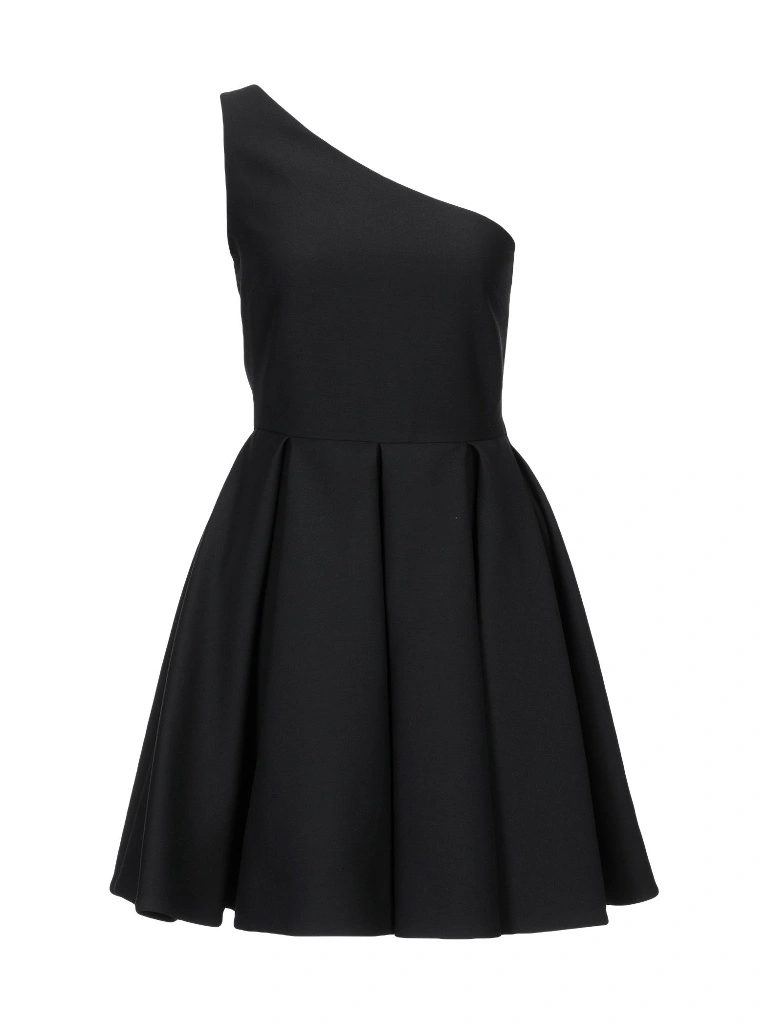
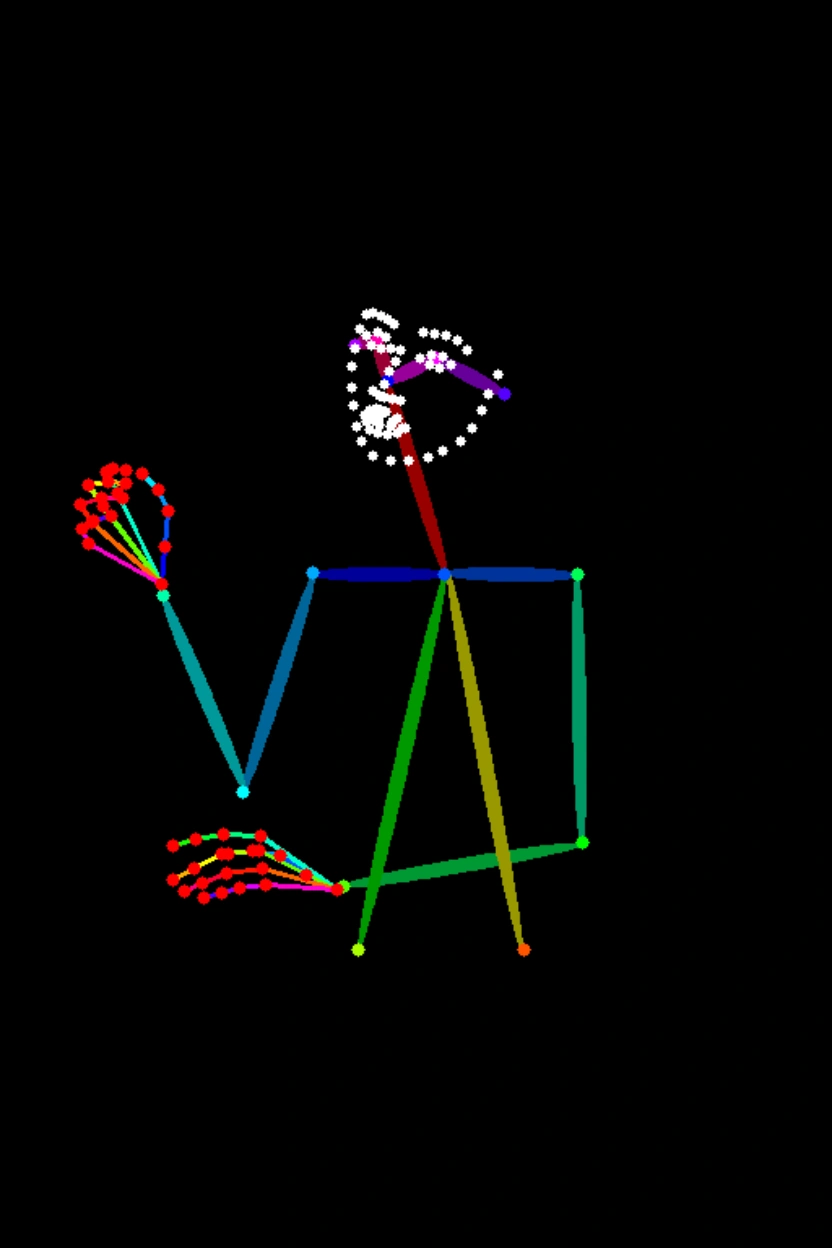
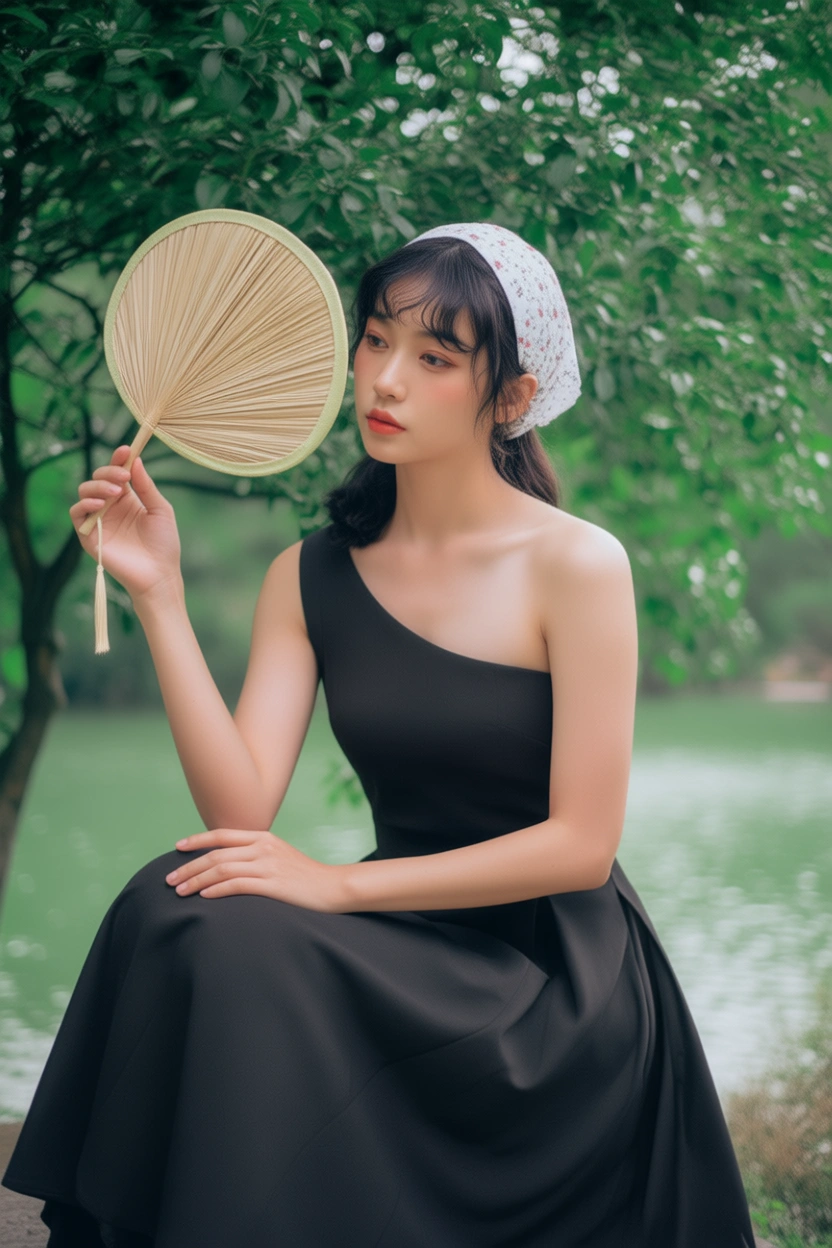
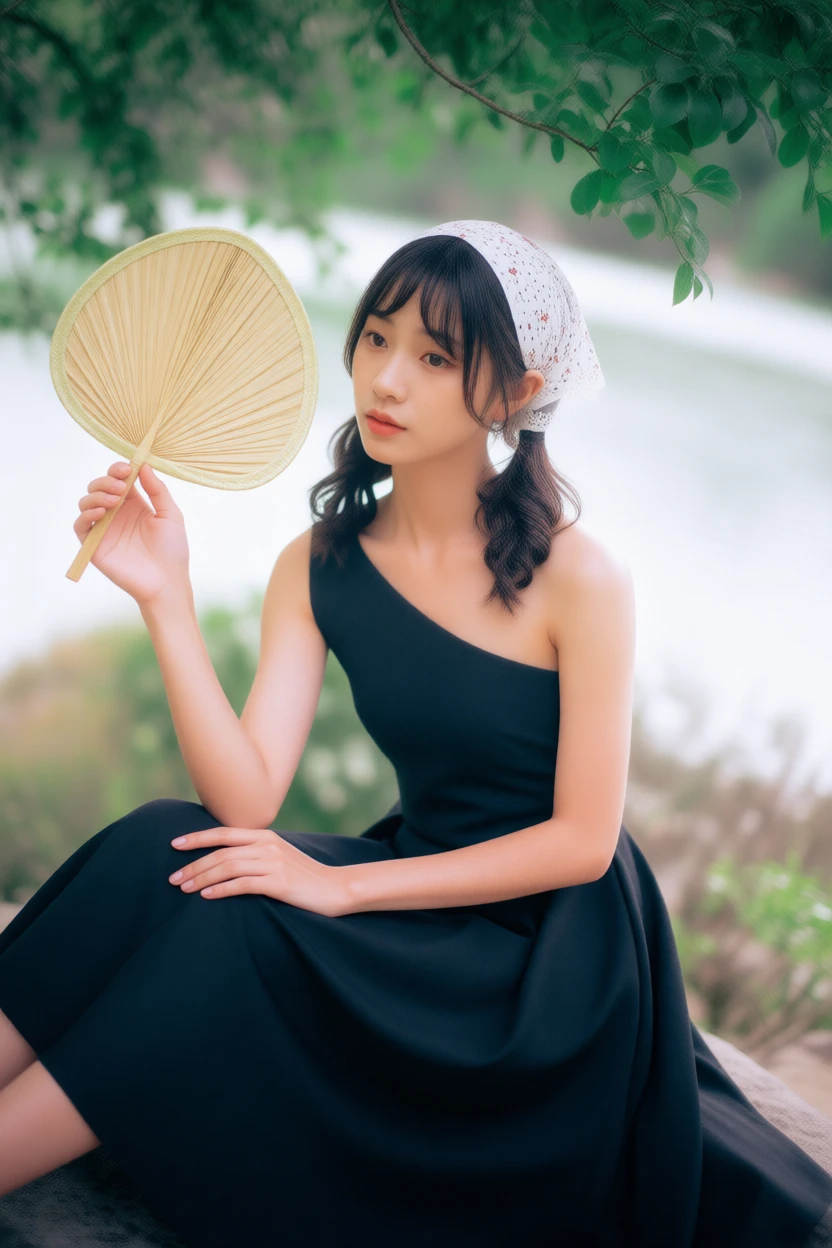
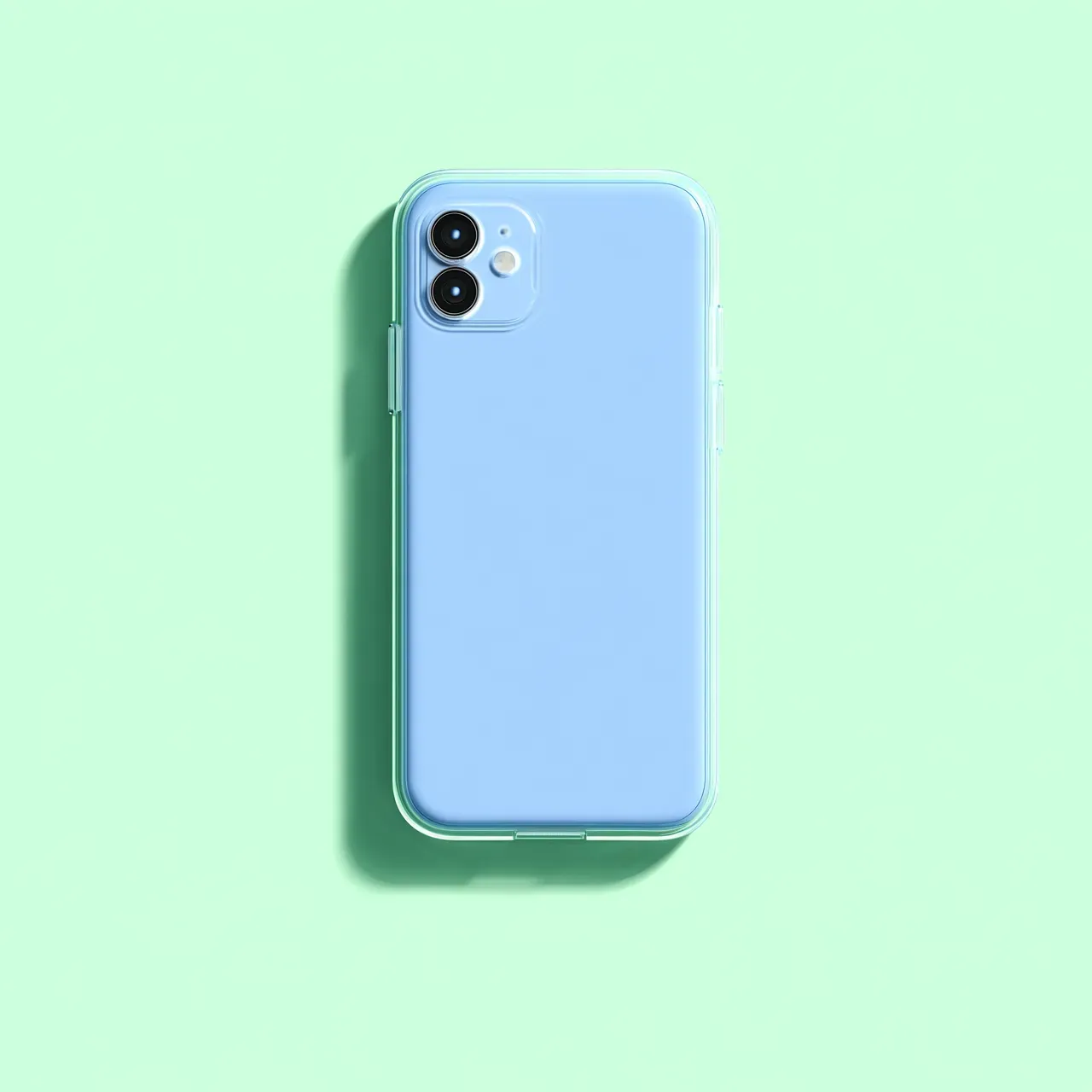
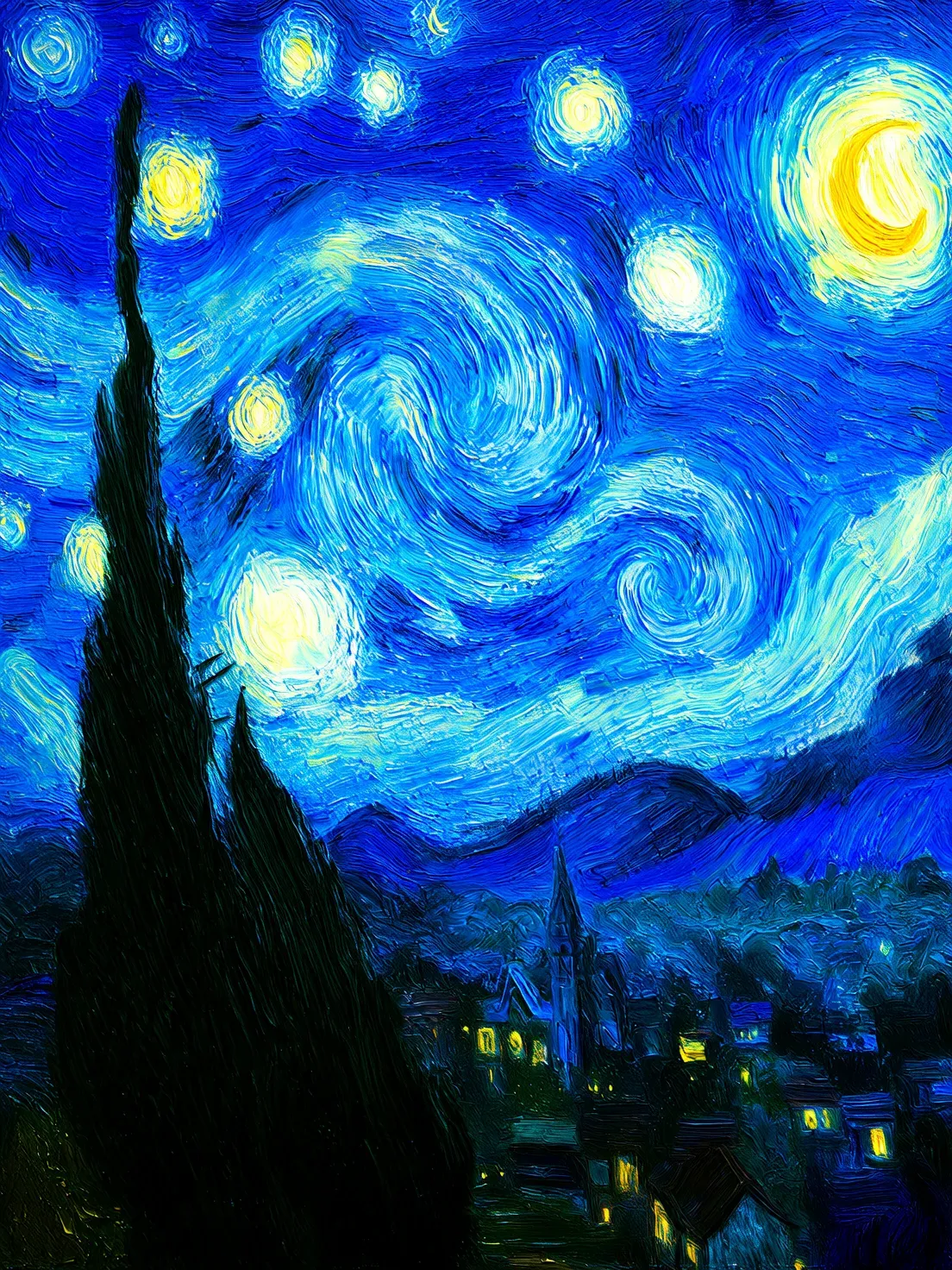
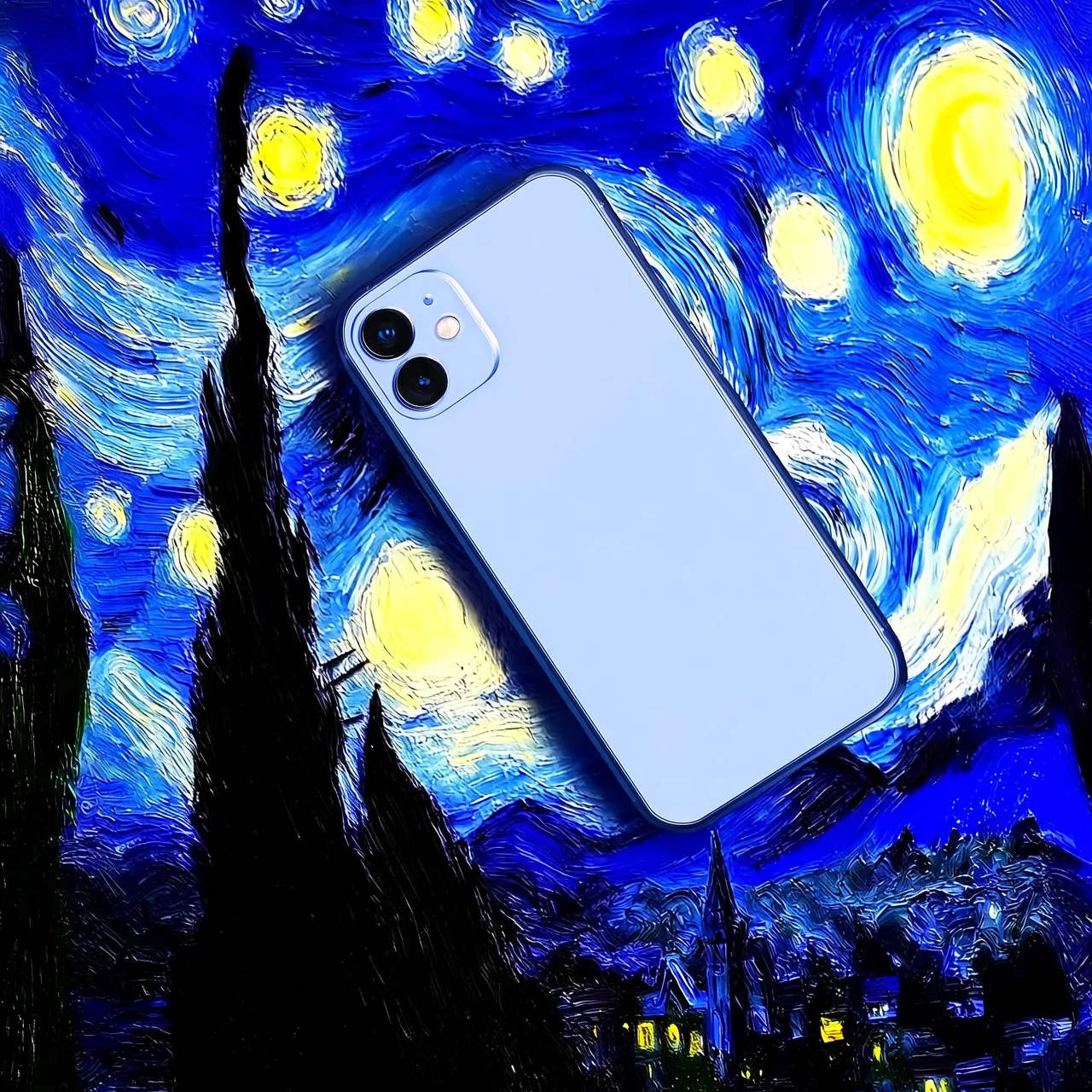
This example shows how to use qwen-image-2.0-pro to generate two edited images from three input images and a prompt.
Input prompt: The girl in Image 1 wears the black dress from Image 2 and sits in the pose from Image 3.
Input image 1Input image 2Input image 3Output images (multiple images)
image99
image98
image89
image100
imageout2
Before making a call, get an API key and export the API key as an environment variable. To call the API using the SDK, install the DashScope SDK. The SDK is available for Python and Java. The Qwen image editing models support one to three input images. The qwen-image-2.0, qwen-image-edit-max, and qwen-image-edit-plus series can generate one to six images. qwen-image-edit can generate only one image. The URLs for the generated images are valid for 24 hours. Download the images to your local device promptly.
  • Python
  • Java
  • curl
import json
import os
import dashscope
from dashscope import MultiModalConversation

dashscope.base_http_api_url = 'https://dashscope-intl.aliyuncs.com/api/v1'

# The model supports one to three input images.
messages = [
  {
    "role": "user",
    "content": [
      {"image": "https://help-static-aliyun-doc.aliyuncs.com/file-manage-files/zh-CN/20250925/thtclx/input1.png"},
      {"image": "https://help-static-aliyun-doc.aliyuncs.com/file-manage-files/zh-CN/20250925/iclsnx/input2.png"},
      {"image": "https://help-static-aliyun-doc.aliyuncs.com/file-manage-files/zh-CN/20250925/gborgw/input3.png"},
      {"text": "Make the girl from Image 1 wear the black dress from Image 2 and sit in the pose from Image 3."}
    ]
  }
]

# Replace with your API key if the environment variable is not set: api_key="sk-xxx"
api_key = os.getenv("DASHSCOPE_API_KEY")

# qwen-image-2.0, qwen-image-edit-max, and qwen-image-edit-plus series support outputting 1 to 6 images. This example shows how to output 2 images.
response = MultiModalConversation.call(
  api_key=api_key,
  model="qwen-image-2.0-pro",
  messages=messages,
  stream=False,
  n=2,
  watermark=False,
  negative_prompt=" ",
  prompt_extend=True,
  size="1024*1536",
)

if response.status_code == 200:
  # To view the full response, uncomment the following line.
  # print(json.dumps(response, ensure_ascii=False))
  for i, content in enumerate(response.output.choices[0].message.content):
    print(f"URL of output image {i+1}: {content['image']}")
else:
  print(f"HTTP status code: {response.status_code}")
  print(f"Error code: {response.code}")
  print(f"Error message: {response.message}")
  print("For more information, see the documentation: https://docs.qwencloud.com/api-reference/more/error-messages")
{
  "status_code": 200,
  "request_id": "fa41f9f9-3cb6-434d-a95d-4ae6b9xxxxxx",
  "code": "",
  "message": "",
  "output": {
    "text": null,
    "finish_reason": null,
    "choices": [
      {
        "finish_reason": "stop",
        "message": {
          "role": "assistant",
          "content": [
            {
              "image": "https://dashscope-result-hz.oss-cn-hangzhou.aliyuncs.com/xxx.png?Expires=xxx"
            },
            {
              "image": "https://dashscope-result-hz.oss-cn-hangzhou.aliyuncs.com/xxx.png?Expires=xxx"
            }
          ]
        }
      }
    ],
    "audio": null
  },
  "usage": {
    "input_tokens": 0,
    "output_tokens": 0,
    "characters": 0,
    "height": 1536,
    "image_count": 2,
    "width": 1024
  }
}
  • Python
  • Java
import requests


def download_image(image_url, save_path='output.png'):
  try:
    response = requests.get(image_url, stream=True, timeout=300)  # Set timeout
    response.raise_for_status()  # Raise an exception if the HTTP status code is not 200
    with open(save_path, 'wb') as f:
      for chunk in response.iter_content(chunk_size=8192):
        f.write(chunk)
    print(f"Image downloaded successfully to: {save_path}")

  except requests.exceptions.RequestException as e:
    print(f"Image download failed: {e}")


image_url = "https://dashscope-result-sz.oss-cn-shenzhen.aliyuncs.com/xxx.png?Expires=xxx"
download_image(image_url, save_path='output.png')

Model recommendations

  • qwen-image-2.0-pro series (Recommended): Fused image generation and editing with enhanced text rendering, realistic textures, and semantic adherence.
  • qwen-image-2.0 series: Faster fused model that balances quality and performance.
For supported models, see Choose models.

Input instructions

Input images (messages)

The messages parameter is an array that must contain a single object. This object must include the role and content properties. The role property must be set to user. The content property must include both image (one to three images) and text (one editing instruction). The input images must meet the following requirements:
  • The supported image formats are JPG, JPEG, PNG, BMP, TIFF, WEBP, and GIF.
    The output image is in PNG format. For animated GIFs, only the first frame is processed.
  • For best results, the image resolution should be between 384 and 3072 pixels for both width and height. A low resolution may result in a blurry output, while a high resolution increases processing time.
  • The size of a single image file cannot exceed 10 MB.
"messages": [
  {
    "role": "user",
    "content": [
      { "image": "Public URL or Base64 data of Image 1" },
      { "image": "Public URL or Base64 data of Image 2" },
      { "image": "Public URL or Base64 data of Image 3" },
      { "text": "Your editing instruction, for example: 'The girl in Image 1 wears the black dress from Image 2 and sits in the pose from Image 3'" }
    ]
  }
]

Image input order

When you provide multiple input images, their order is defined by their sequence in the array. The editing instruction must correspond to the order of the images in the content field, such as 'Image 1' and 'Image 2'.
Input image 1Input image 2Output image
image95
image96
5
Replace the clothes of the girl in Image 1 with the clothes of the girl in Image 2.
4
Replace the clothes of the girl in Image 2 with the clothes of the girl in Image 1.

Image input methods

Public URL
  • You can provide a publicly accessible image URL that supports the HTTP or HTTPS protocol.
  • Example value: https://xxxx/img.png.
Base64 encoding Convert the image file to a Base64-encoded string and concatenate it in the following format: data:<mime_type>;base64,<base64_data>.
  • <mime_type>: The media type of the image, which must correspond to the file format.
  • <base64_data>: The Base64-encoded string of the file.
  • Example value: data:image/jpeg;base64,GDU7MtCZz... (The example is truncated for demonstration purposes.)

More parameters

Adjust the generation results using the following optional parameters:
  • n: The number of images to generate. The default value is 1. The qwen-image-2.0, qwen-image-edit-max, and qwen-image-edit-plus series of models support generating one to six images. The qwen-image-edit model supports generating only one image.
  • negative_prompt: Describes content to exclude from the image, such as "blur" or "extra fingers". This parameter helps optimize the quality of the generated image.
  • watermark: Specifies whether to add a "Qwen-Image" watermark to the bottom-right corner of the image. The default value is false.
  • seed: The random number seed. The value must be an integer from [0, 2147483647]. If this parameter is not specified, the algorithm generates a random number to use as the seed. Using the same seed value helps ensure consistent generation results.
The following optional parameters are available only for the qwen-image-2.0, qwen-image-edit-max, and qwen-image-edit-plus series of models:
  • size: The resolution of the output image. The format is width*height, such as "1024*2048". For the qwen-image-2.0 series models, you can set the width and height freely. The total pixels of the output image must be between 512 x 512 and 2048 x 2048. By default, the resolution is the same as the input image (the last image if multiple are provided). For the qwen-image-edit-max and qwen-image-edit-plus series models, the width and height can range from 512 to 2048 pixels. By default, the output image has a resolution close to 1024*1024 and an aspect ratio similar to the original image.
  • prompt_extend: Enables or disables the prompt rewriting feature. The default value is true. If enabled, the model optimizes the prompt. This feature can significantly improve the results for simple or less descriptive prompts.
For a complete list of parameters, see Qwen-Image-Edit API reference.

Overview

Multi-image fusion

Input image 1Input image 2Input image 3Output image
image83
image103
1
2
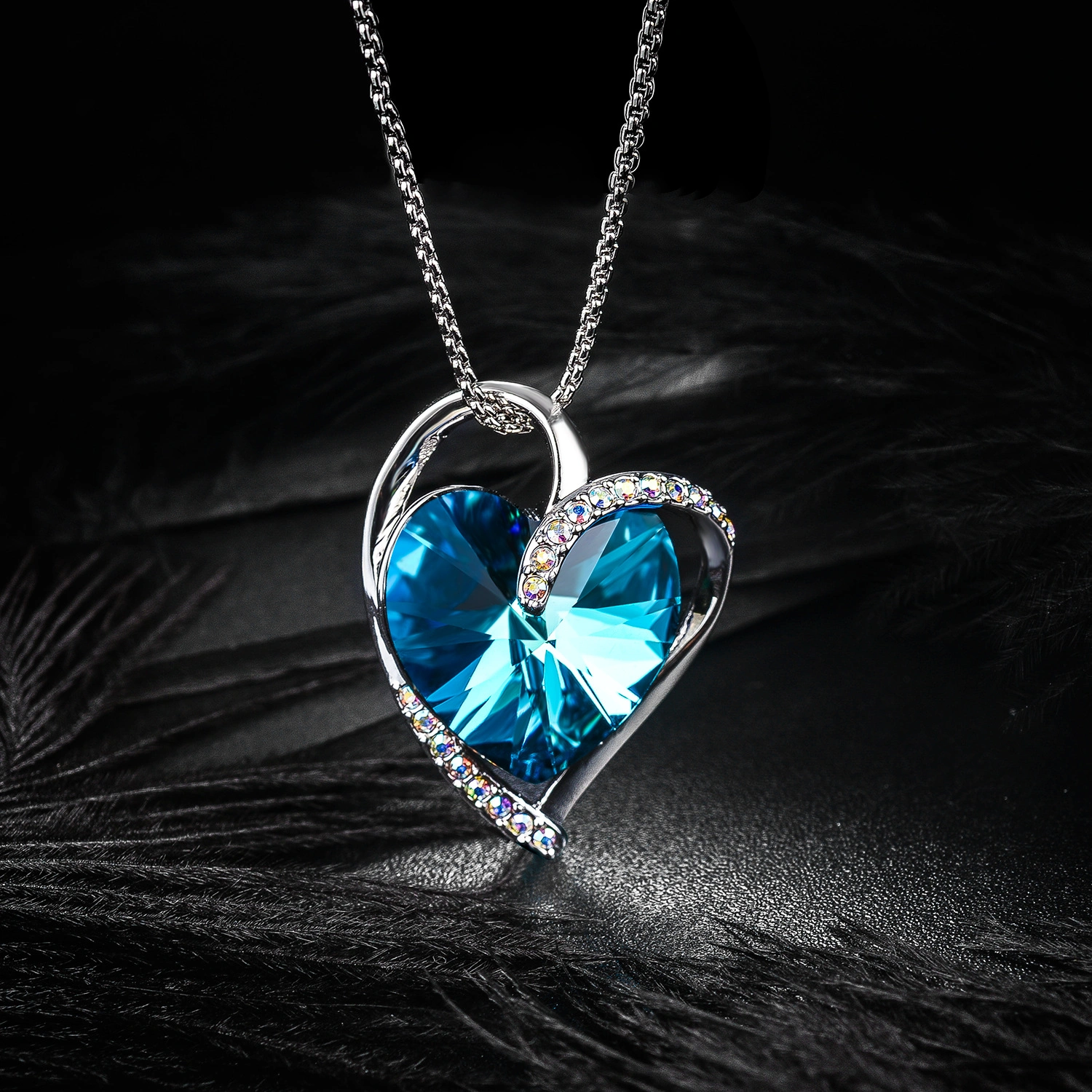
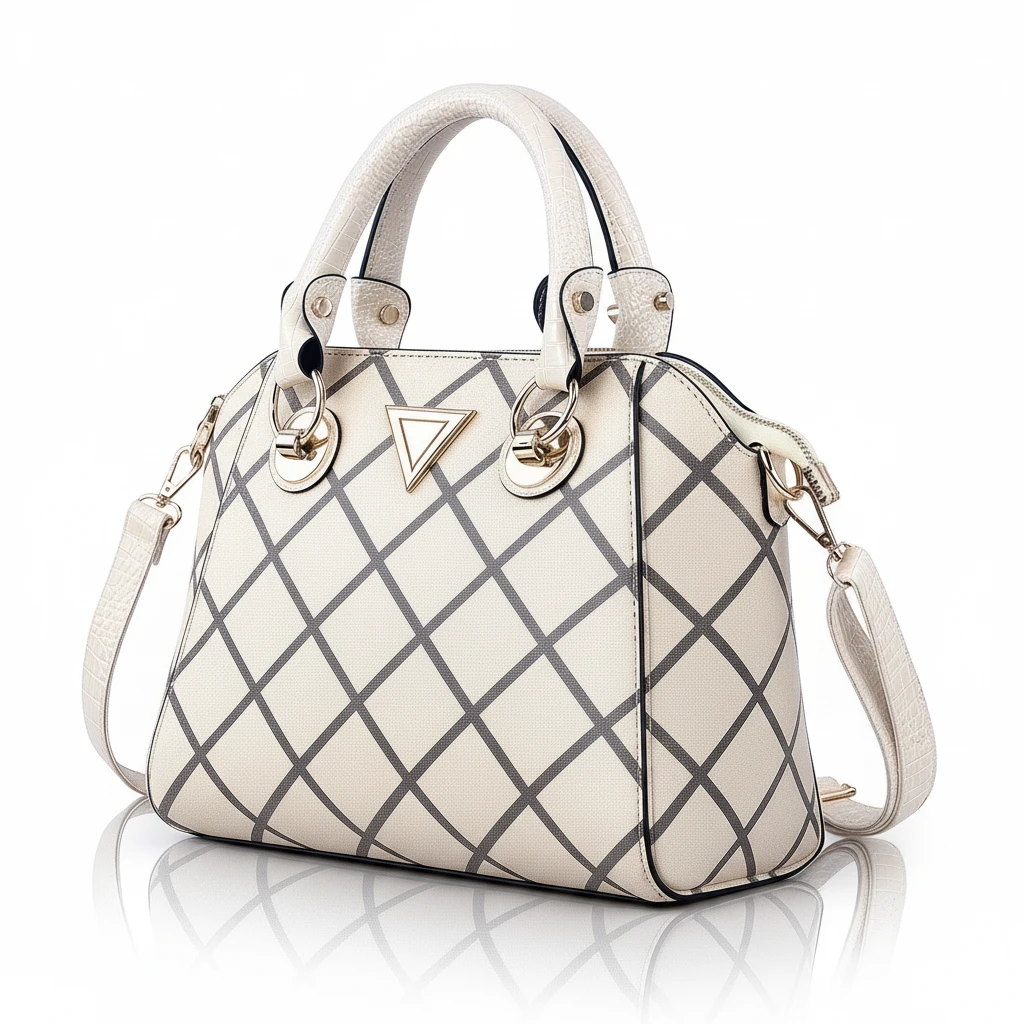
The girl in Image 1 wears the necklace from Image 2 and carries the bag from Image 3 on her left shoulder.

Subject consistency

Input imageOutput image 1Output image 2
image5
image4
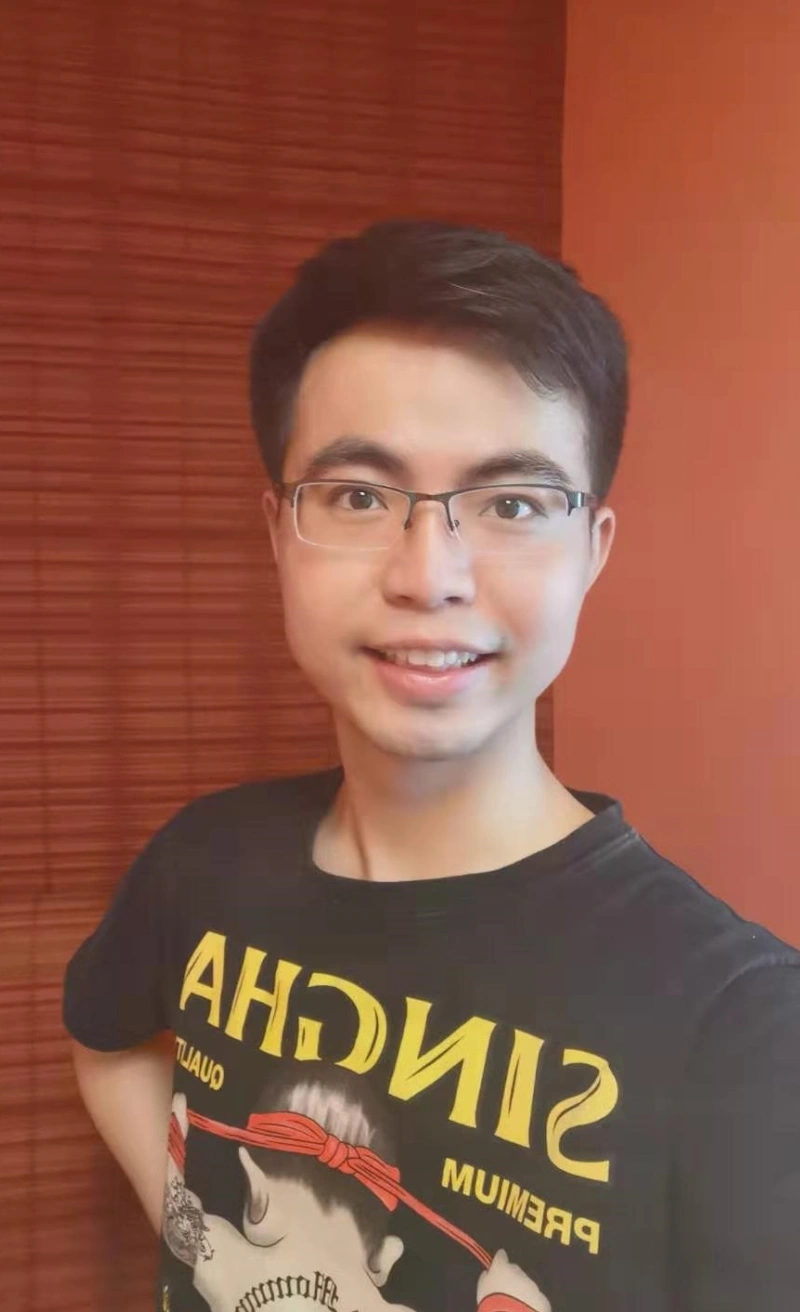
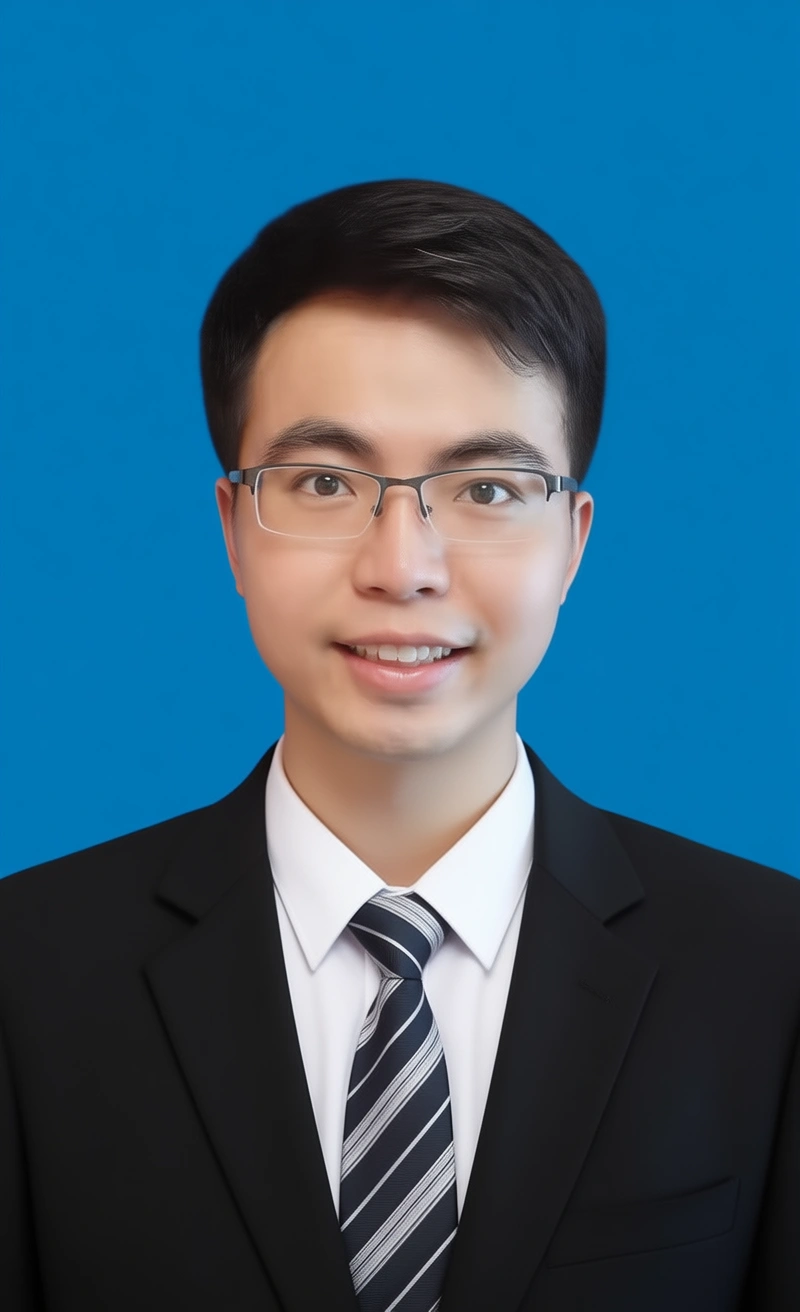
Change the image to an ID photo with a blue background. The person is wearing a white shirt, a black suit, and a striped tie.
image6
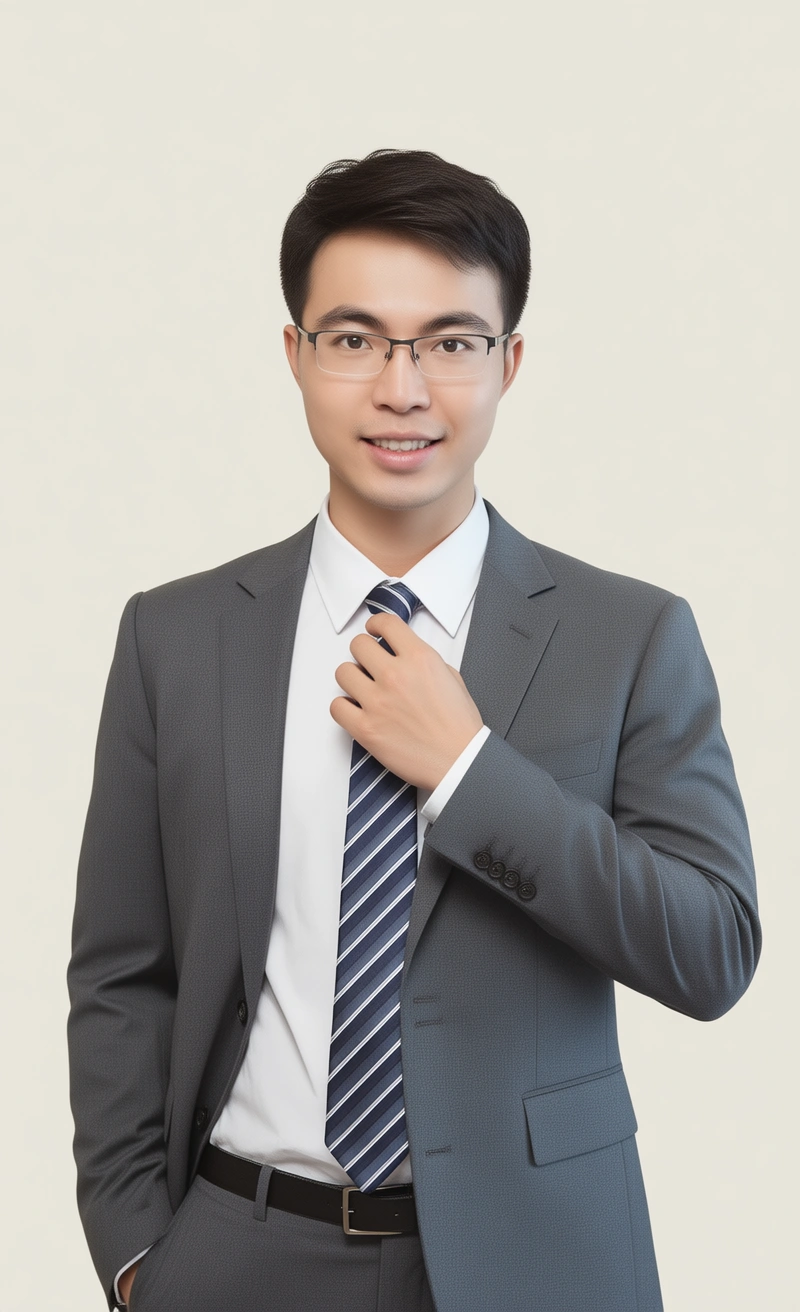
The person is wearing a white shirt, a gray suit, and a striped tie. One hand rests on the tie. The background is light-colored.
image12
image13
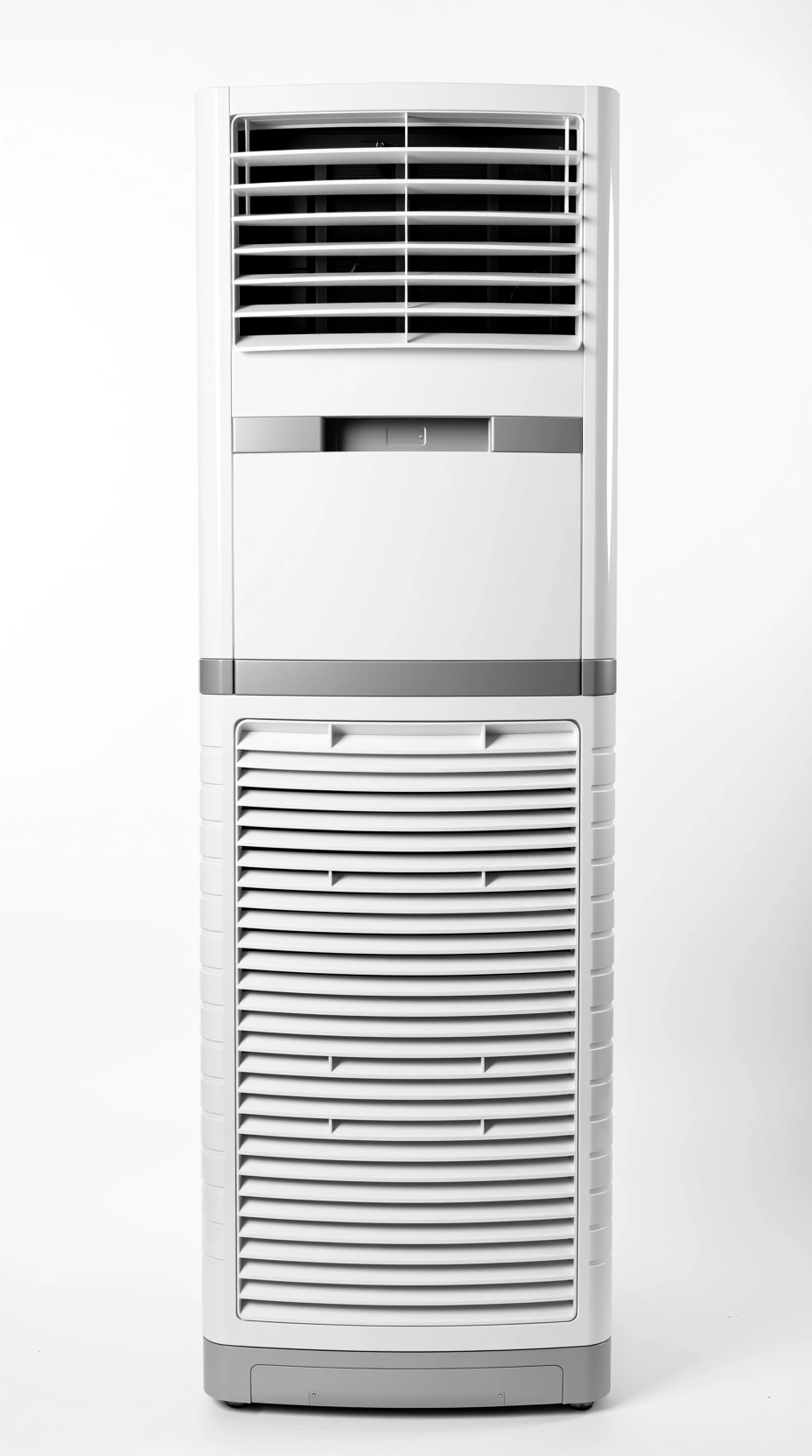
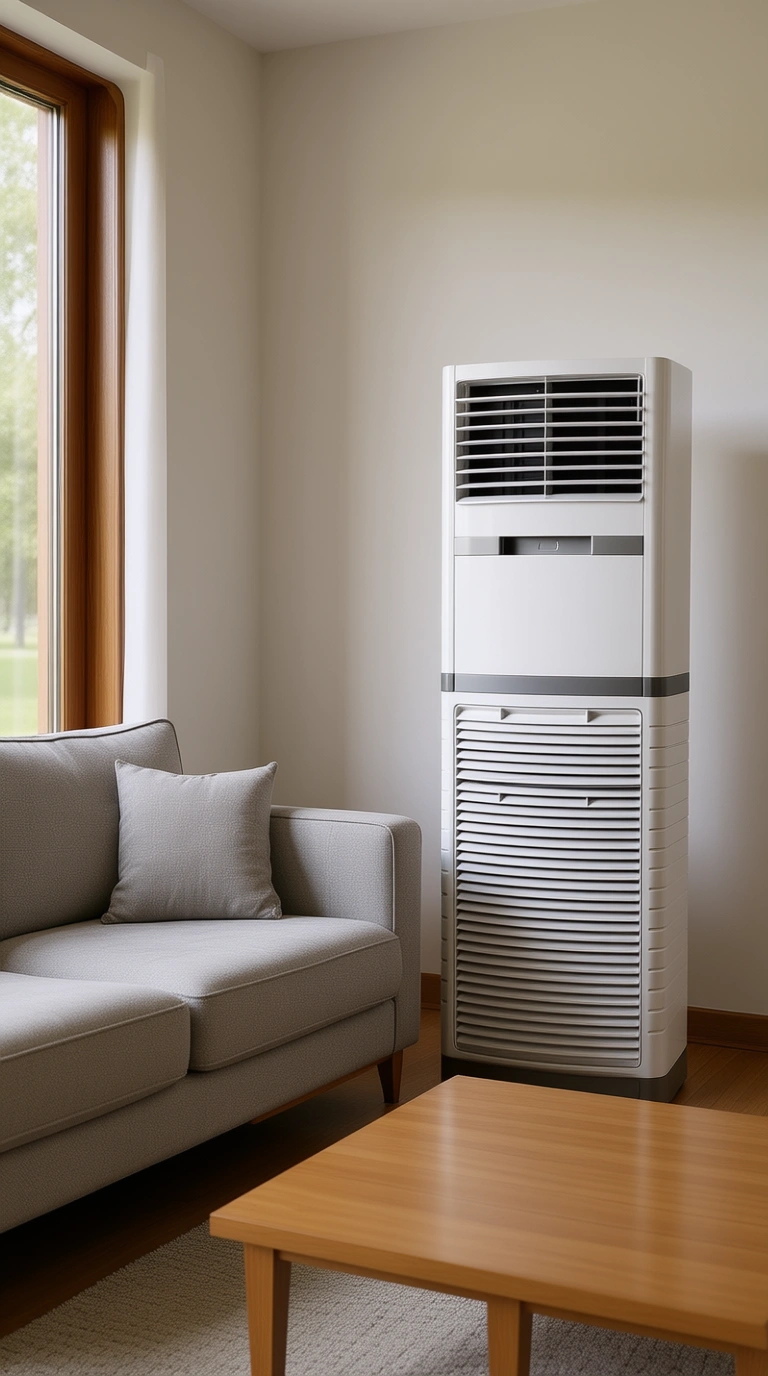
The air conditioner is placed in a living room next to a sofa.
image14
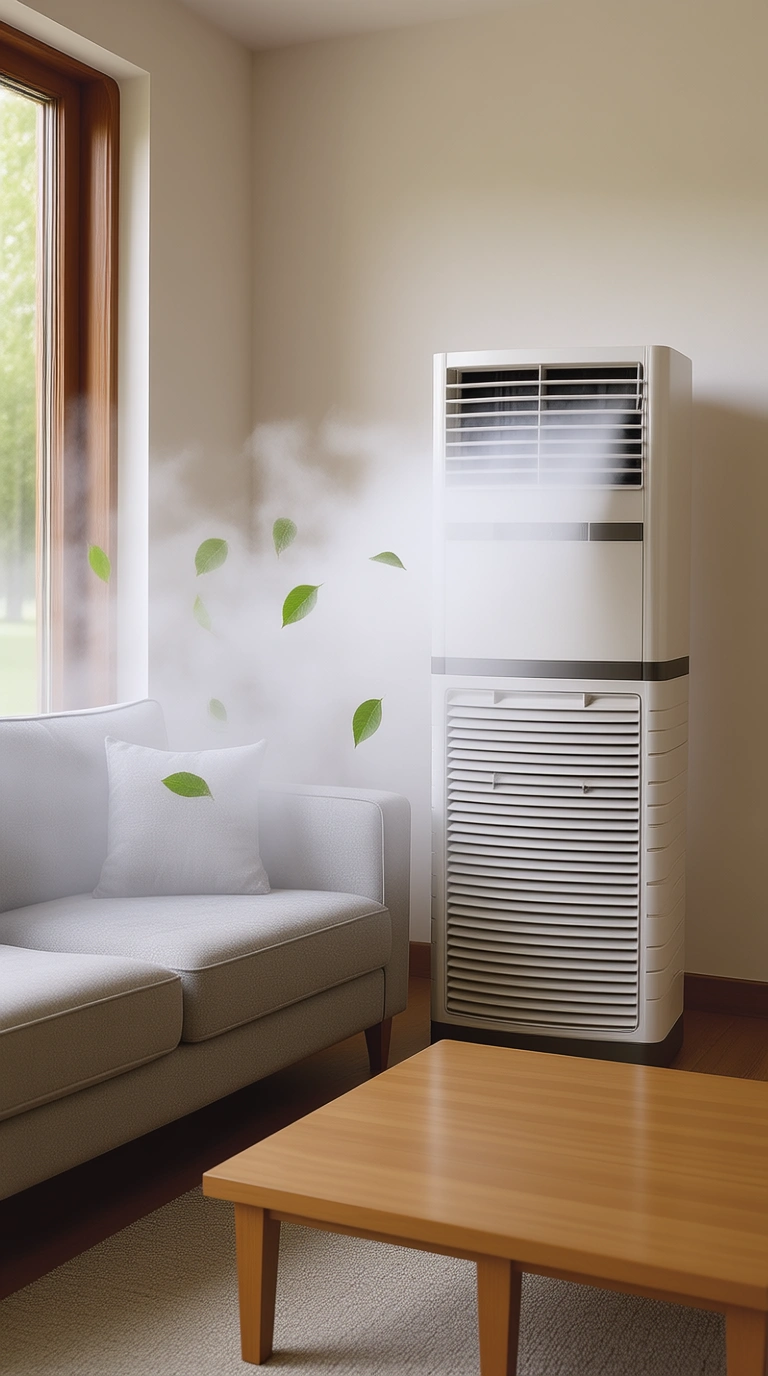
Mist is added from the air conditioner's vent, extending over the sofa. Green leaves are also added.

Sketch creation

Input imageOutput image
image42
image43
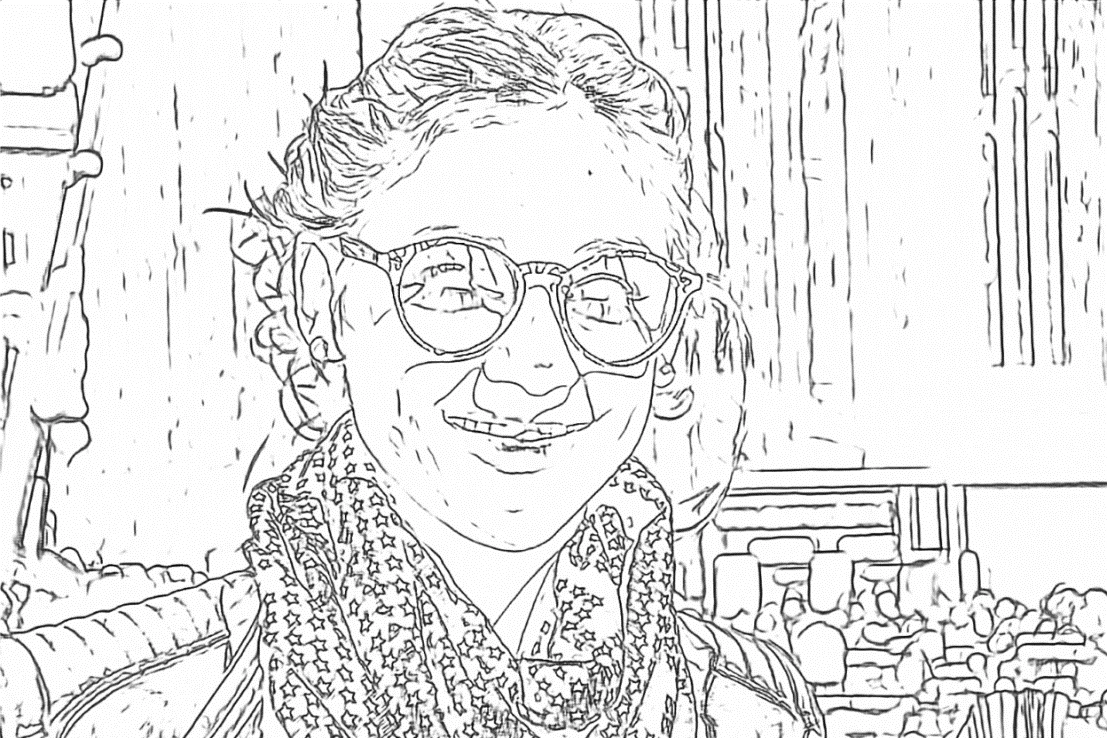
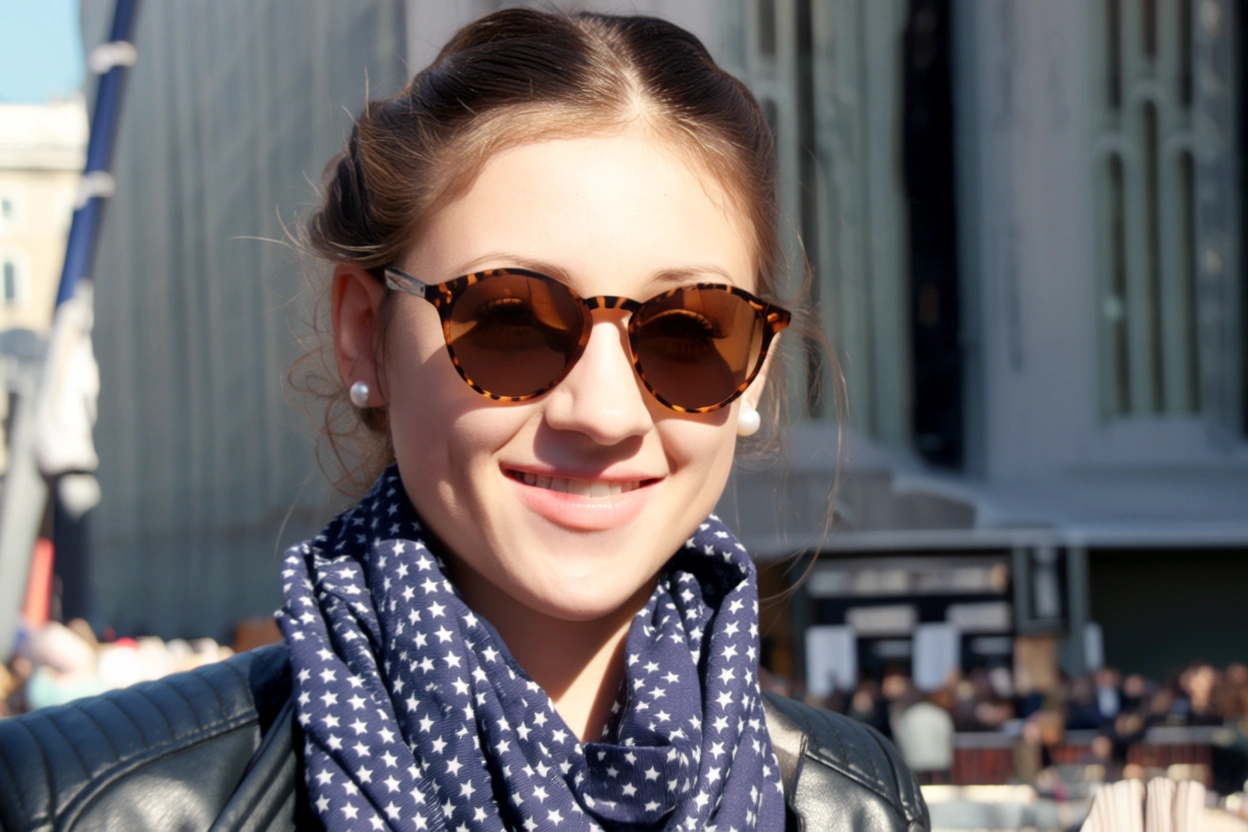
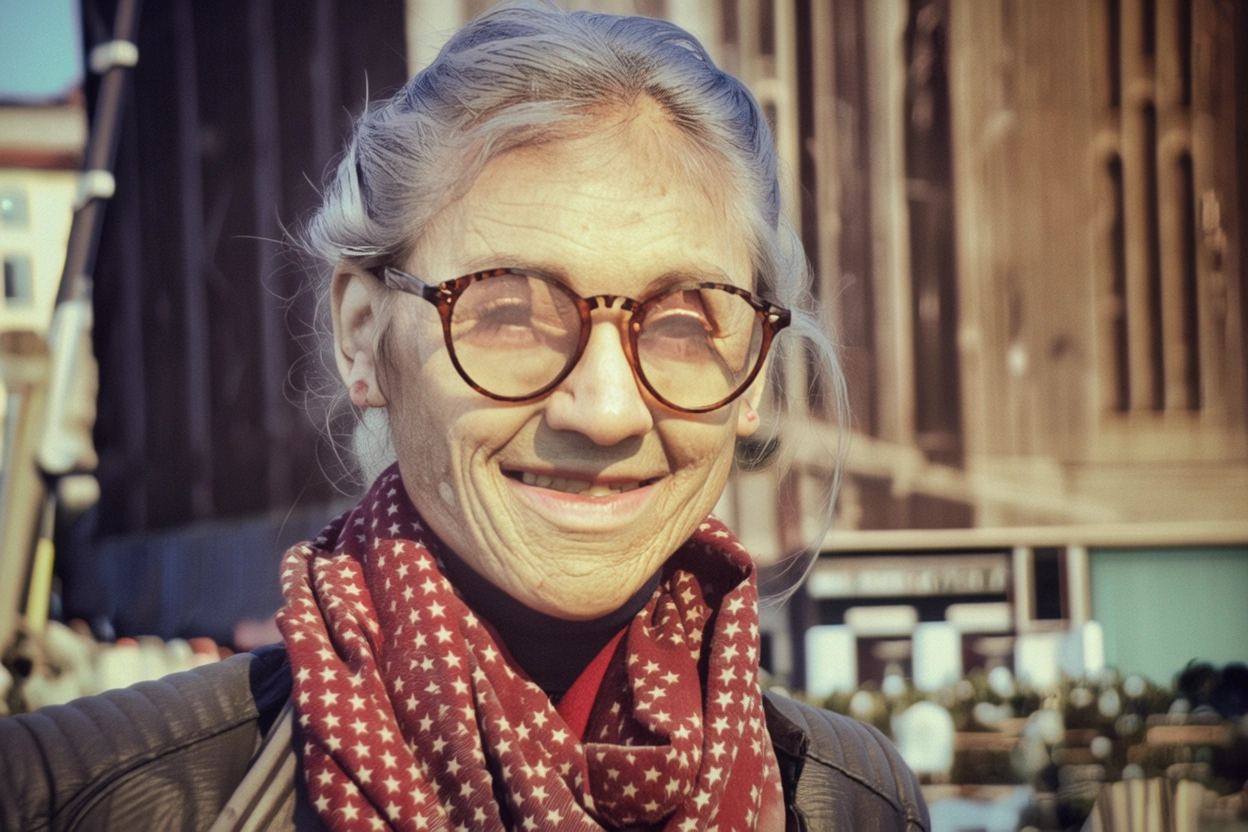
Generate an image that matches the detailed shape outlined in Image 1 and follows this description: A young woman smiles on a sunny day. She wears round brown sunglasses with a leopard print frame. Her hair is neatly tied up, she wears pearl earrings, a dark blue scarf with purple star patterns, and a black leather jacket.
image44
Generate an image that matches the detailed shape outlined in Image 1 and follows this description: An elderly man smiles at the camera. His face is wrinkled, his hair is messy in the wind, and he wears round-framed reading glasses. He has a worn-out red scarf with star patterns around his neck and is wearing a cotton-padded jacket.

Creative product generation

Input imageOutput image
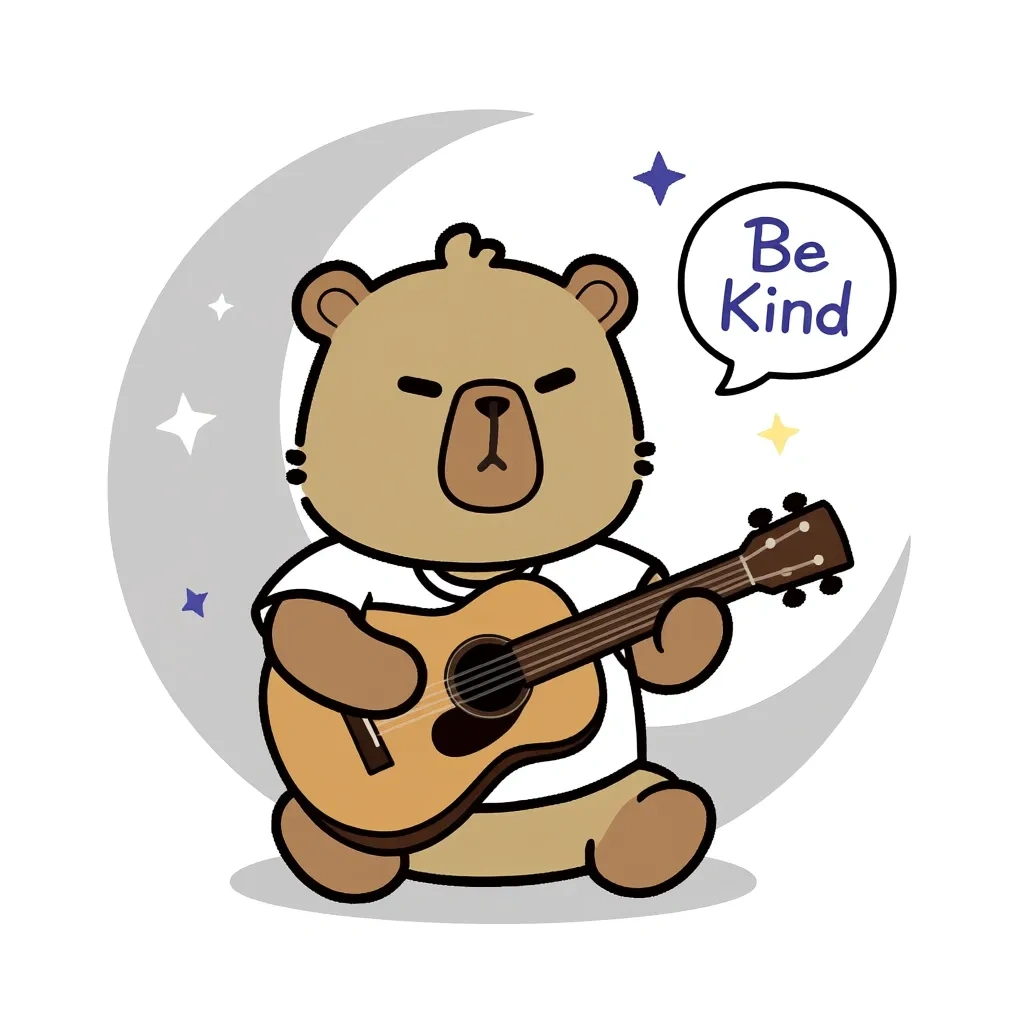
bear
image23
Make this bear sit under the moon (represented by a light gray crescent outline on a white background), holding a guitar, with small stars and speech bubbles with phrases such as "Be Kind" floating around.
image22
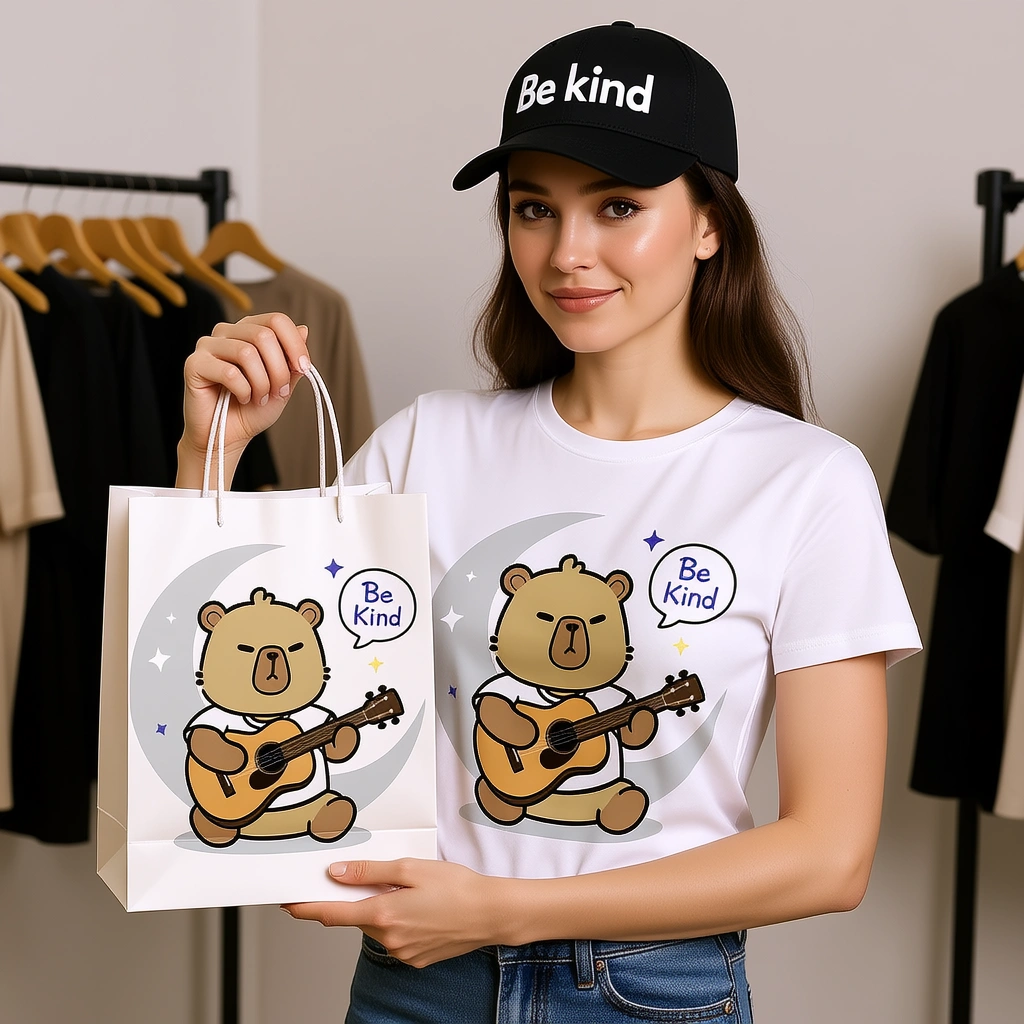
Print this design on a T-shirt and a paper tote bag. A female model is displaying these items. The woman is also wearing a baseball cap with "Be kind" written on it.
image21
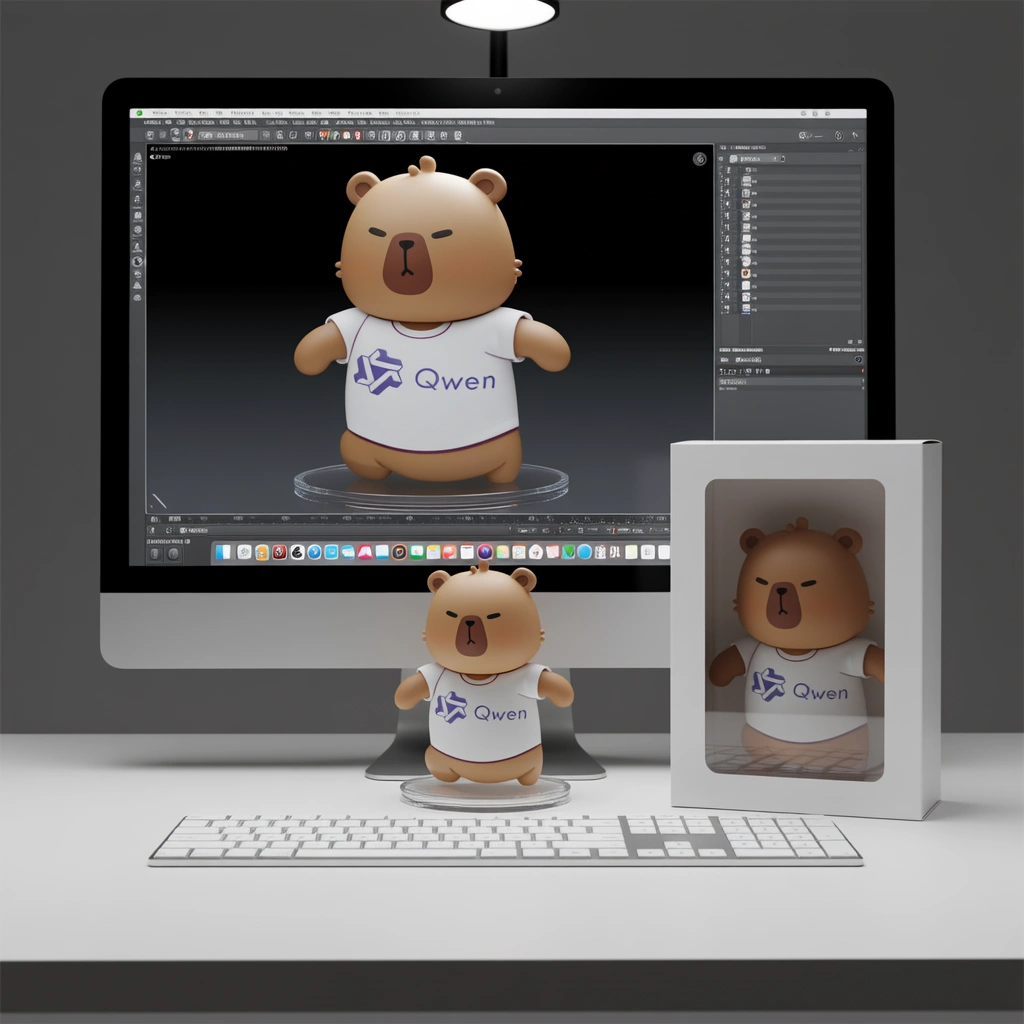
A hyper-realistic 1/7 scale character model, designed as a commercial finished product, is placed on a desk with an iMac that has a white keyboard. The model stands on a clean, round, transparent acrylic base with no labels or text. Professional studio lighting highlights the sculpted details. On the iMac screen in the background, the ZBrush modeling process for the same model is displayed. Next to the model, place a packaging box with a transparent window on the front, showing only the clear plastic shell inside. The box is slightly taller than the model and reasonably sized to hold it.
image
This bear is wearing an astronaut suit and pointing into the distance.
image
This bear is wearing a gorgeous ball gown, with its arms spread in an elegant dance pose.
image
This bear is wearing sportswear, holding a basketball, with one leg bent.

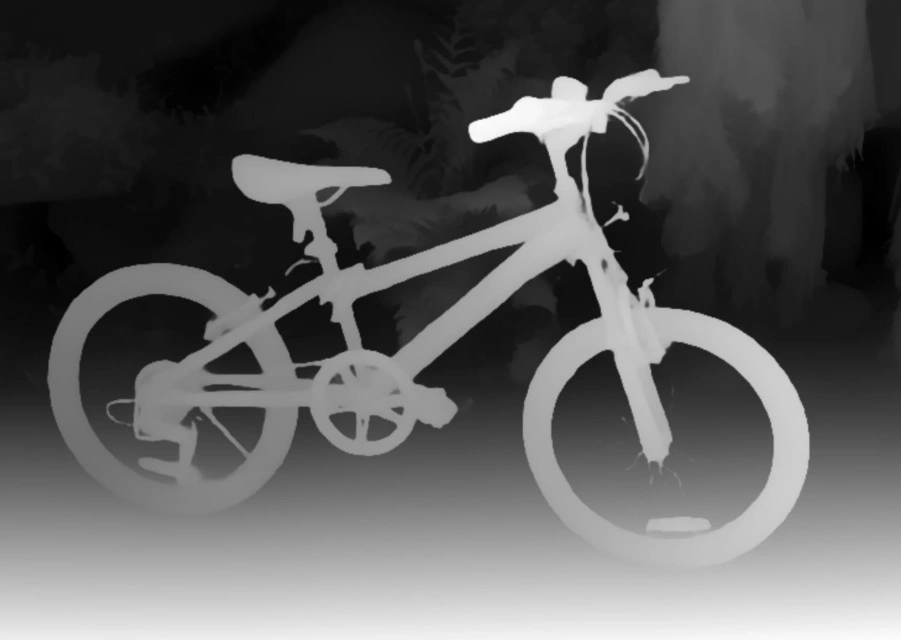
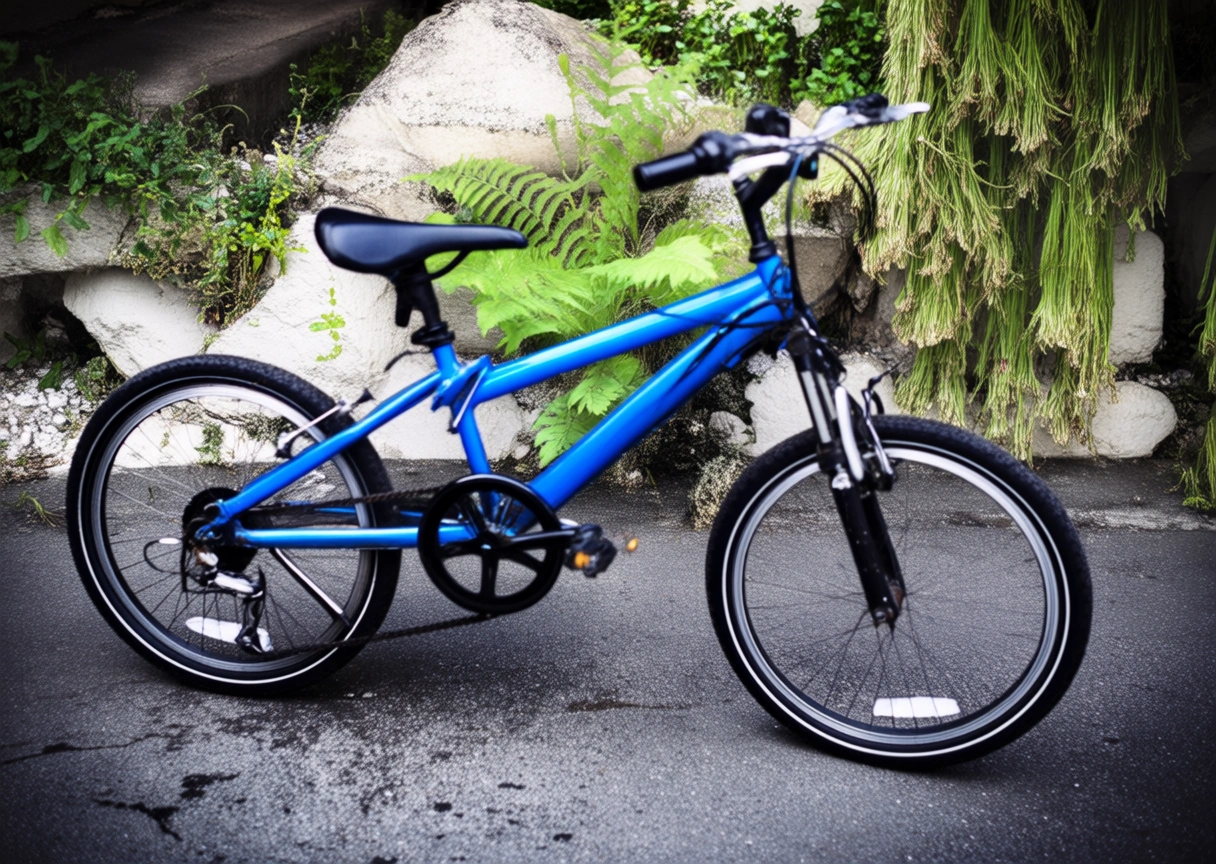
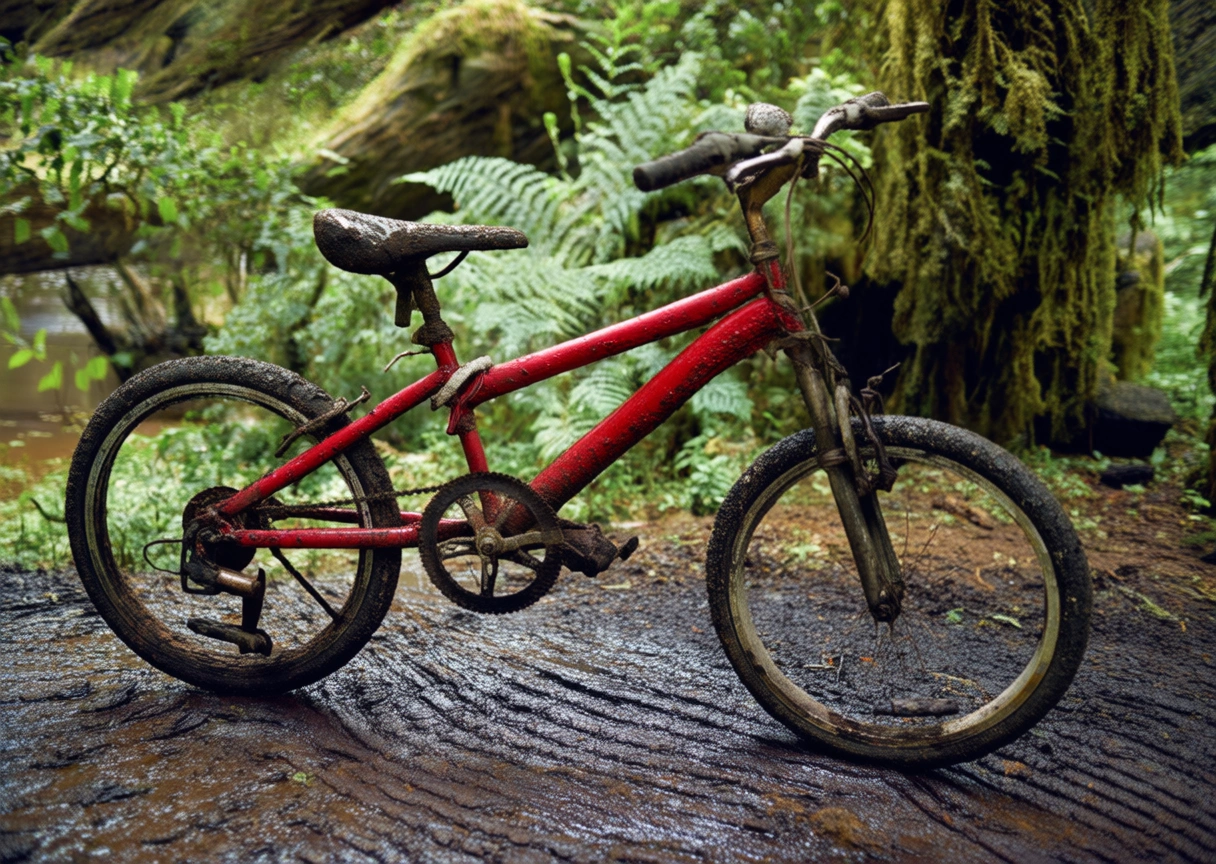
Generate image from depth map

Input imageOutput image
image36
image37
Generate an image that matches the depth map outlined in Image 1 and follows this description: A blue bicycle is parked in a side alley, with a few weeds growing from cracks in the stone in the background.
image38
Generate an image that matches the depth map outlined in Image 1 and follows this description: A worn-out red bicycle is parked on a muddy path, with a dense primeval forest in the background.

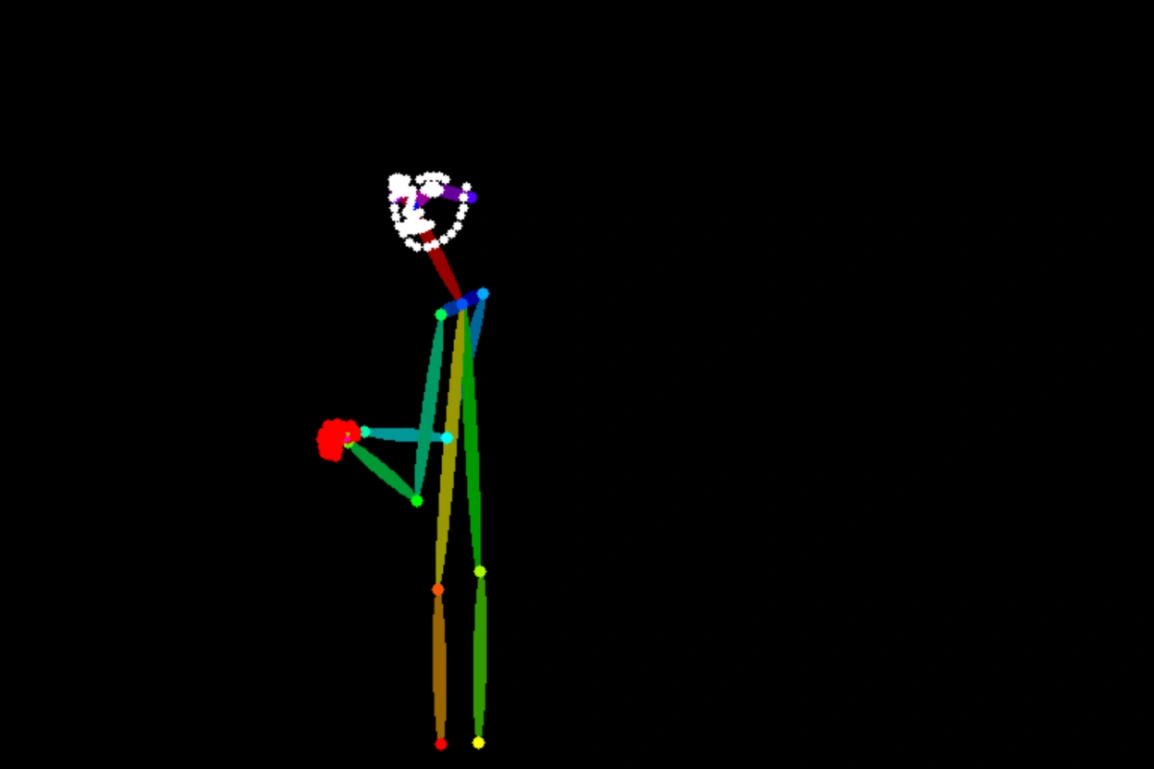
Generate image from keypoints

Input imageOutput image
image40
image41
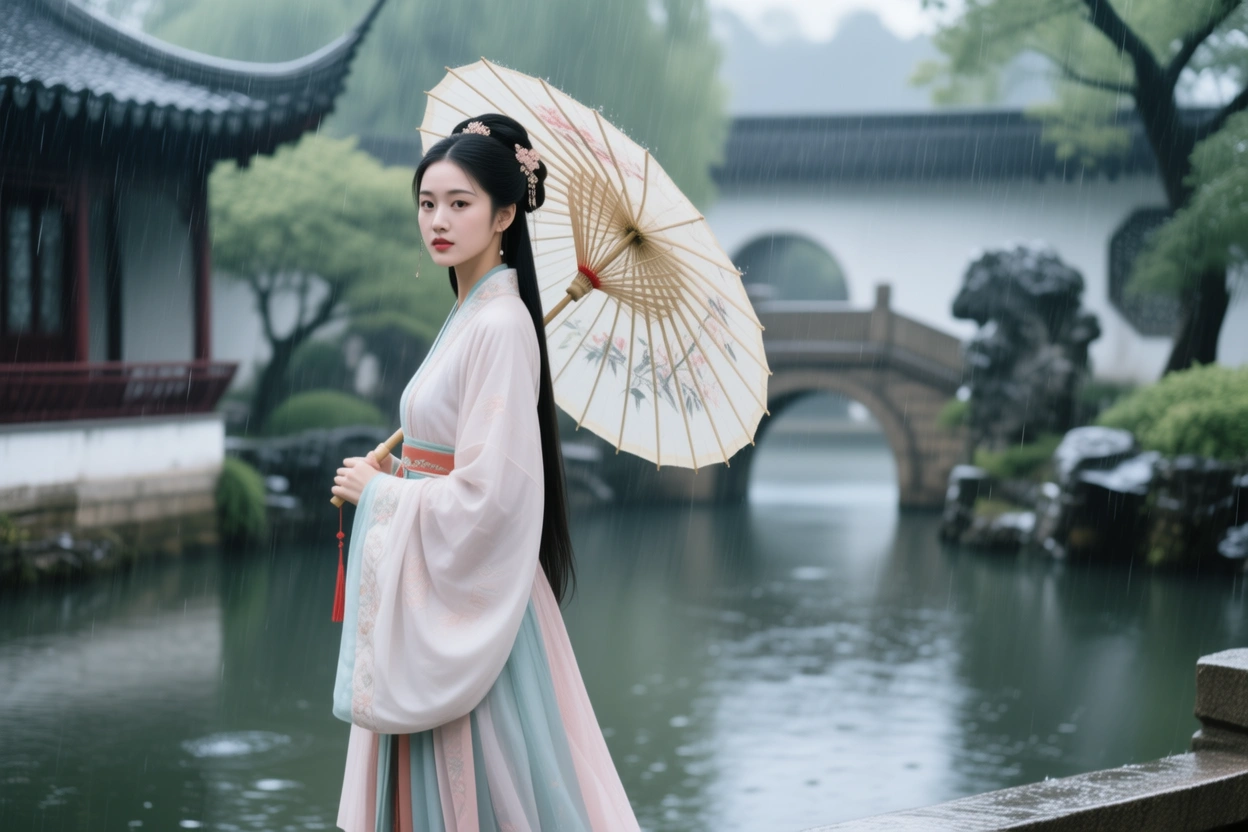
Generate an image that matches the human pose outlined in Image 1 and follows this description: A Chinese woman in a Hanfu is holding an oil-paper umbrella in the rain, with a Suzhou garden in the background.
image39
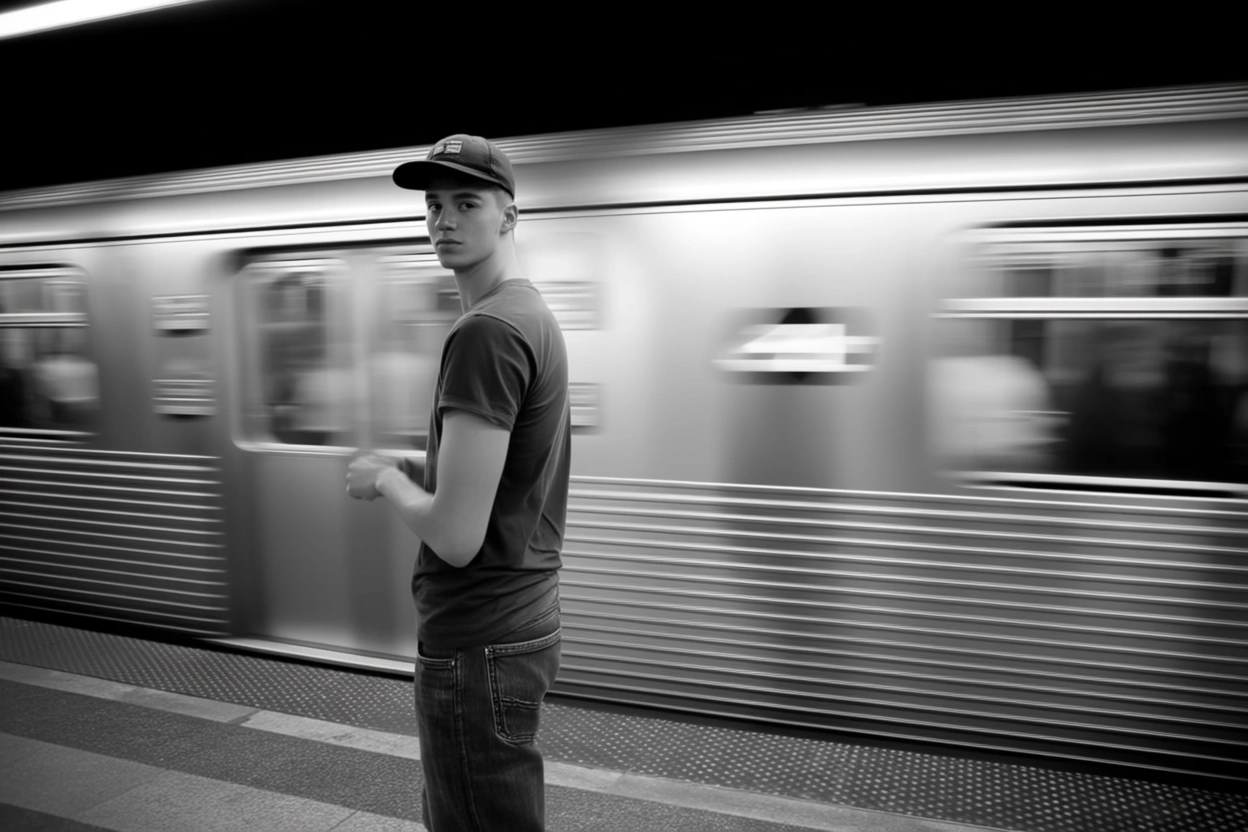
Generate an image that matches the human pose outlined in Image 1 and follows this description: A young man stands on a subway platform. He wears a baseball cap, a T-shirt, and jeans. A train is speeding by behind him.

Text editing

Input imageOutput imageInput imageOutput image
image
image
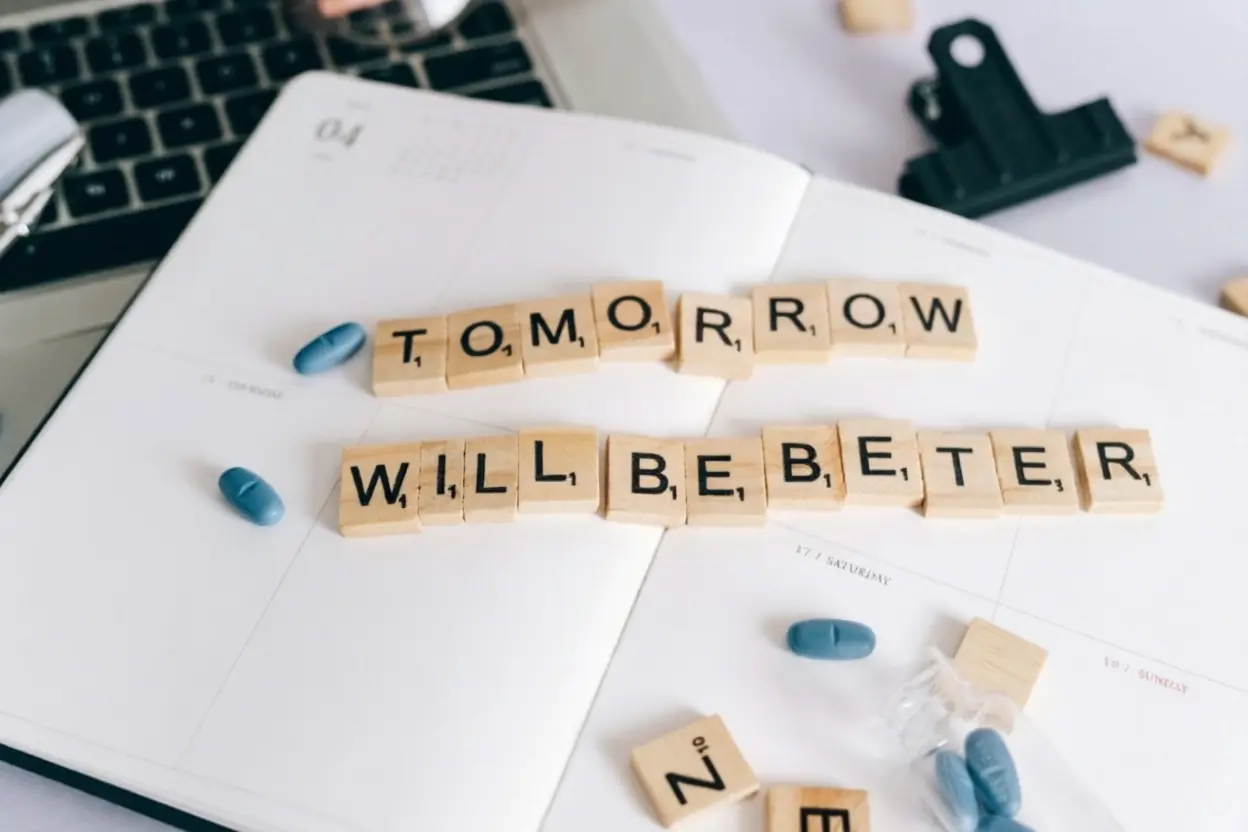
Replace 'HEALTH INSURANCE' on the Scrabble tiles with 'Tomorrow will be better'.
image
image
Change the phrase "Take a Breather" on the note to "Relax and Recharge".
Input imageOutput image
image53
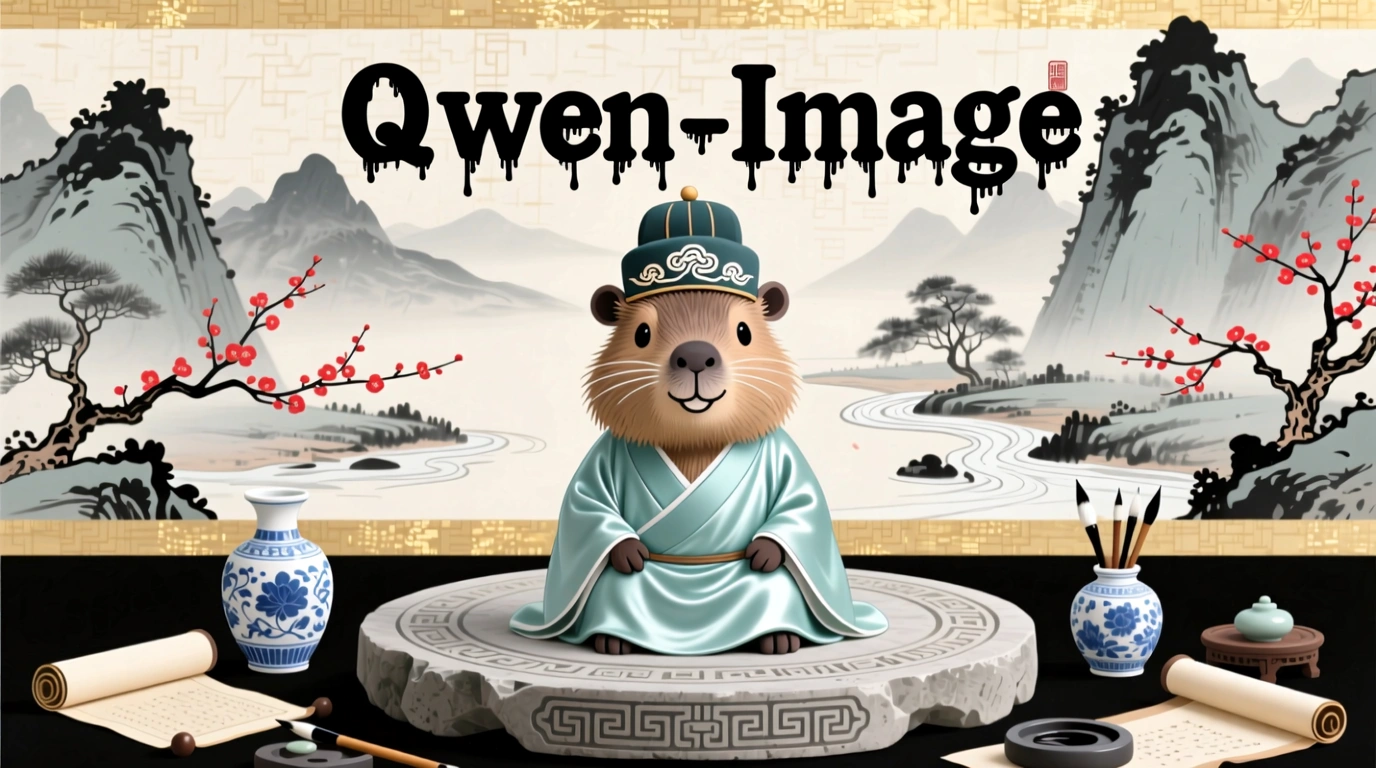
image45
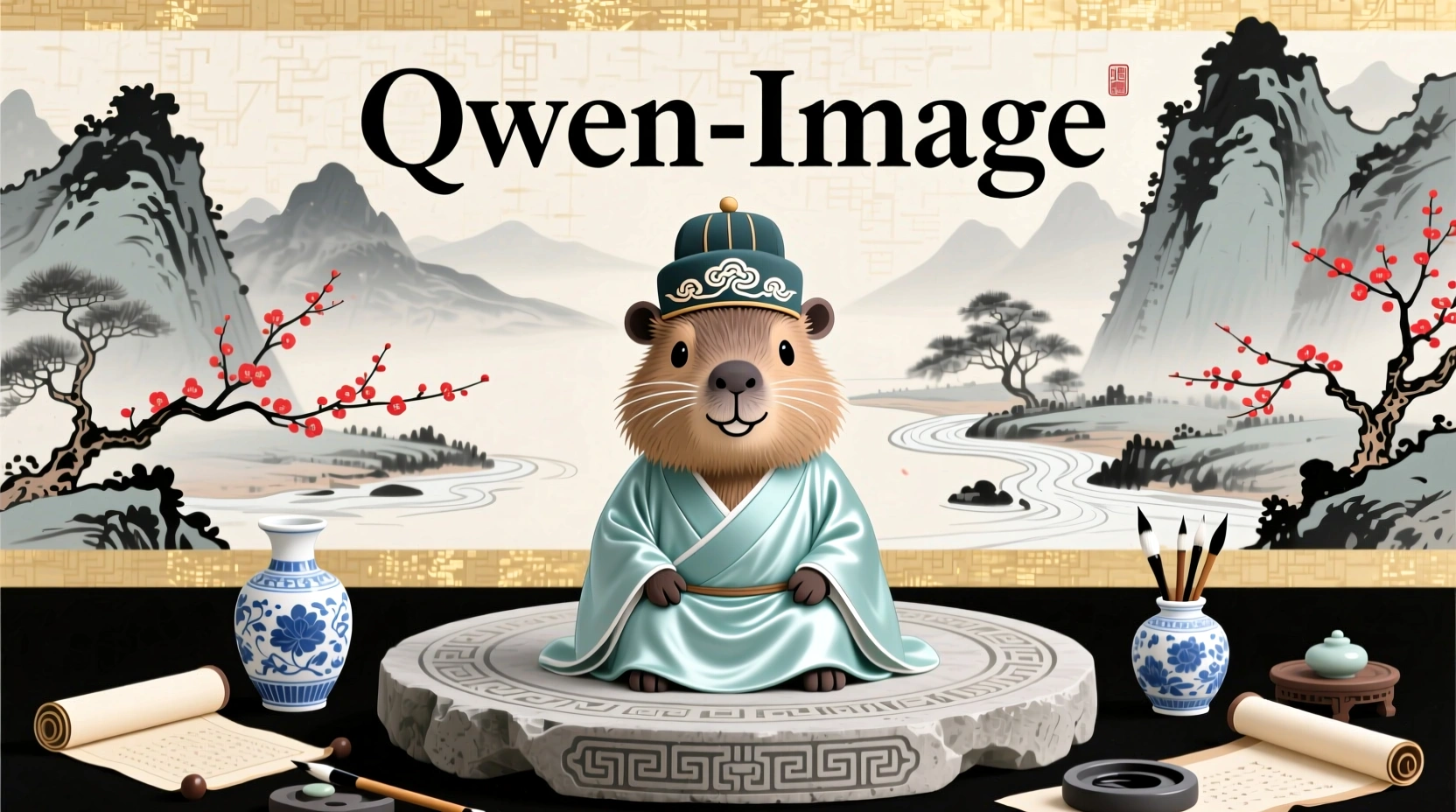
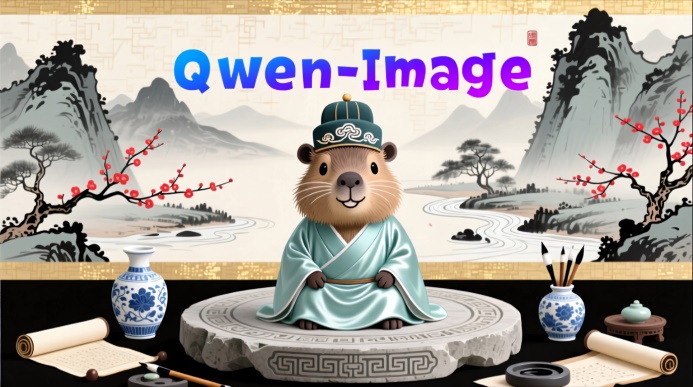
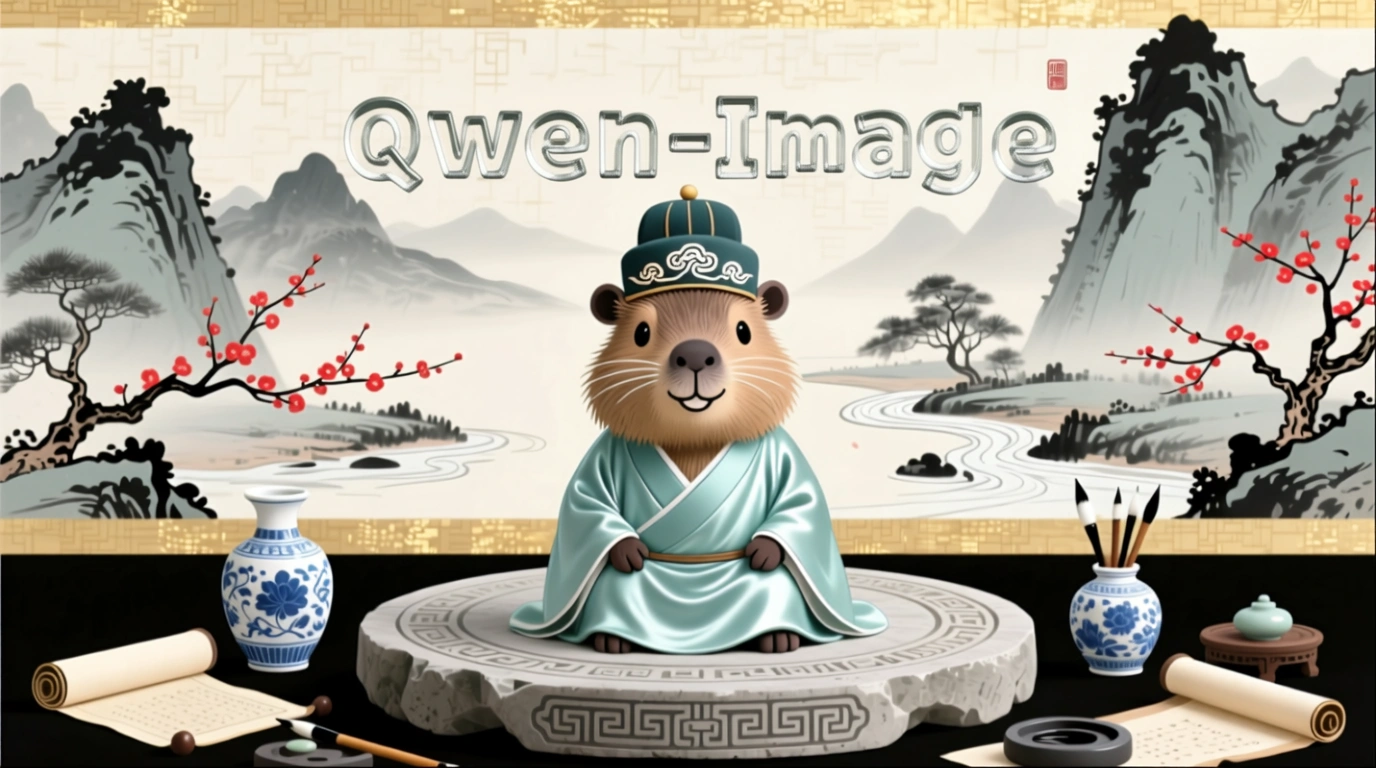
Change "Qwen-Image" to a black ink-drip font.
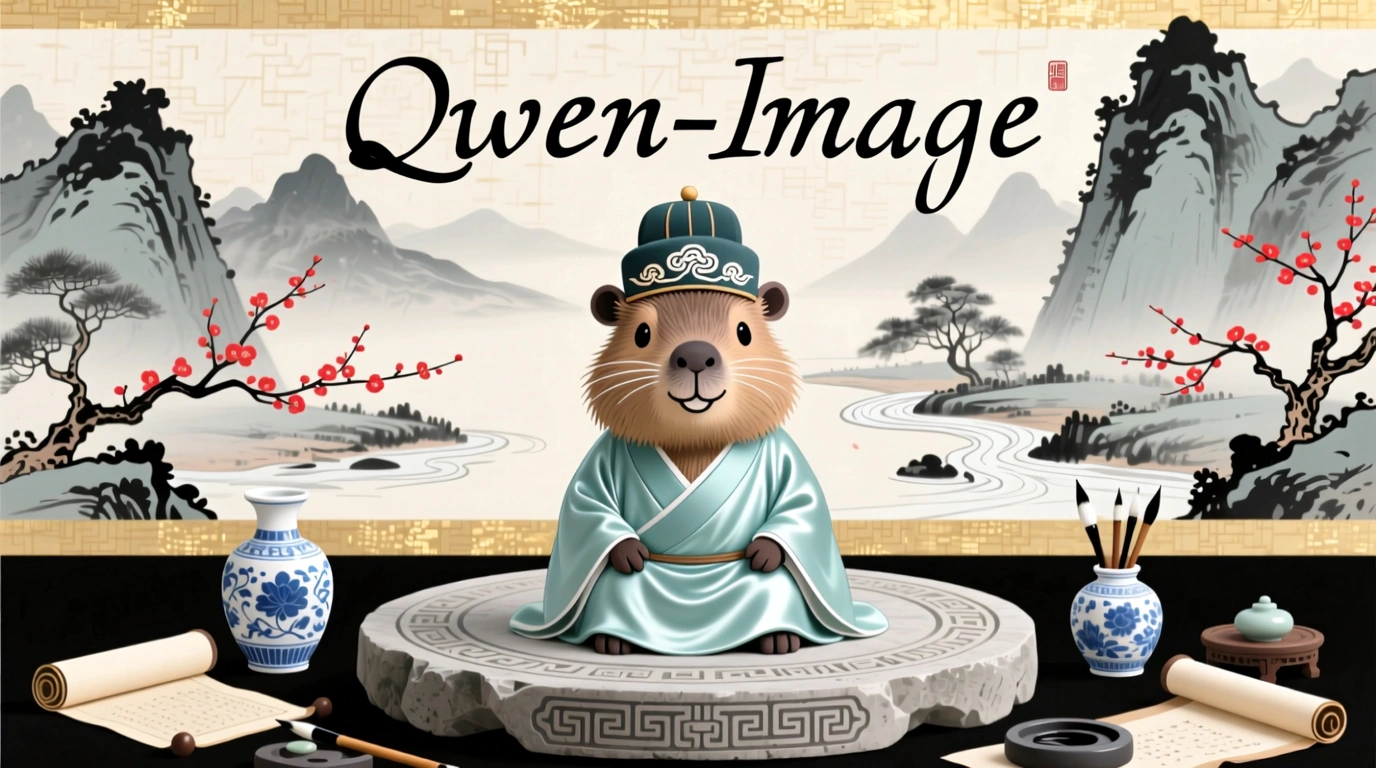
image46
Change "Qwen-Image" to a black handwriting font.
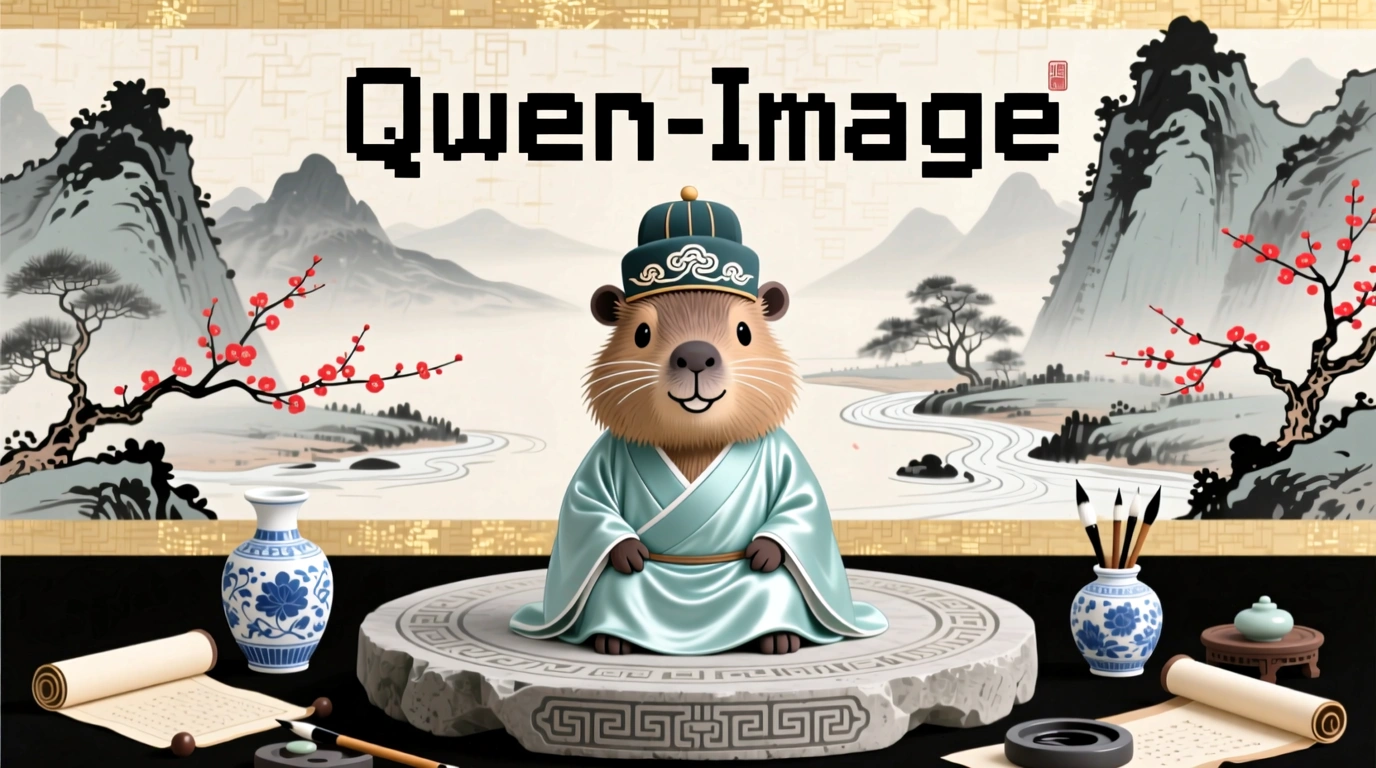
image49
Change "Qwen-Image" to a black pixel font.
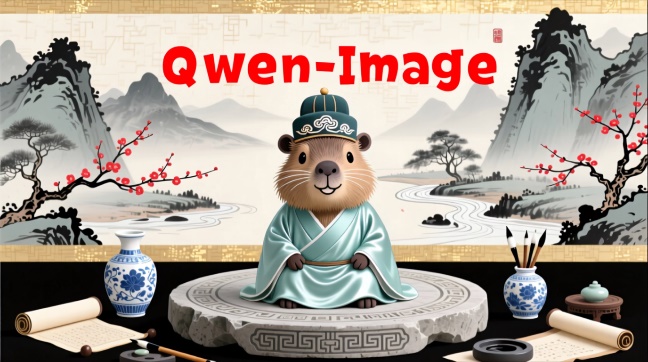
image54
Change "Qwen-Image" to red.
image57
Change "Qwen-Image" to a blue-purple gradient.
image59
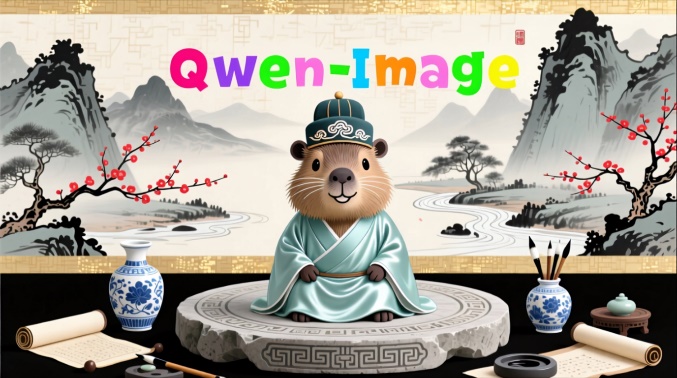
Change "Qwen-Image" to candy colors.
image63
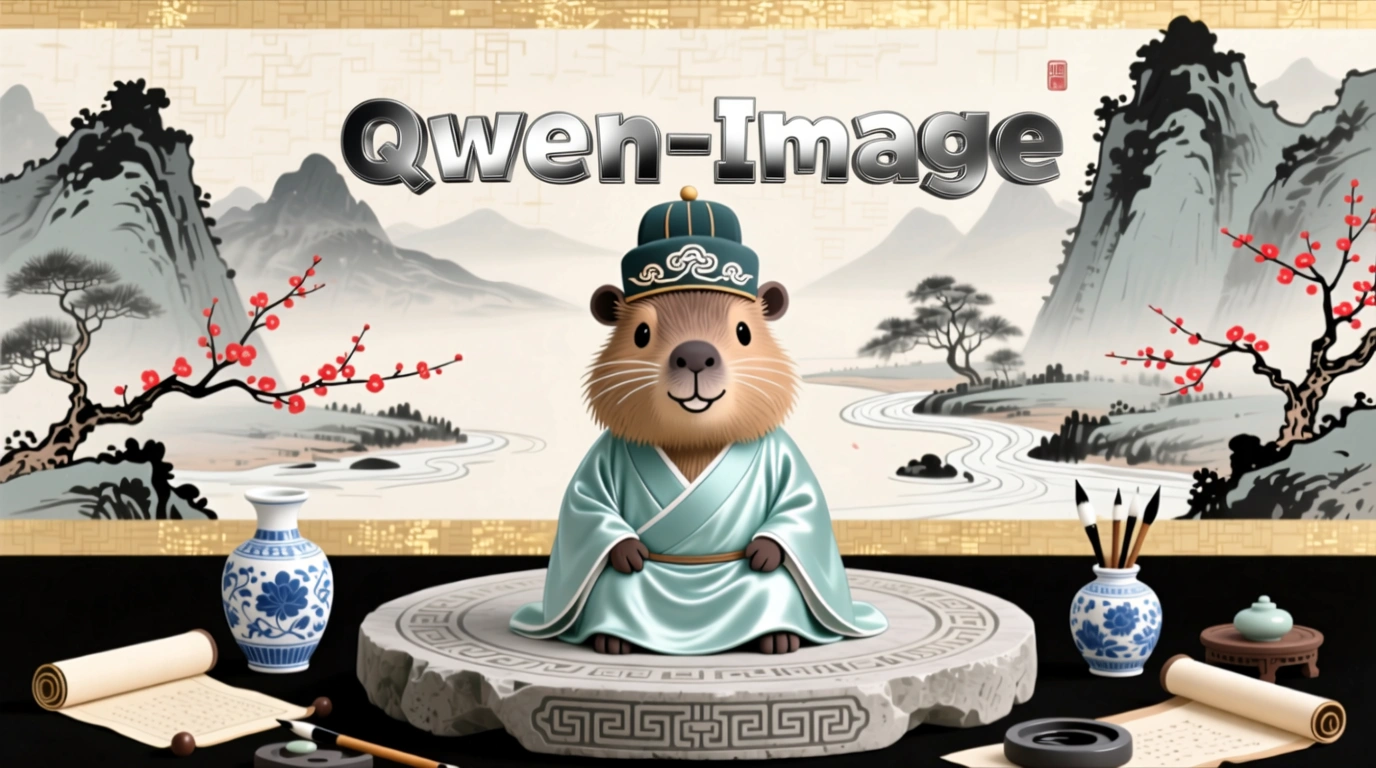
Change the material of "Qwen-Image" to metal.
image64
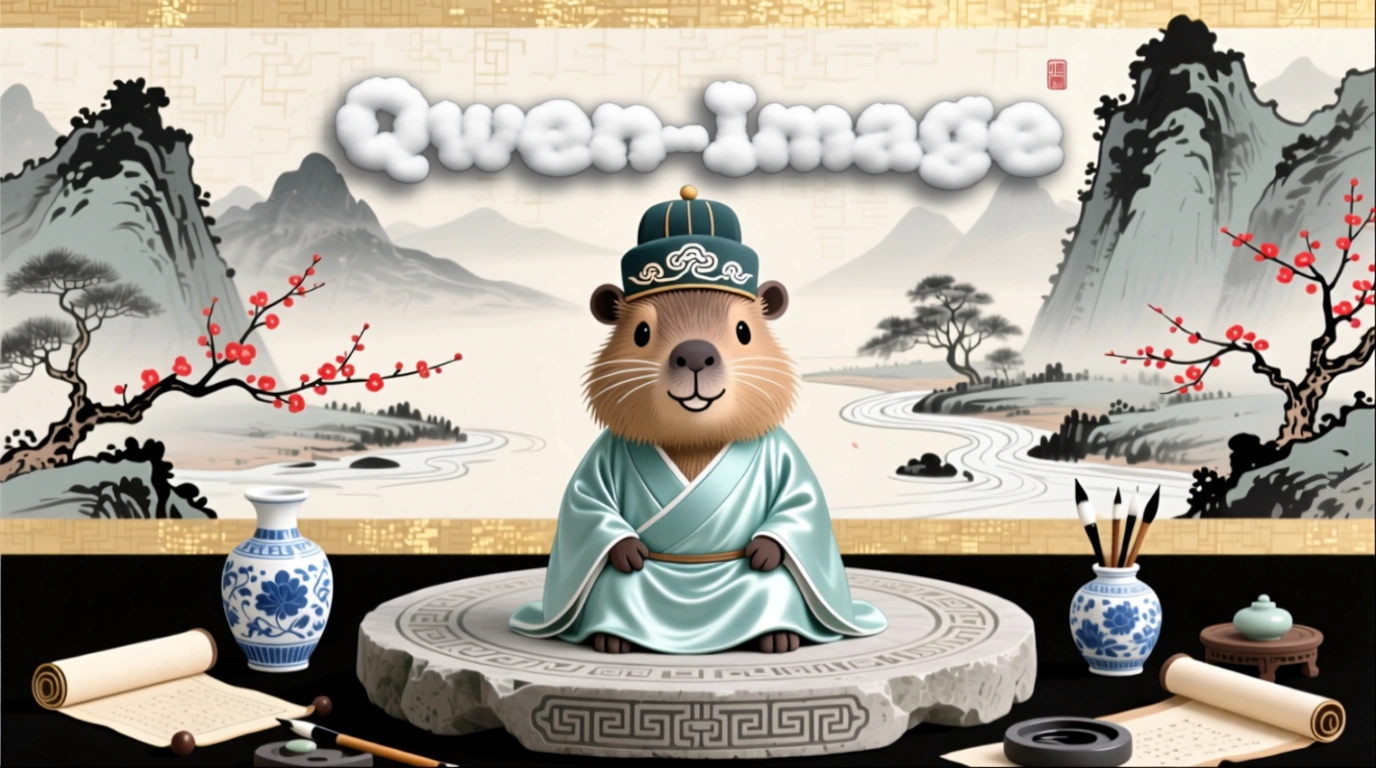
Change the material of "Qwen-Image" to clouds.
image67
Change the material of "Qwen-Image" to glass.

Add, delete, replace, and modify

Input imageOutput imageInput imageOutput image
image
image
Add a small wooden sign in front of the penguin that says "Welcome to Penguin Beach".
image
image
Remove the hair from the plate.
image
image
Change the peaches to apples.
image
image
Make her close her eyes.

Viewpoint transformation

Input imageOutput imageInput imageOutput image
image
image
Get a front view.
image
image
Face left.
image
image
Get a rear view.
image
image
Face right.

Background replacement

Input imageOutput image
image
image
Change the background to a beach.
image
Replace the original background with a realistic modern classroom scene. In the center of the background is a traditional dark green or black blackboard. The 'Qwen Cloud' are neatly written on the blackboard in white chalk.

Old photo processing

Input imageOutput image
image
image
Restore the old photo, remove scratches, reduce noise, enhance details, high resolution, realistic image, natural skin tone, clear facial features, no distortion.
image31
image32
Intelligently colorize the image based on its content to make it more vivid.

Billing and rate limits

For free quota and pricing, see pricing. For rate limits, see Rate limits. Billing details:
  • Billing is based on the number of successfully generated images. Failed model calls or processing errors do not incur fees or consume the free quota.
  • You can enable the 'Free quota only' feature to avoid extra charges after your free quota is used up. For more information, see Free quota for new users.

API reference

For the input and output parameters of the API, see Qwen - image editing.

Error codes

If a call fails, see Error messages.

FAQ

Q: What languages do the Qwen image editing models support? They officially support Simplified Chinese and English. Other languages may work, but results are not guaranteed. Q: How do I view model invocation metrics? One hour after a model invocation completes, go to the Monitoring page to view metrics such as invocation count and success rate. For more information, see Bill query and cost management. Q: How do I get the domain name whitelist for image storage? Images generated by models are stored in OSS. The API returns a temporary public URL. To configure a firewall whitelist for this download URL, note the following: The underlying storage may change dynamically. This topic does not provide a fixed OSS domain name whitelist to prevent access issues caused by outdated information. If you have security control requirements, contact your account manager to obtain the latest OSS domain name list. For more information, see Images & videos FAQ.