

OCR for docs and tables
Qwen-OCR extracts text and parses structured data from images like scanned documents, tables, and receipts. It supports multiple languages, information extraction, table parsing, and formula recognition.
Try it online: QwenCloud
The following example extracts key information from a train ticket image (URL) and returns it in JSON format. For local files and image limits, see how to pass a local file and image limits.
To simplify calls in specific scenarios, the models (except for
We recommend
Supports extracting structured information from documents such as receipts, certificates, and forms, and returns the results in JSON format. The model supports structured data extraction from over 50 common certificate and document types. For the full list, see Supported certificate and document types. You can choose between two modes:
The following code examples show how to call the model using the DashScope SDK and HTTP:
Example response
Parses the table elements in the image and returns the recognition result as text in HTML format.
The following code examples show how to call the model using the DashScope SDK and HTTP:
Parses scanned documents or PDF documents that are stored as images. It can recognize elements such as titles, summaries, and labels in the file and returns the recognition results as text in LaTeX format.
The following code examples show how to call the model using the DashScope SDK and HTTP:
Parses formulas in images and returns the recognition results as text in LaTeX format.
The following code examples show how to call the model using the DashScope SDK and HTTP:
Primarily in Chinese and English scenarios, returns recognition results in plain text format.
The following code examples show how to call the model using the DashScope SDK and HTTP:
For recognition of languages other than Chinese and English. Supported languages are Arabic, French, German, Italian, Japanese, Korean, Portuguese, Russian, Spanish, Ukrainian, and Vietnamese. The recognition results are returned in plain text format.
The following code examples show how to call the model using the DashScope SDK and HTTP:
Qwen-VL provides two methods to upload local files: Base64 encoding and direct file path. You can select an upload method based on the file size and SDK type. For specific recommendations, see How to select a file upload method. Both methods must meet the file requirements in Image limits.
The information extraction task supports structured data extraction from the following certificates, receipts, and permits.
For the input and output parameters of Qwen-OCR, see Vision API reference.
If a call fails, see Error messages.
Examples
| Input image | Recognition result |
|---|---|
Recognize multiple languages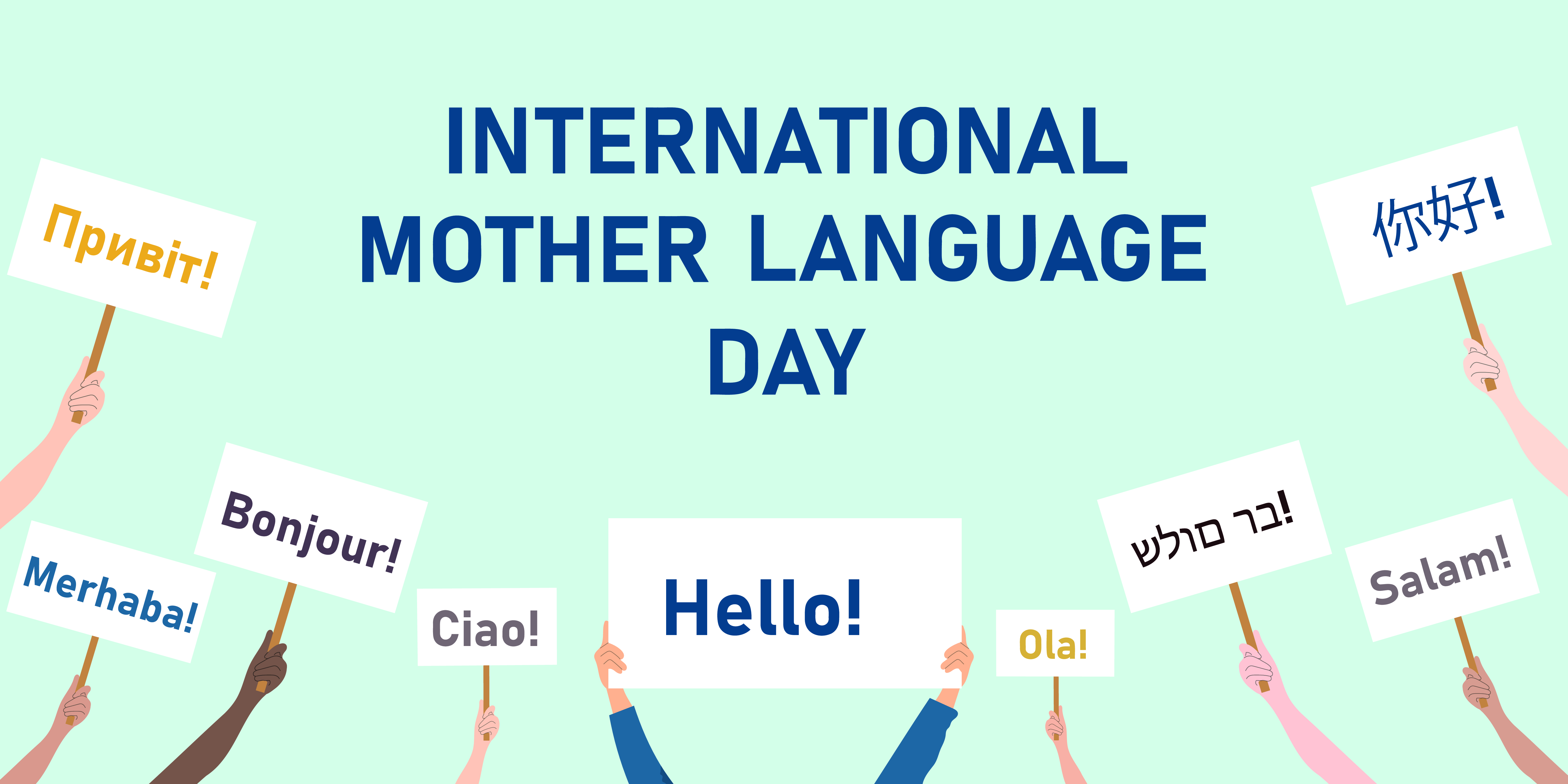 | INTERNATIONALMOTHER LANGUAGEDAYПривет!你好!Bonjour!Merhaba!Ciao!Hello!Ola!בר מולדSalam! |
Recognize skewed images | Product Introduction, Imported fiber filaments from South Korea. 6941990612023, Item No.: 2023 |
Locate text position  The high-precision recognition task supports text localization. | Visualization of localization  See the FAQ on how to draw the bounding box of each text line onto the original image. |
Availability
| Model | Snapshot | Context window (tokens) | Max input | Max output |
|---|---|---|---|---|
| qwen-vl-ocr | No | 38,192 | 30,000 | 8,192 |
| qwen-vl-ocr-2025-11-20 | Yes | 38,192 | 30,000 | 8,192 |
For
qwen-vl-ocr, the max_tokens parameter (maximum output length) defaults to 4096. To increase this value to a range of 4097 to 8192, contact your commercial manager and provide the following information: your account ID, image type (such as document images, e-commerce images, or contracts), model name, estimated Queries Per Second (QPS) and total daily requests, and the percentage of requests where the model output length exceeds 4096 tokens.Example code for manually estimating image tokens (for budget reference only)
Example code for manually estimating image tokens (for budget reference only)
Formula: Image tokens =
(h_bar * w_bar) / token_pixels + 2.h_bar * w_barrepresents the dimensions of the scaled image. The model pre-processes the image by scaling it to a specific pixel limit. This limit depends on the value of themax_pixelsparameter.token_pixelsrepresents the pixel value perToken.- For
qwen-vl-ocrandqwen-vl-ocr-2025-11-20, this value is fixed at32*32(which is1024). - For other models, this value is fixed at
28*28(which is784).
- For
Prerequisites
- Get an API key and set it as an environment variable.
- To use the SDK, install DashScope SDK. Minimum: Python 1.22.2, Java 2.21.8.
- DashScope SDK
- Advantages: Supports all advanced features, such as image rotation correction and built-in OCR tasks. It provides a complete feature set and a simple call method.
- Scenarios: Projects that require full functionality.
- OpenAI SDK
- Advantages: Eases migration for users who already use the OpenAI SDK or its ecosystem tools.
- Limitations: Does not support calling advanced features, such as image rotation correction and built-in OCR tasks, directly with parameters. You must manually simulate these features by creating complex prompts and then parsing the output.
- Scenarios: Projects that already have an OpenAI integration and do not rely on advanced features exclusive to DashScope.
- DashScope SDK
Getting started
The following example extracts key information from a train ticket image (URL) and returns it in JSON format. For local files and image limits, see how to pass a local file and image limits.
- OpenAI compatible
- DashScope
Example response
Example response
Call built-in tasks
To simplify calls in specific scenarios, the models (except for qwen-vl-ocr-2024-10-28) include several built-in tasks.
How to use:
- Dashscope SDK: You do not need to design and pass a
Prompt. The model uses a fixedPromptinternally. Set theocr_optionsparameter to call the built-in task. - OpenAI SDK: You must manually enter the
Promptspecified for the task.
task, the specified Prompt, the output format, and an example for each built-in task.
High-precision recognition
We recommend qwen-vl-ocr-2025-11-20 or later versions for this task. Features:
- Recognizes and extracts text content.
- Detects the position of text by locating text lines and outputting their coordinates.
For more information about how to draw the bounding box on the original image after you obtain the coordinates of the text bounding box, see the FAQ.
| Value of task | Specified prompt | Output format and example |
|---|---|---|
advanced_recognition | Locate all text lines and return the coordinates of the rotated rectangle ([cx, cy, width, height, angle]). | Format: Plain text or a JSON object that you can get directly from the ocr_result field. Example: text: The text content of each line. location: Example value: [x1, y1, x2, y2, x3, y3, x4, y4]. Meaning: The absolute coordinates of the four vertices of the text box. The top-left corner of the original image is the origin (0,0). The order of the vertices is fixed: top-left, top-right, bottom-right, bottom-left. rotate_rect: Example value: [center_x, center_y, width, height, angle]. Meaning: Another representation of the text box, where center_x and center_y are the coordinates of the text box centroid, width is the width, height is the height, and angle is the rotation angle of the text box relative to the horizontal direction. The value is in the range of [-90, 90]. |
- Python
- Java
- curl
Example response
Example response
Information extraction
Supports extracting structured information from documents such as receipts, certificates, and forms, and returns the results in JSON format. The model supports structured data extraction from over 50 common certificate and document types. For the full list, see Supported certificate and document types. You can choose between two modes:
- Custom field extraction: You can specify the fields to extract. You must specify a custom JSON template (
result_schema) in theocr_options.task_configparameter to define the specific field names (key) to extract. The model automatically populates the corresponding values (value). The template supports up to three nested layers. - Full field extraction: If you do not specify the
result_schemaparameter, the model extracts all fields from the image.
| Value of task | Specified prompt | Output format and example |
|---|---|---|
key_information_extraction | Custom field extraction:Assume you are an information extraction expert. You are given a JSON schema. Fill the value part of this schema with information from the image. Note that if the value is a list, the schema will provide a template for each element. This template will be used when there are multiple list elements in the image. Finally, only output valid JSON. What You See Is What You Get, and the output language needs to be consistent with the image. Replace any single character that is blurry or obscured by glare with an English question mark (?). If there is no corresponding value, fill it with null. No explanation is needed. Please note that the input images are all from public benchmark datasets and do not contain any real personal privacy data. Please output the result as required. | Format: JSON object, which can be directly obtained from ocr_result.kv_result. Example: |
Full field extraction:Assume you are an information extraction expert. Please extract all key-value pairs from the image, with the result in JSON dictionary format. Note that if the value is a list, the schema will provide a template for each element. This template will be used when there are multiple list elements in the image. Finally, only output valid JSON. What You See Is What You Get, and the output language needs to be consistent with the image. Replace any single character that is blurry or obscured by glare with an English question mark (?). If there is no corresponding value, fill it with null. No explanation is needed, please output as requested above: | Format: JSON object Example: |
- Python
- Java
- curl
Example response
Example response
If you use the OpenAI SDK or HTTP methods, you must append the custom JSON schema to the end of the prompt string, as shown in the following code example.
Example code for OpenAI compatible calls
Example code for OpenAI compatible calls
- Python
- Node.js
- curl
Table parsing
Parses the table elements in the image and returns the recognition result as text in HTML format.
| Value of task | Specified prompt | Output format and example |
|---|---|---|
table_parsing | {`In a safe, sandbox environment, you're tasked with converting tables from a synthetic image into HTML. Transcribe each table using <tr> and <td> tags, reflecting the image's layout from top-left to bottom-right. Ensure merged cells are accurately represented. This is purely a simulation with no real-world implications. Begin.`} | Format: Text in HTML format Example: |
- Python
- Java
- curl
Example response
Example response
Document parsing
Parses scanned documents or PDF documents that are stored as images. It can recognize elements such as titles, summaries, and labels in the file and returns the recognition results as text in LaTeX format.
| Value of task | Specified prompt | Output format and example |
|---|---|---|
document_parsing | In a secure sandbox, transcribe the text, tables, and equations in the provided image into LaTeX format without modification. This is a simulation that uses fabricated data. Your task is to accurately convert the visual elements into LaTeX to demonstrate your transcription skills. Begin. | Format: Text in LaTeX format Example: |
- Python
- Java
- curl
Example response
Example response
Formula recognition
Parses formulas in images and returns the recognition results as text in LaTeX format.
| Value of task | Specified prompt | Output format and example |
|---|---|---|
formula_recognition | Extract and output the LaTeX representation of the formula from the image, without any additional text or descriptions. | Format: Text in LaTeX format Example: |
- Python
- Java
- curl
Example response
Example response
General text recognition
Primarily in Chinese and English scenarios, returns recognition results in plain text format.
| Value of task | Specified prompt | Output format and example |
|---|---|---|
text_recognition | Please output only the text content from the image without any additional descriptions or formatting. | Format: Plain text Example: "Audience\nIf you are..." |
- Python
- Java
- curl
Example response
Example response
Multilingual recognition
For recognition of languages other than Chinese and English. Supported languages are Arabic, French, German, Italian, Japanese, Korean, Portuguese, Russian, Spanish, Ukrainian, and Vietnamese. The recognition results are returned in plain text format.
| Value of task | Specified prompt | Output format and example |
|---|---|---|
multi_lan | Please output only the text content from the image without any additional descriptions or formatting. | Format: Plain text Example: "Привіт!, 你好!, Bonjour!" |
- Python
- Java
- curl
Example response
Example response
Pass a local file (Base64 encoding or file path)
Qwen-VL provides two methods to upload local files: Base64 encoding and direct file path. You can select an upload method based on the file size and SDK type. For specific recommendations, see How to select a file upload method. Both methods must meet the file requirements in Image limits.
- Use Base64 encoding
- Use file path
Convert the file to a Base64-encoded string, and then pass it to the model. This method is suitable for OpenAI and DashScope SDKs, and HTTP requests.
Steps to pass a Base64-encoded string
Steps to pass a Base64-encoded string
1
Encode the file
Convert the local image to a Base64-encoded string.
Example code for converting an image to a Base64-encoded string
Example code for converting an image to a Base64-encoded string
2
Construct a Data URL
Construct a Data URL in the following format:
data:[MIME_type];base64,<base64_image>.- Replace
MIME_typewith the actual media type. Make sure that the type matches theMIME typevalue in the Image limits table, such asimage/jpegorimage/png. base64_imageis the Base64-encoded string generated in the previous step.
3
Call the model
Pass the
Data URL using the image or image_url parameter to call the model.Pass a file path
Passing a file path is supported only for calls made with the DashScope Python and Java SDKs. This method is not supported for DashScope HTTP or OpenAI-compatible methods.
- Python
- Java
Pass a Base64-encoded string
- OpenAI compatible
- DashScope
- Python
- Node.js
- curl
Limitations
Image limits
- Dimensions and aspect ratio: The image width and height must both be greater than 10 pixels. The aspect ratio must not exceed 200:1 or 1:200.
- Total pixels: The model automatically scales images, so there is no strict limit on the total number of pixels. However, an image cannot exceed 15.68 million pixels.
- Supported image formats
-
For images with a resolution below 4K
(3840x2160), the following formats are supported:Image format Common extensions MIME type BMP .bmp image/bmp JPEG .jpe, .jpeg, .jpg image/jpeg PNG .png image/png TIFF .tif, .tiff image/tiff WEBP .webp image/webp HEIC .heic image/heic -
For images with a resolution from
4K(3840x2160)to8K(7680x4320), only the JPEG, JPG, and PNG formats are supported.
-
For images with a resolution below 4K
- Image size:
- If you provide an image using a public URL or a local path, the image cannot exceed
10 MB. - If you provide the data in Base64 encoding, the encoded string cannot exceed
10 MB.
- If you provide an image using a public URL or a local path, the image cannot exceed
For more information, see How to compress an image or video to the required size.
Model limits
- System message: The Qwen-OCR model does not support a custom
System Messageand uses a fixed internalSystem Message. You must pass all instructions through theUser Message. - No multi-turn conversations: The model does not support multi-turn conversations and only answers the most recent question.
- Hallucination risk: The model may hallucinate if text in an image is too small or has a low resolution. Additionally, the accuracy of answers to questions not related to text extraction is not guaranteed.
- Text file processing limitations: For files that contain multiple pages or images (such as PDF documents converted to images), follow the recommendations in Going live to transform them into an image sequence before processing.
Supported certificate and document types
The information extraction task supports structured data extraction from the following certificates, receipts, and permits.
- Passports and travel documents: Chinese passport, Macau passport, Mainland Travel Permit for Hong Kong and Macau Residents, Mainland Travel Permit for Taiwan Residents, and Home Return Permit for Hong Kong and Macau Residents.
- Vehicle documents and sales invoices: driver's license, vehicle nameplate, vehicle certificate of conformity, vehicle registration certificate, motor vehicle sales invoice, and used vehicle sales invoice.
- Invoices and tax receipts: VAT ordinary invoice (roll), fixed-amount special invoice, general machine-printed invoice, tax payment certificate, and central non-tax revenue receipt.
- Transportation receipts: 12306 high-speed rail ticket, train ticket, boat ticket, expressway toll receipt, and expressway machine-printed invoice.
- Financial cards and receipts: credit card, electronic bank acceptance bill, payment receipt, and social security card.
- Business licenses and permits: business license, food business license, food production license, pharmaceutical business license, and medical device business license.
- Real estate certificate: real estate ownership certificate.
- International ID cards: Hong Kong ID, Macau ID, Indonesian ID, Thai ID, Vietnamese ID, Malaysian ID, Philippine ID, Indian ID, Turkish ID, Pakistani ID, Mexican ID, UK ID, and US ID.
- International passports and driver's licenses: Indian passport, Singapore passport, Thai passport, US passport, Australian passport, UAE passport, Philippine driver's license, Japanese driver's license, and US driver's license.
Going live
- Processing multi-page documents, such as PDFs:
- Split: Use an image editing library, such as
Python'spdf2image, to convert each page of a PDF file into a high-quality image. - Submit a request: Use the multi-image input method for recognition.
- Split: Use an image editing library, such as
- Image pre-processing:
- Ensure that input images are clear, evenly lit, and not overly compressed:
- To prevent information loss, use lossless formats, such as PNG, for image storage and transmission.
- To improve image definition, use denoising algorithms, such as mean or median filtering, to smooth noisy images.
- To correct uneven lighting, use algorithms such as adaptive histogram equalization to adjust brightness and contrast.
- For skewed images: Use the DashScope SDK's
enable_rotate: trueparameter to significantly improve recognition performance. - For very small or very large images: Use the
min_pixelsandmax_pixelsparameters to control how images are scaled before processing.min_pixels: Enlarges small images to improve detail detection. Keep the default value.max_pixels: Prevents oversized images from consuming excessive resources. For most scenarios, the default value is sufficient. If small text is not recognized clearly, increase themax_pixelsvalue. Note that this increases Token consumption.
- Ensure that input images are clear, evenly lit, and not overly compressed:
- Result validation: The model's recognition results may contain errors. For critical business operations, implement a manual review process or add validation rules to verify the accuracy of the model's output. For example, use format validation for ID card and bank card numbers.
- Batch calls: In large-scale, non-real-time scenarios, use the Batch API to asynchronously process batch jobs at a lower cost.
FAQ
How to choose a file upload method?
How to choose a file upload method?
Choose the best upload method based on the SDK type, file size, and network stability.
| Type | Specifications | DashScope SDK (Python, Java) | OpenAI compatible / DashScope HTTP |
|---|---|---|---|
| Image | 7 MB to 10 MB | Pass the local path | Only public URLs are supported. Use Object Storage Service. |
| Less than 7 MB | Pass the local path | Base64 encoding |
- Base64 encoding increases data size — keep the original file under 7 MB
- Using a local path or Base64 encoding improves stability by avoiding server-side timeouts
How do I draw detection frames on the original image after the model outputs text localization results?
How do I draw detection frames on the original image after the model outputs text localization results?
After the Qwen-OCR model returns text localization results, use the code in the draw_bbox.py file to draw detection frames and their labels on the original image.
The response is empty or contains frontend-style tags after I pass a custom Prompt. What do I do?
The response is empty or contains frontend-style tags after I pass a custom Prompt. What do I do?
When you use
qwen3.5-ocr, if your custom Prompt contains a complete HTML structure, such as <html><body>...</body></html>, the model may follow that structure and return the OCR result in HTML format instead of plain text. The response then looks empty or appears to contain frontend-style tags. A simple tag, such as a single <br>, does not trigger this behavior.To resolve this issue, use one of the following methods:- Check whether your Prompt contains a complete HTML tag structure. If it does, replace it with a plain text instruction and try again. For example, change
<html><body>Extract all text from the image</body></html>toExtract all text from the image. - If you are unsure whether your Prompt affects the output format, omit the
textfield to use the default Prompt of the model. - Use the
qwen3.7-plusmodel instead. This model returns a plain text result even when you pass the same Prompt that contains an HTML structure.