

Generate content from visual inputs
Visual input structure
Vision models accept images and videos alongside text prompts. Each message can contain multiple content types:
- Text prompt: Your question or instruction about the visual content
- Image URL: Direct link to an online image
- Base64 image: Encoded image data for local files
- Video URL: Direct link to video content (select models)
Make your first vision call
Prerequisites
- Get an API key and export it as an environment variable
- Install the SDK if using one (Python SDK 1.24.6+, Java SDK 2.21.10+)
- OpenAI Compatible: Best for new integrations and migrating from OpenAI
- DashScope: Use if you prefer the native SDK or need specific DashScope features
- OpenAI compatible
- DashScope
Full JSON response
Full JSON response
Compare model performance
Answer questions about images
Describe the content of an image or classify and label it, such as identifying people, places, animals, and plants.
| Input | Output |
|---|---|
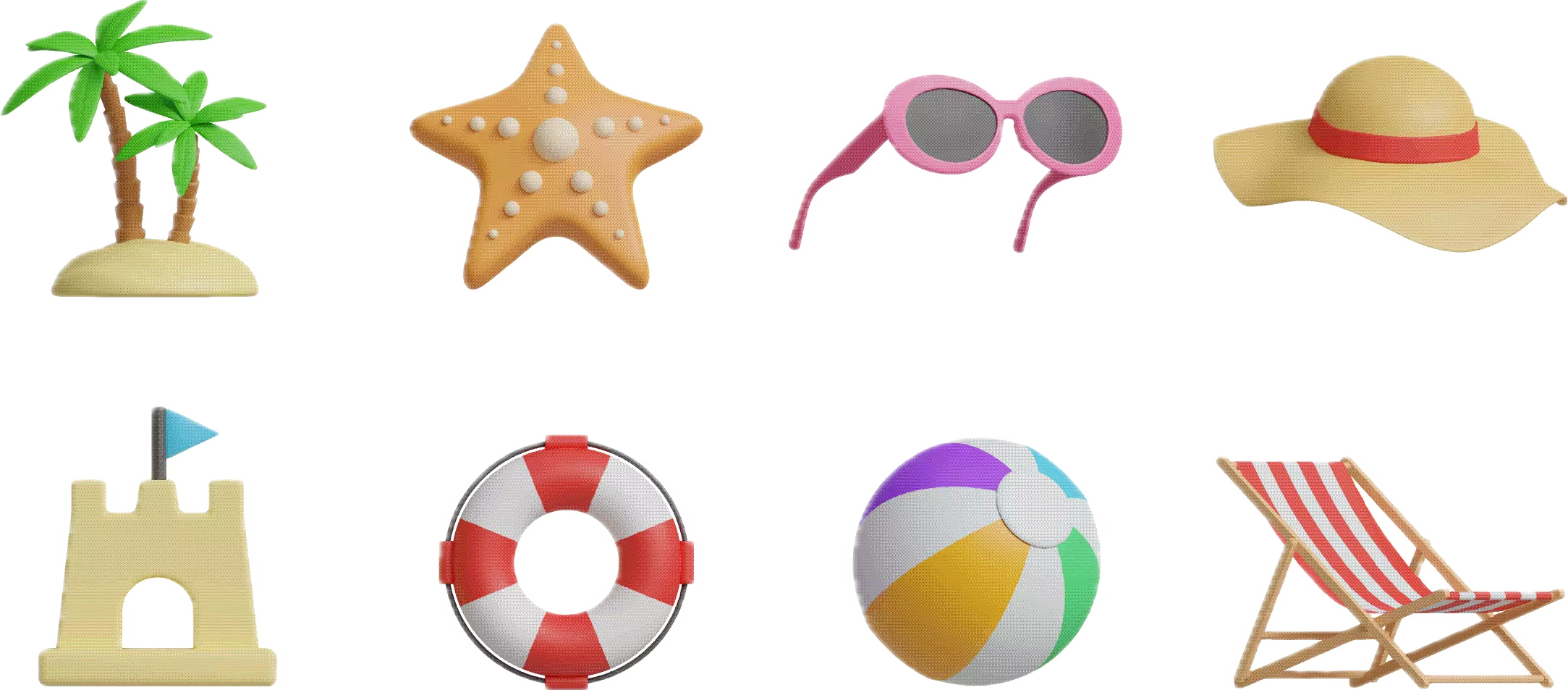 | When the sun is glaring, you should use the pink sunglasses from the picture. Sunglasses can effectively block strong light, reduce UV damage to your eyes, and help protect your vision and improve visual comfort in bright sunlight. |
Generate creative content from images
Generate vivid text descriptions based on image or video content. This is suitable for creative scenarios such as story writing, copywriting, and short video scripts.
| Input | Output |
|---|---|
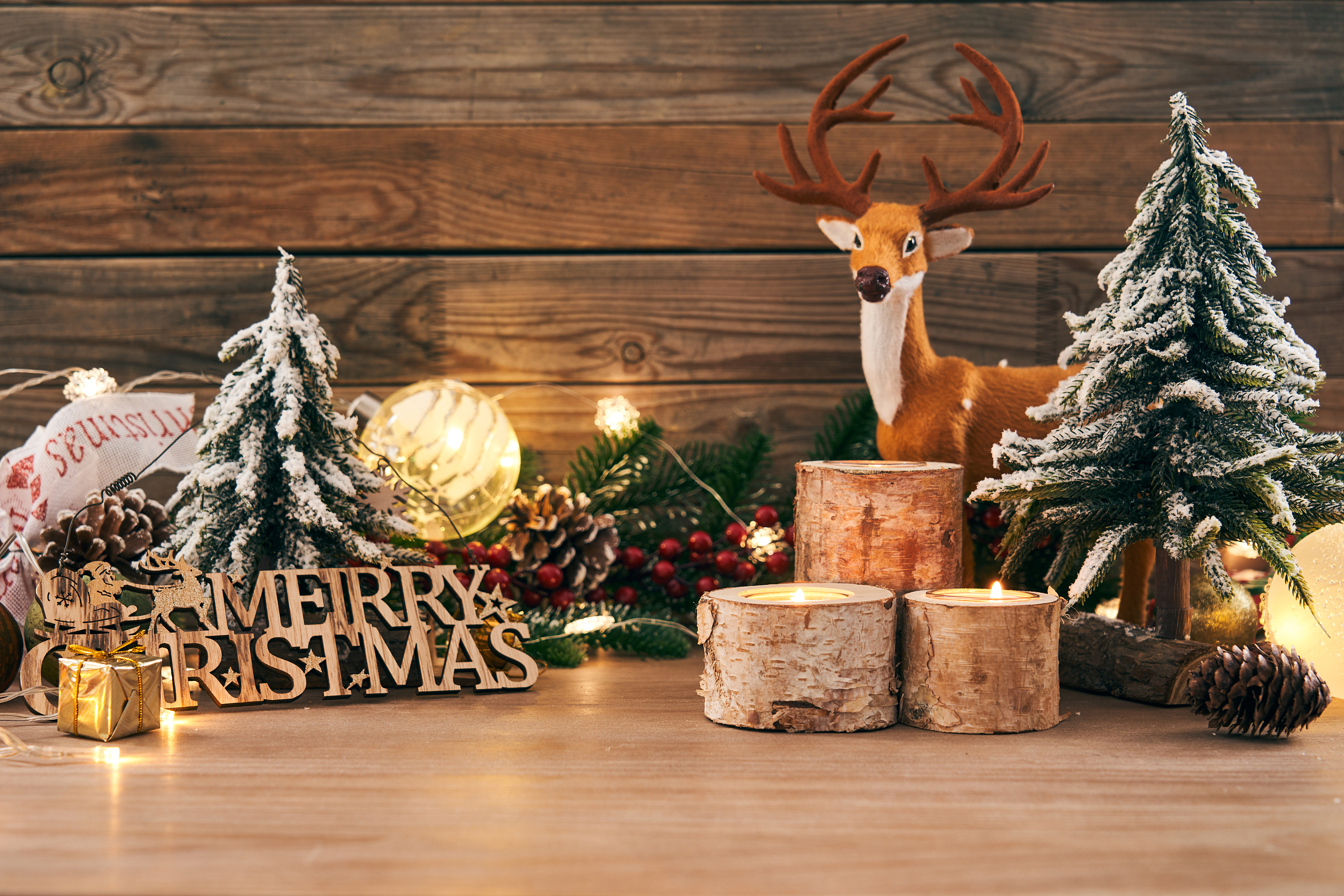 | Merry Christmas from our little winter wonderland! We're getting ready for the holidays with warm lights, pinecones, and plenty of rustic charm. Hope your season is filled with this much warmth and joy! |
Extract text and information
Recognize text and formulas in images or extract information from receipts, certificates, and forms, with support for formatted text output. The Qwen3-VL model has expanded its language support to 33 languages. For a list of supported languages, see Vision models.
| Input | Output |
|---|---|
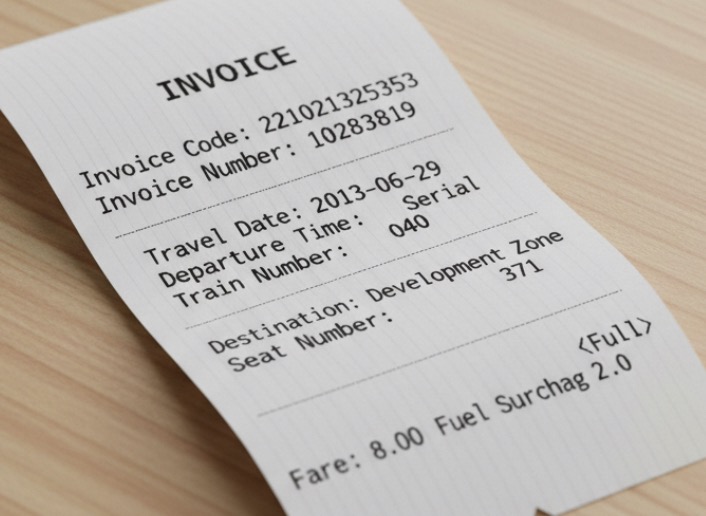 | {`{"Invoice Code": "221021325353", "Invoice Number": "10283819", "Destination": "Development Zone", "Fuel Surcharge": "2.0", "Fare": "8.00<Full>", "Travel Date": "2013-06-29", "Departure Time": "Serial", "Train Number": "040", "Seat Number": "371"}`} |
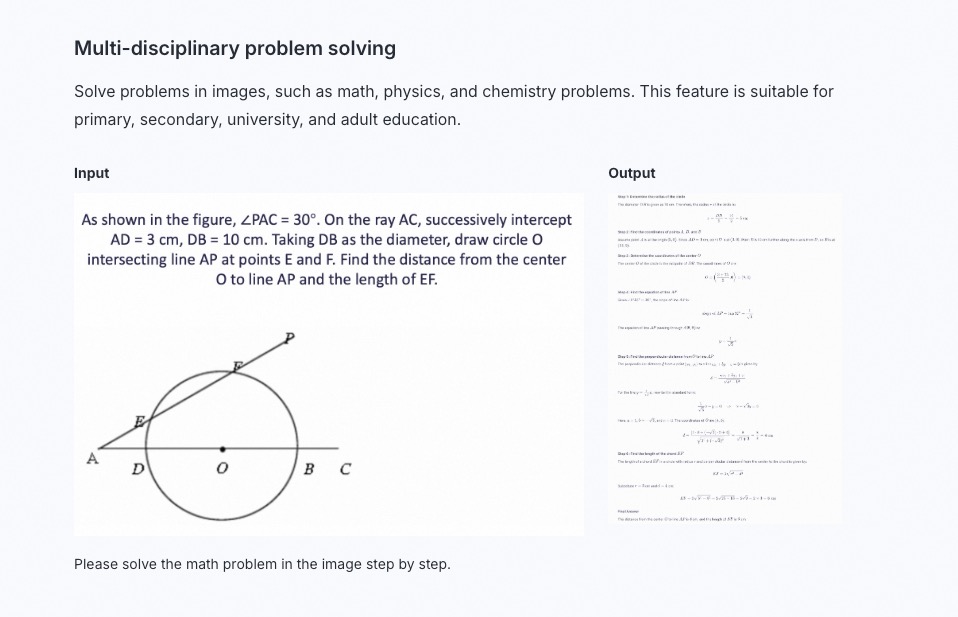
Solve complex visual problems
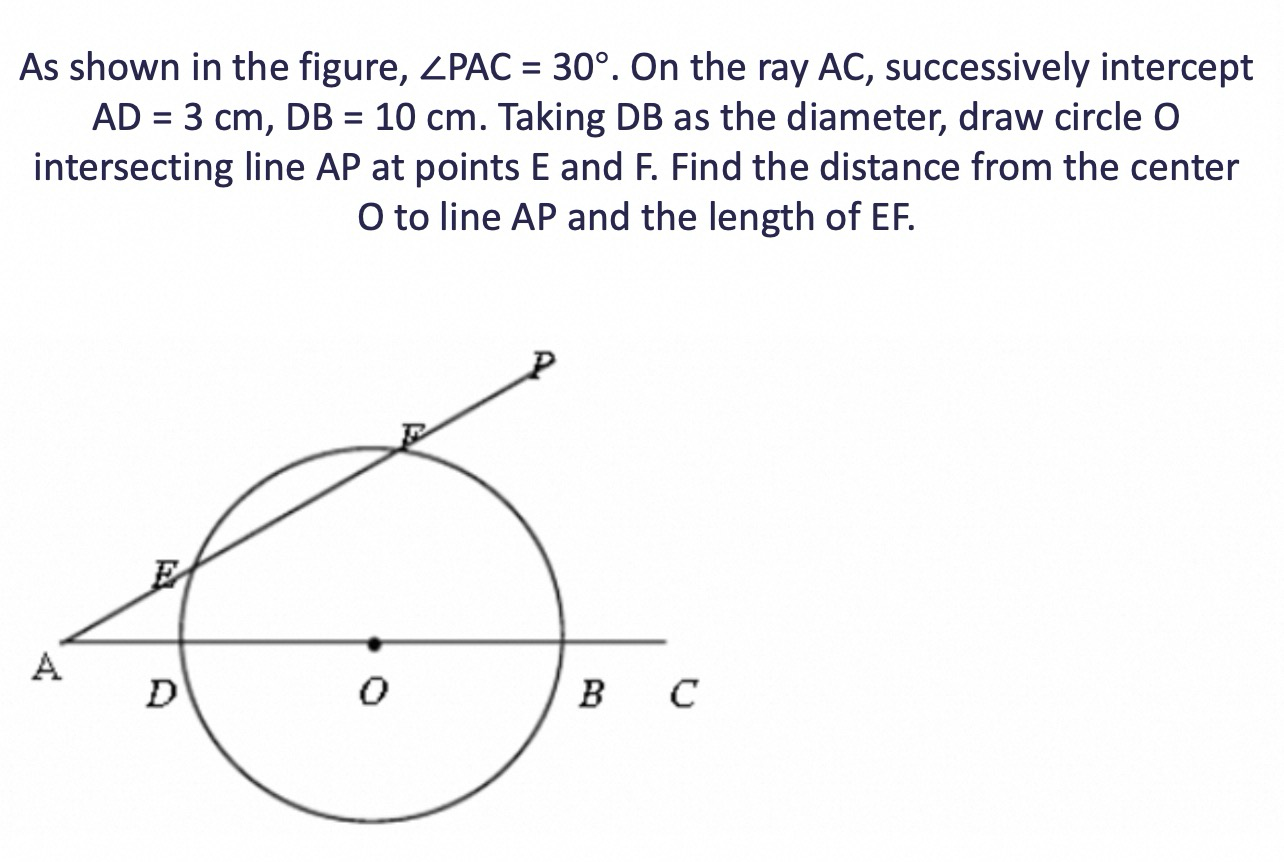
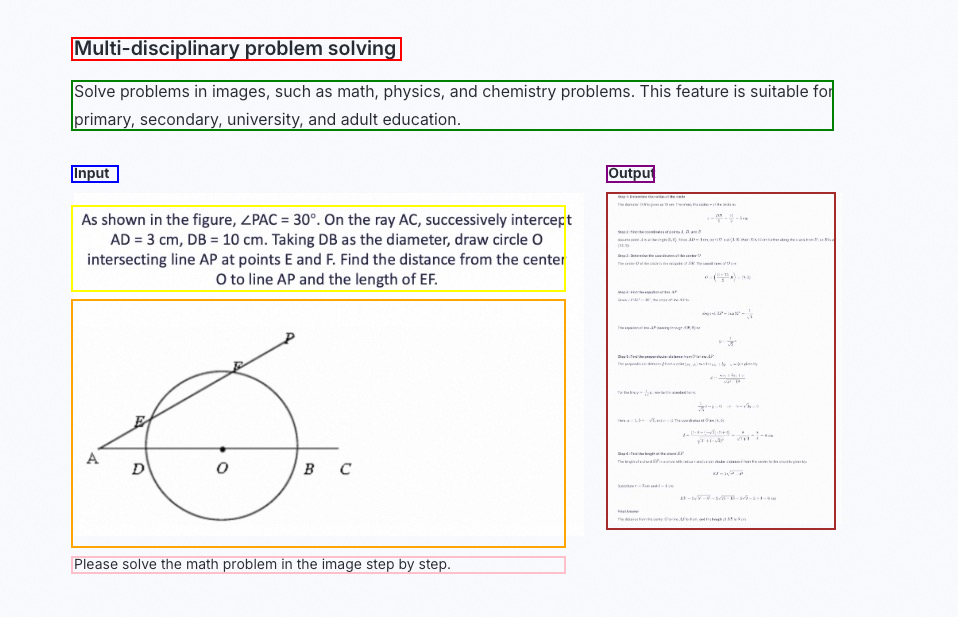
Solve problems in images, such as math, physics, and chemistry problems. This feature is suitable for primary, secondary, university, and adult education.
| Input | Output |
|---|---|
 | 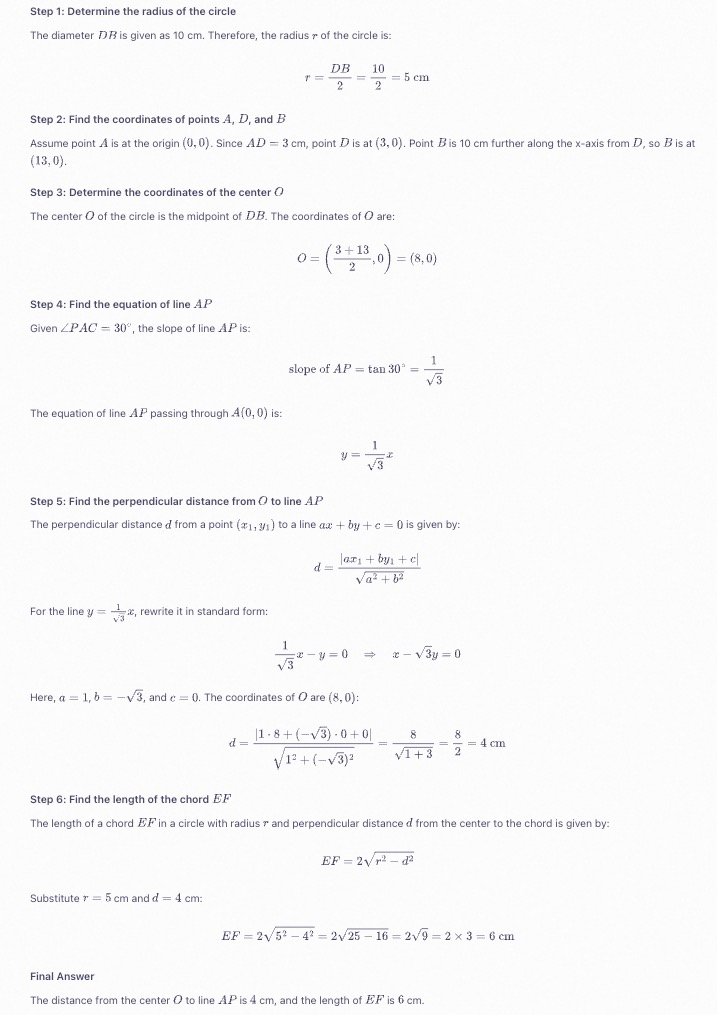 |
Generate code from visual designs
Generate code from images or videos. This can be used to create HTML, CSS, and JS code from design drafts, website screenshots, and more.
| Input | Output |
|---|---|
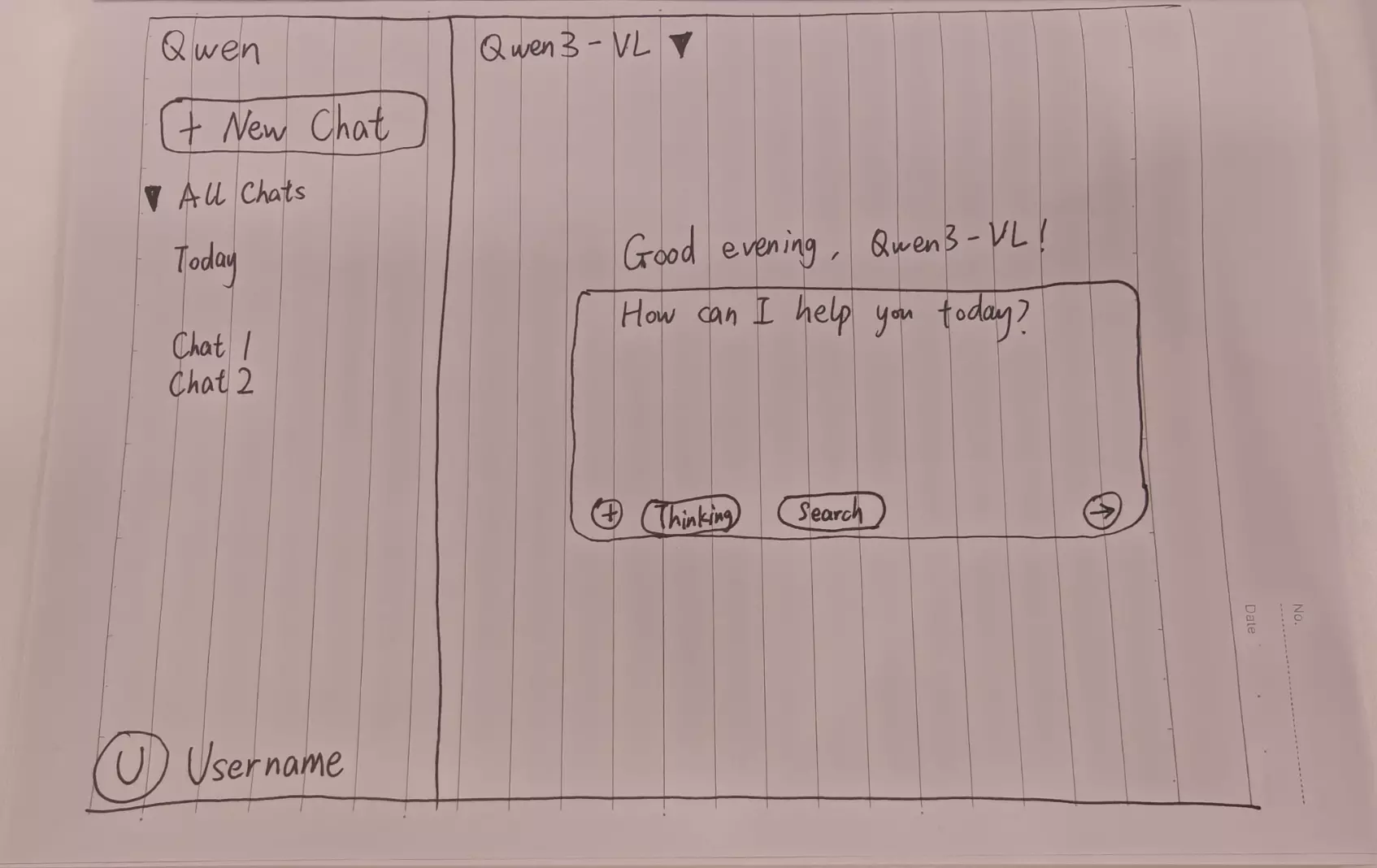 | 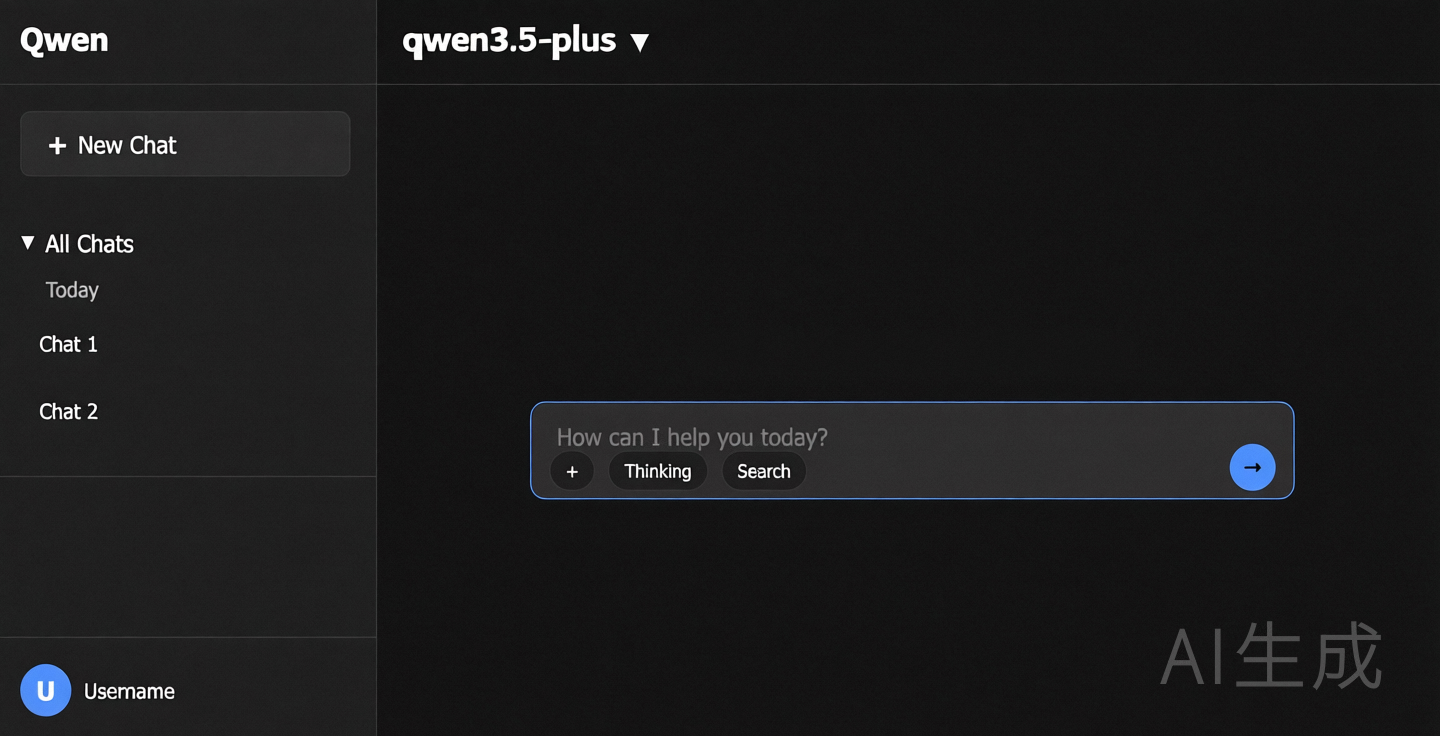 |
Locate objects in images
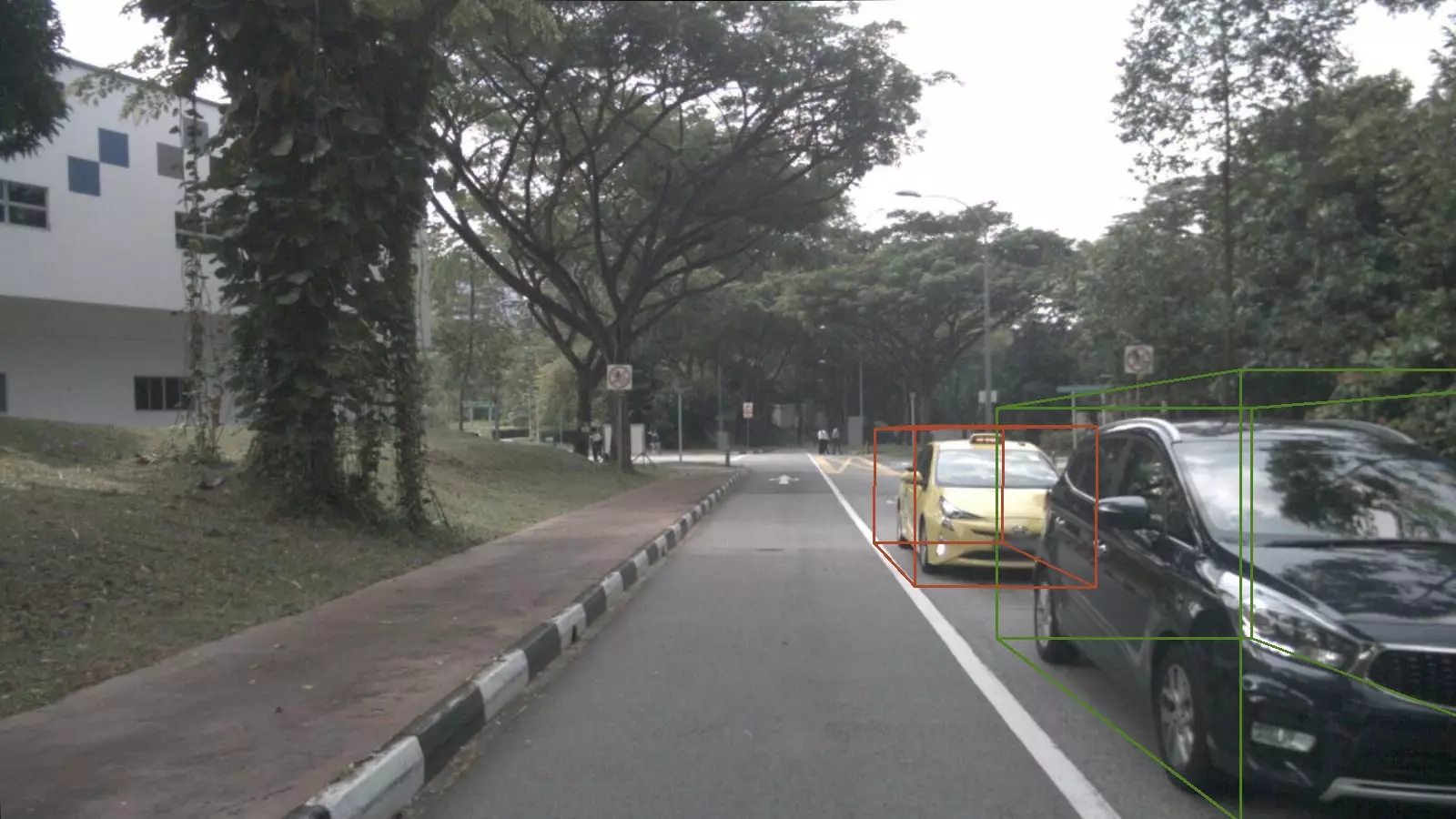
The model supports 2D and 3D localization to determine object orientation, perspective changes, and occlusion relationships. Qwen3-VL adds 3D localization.
| Input | Output |
|---|---|
2D localization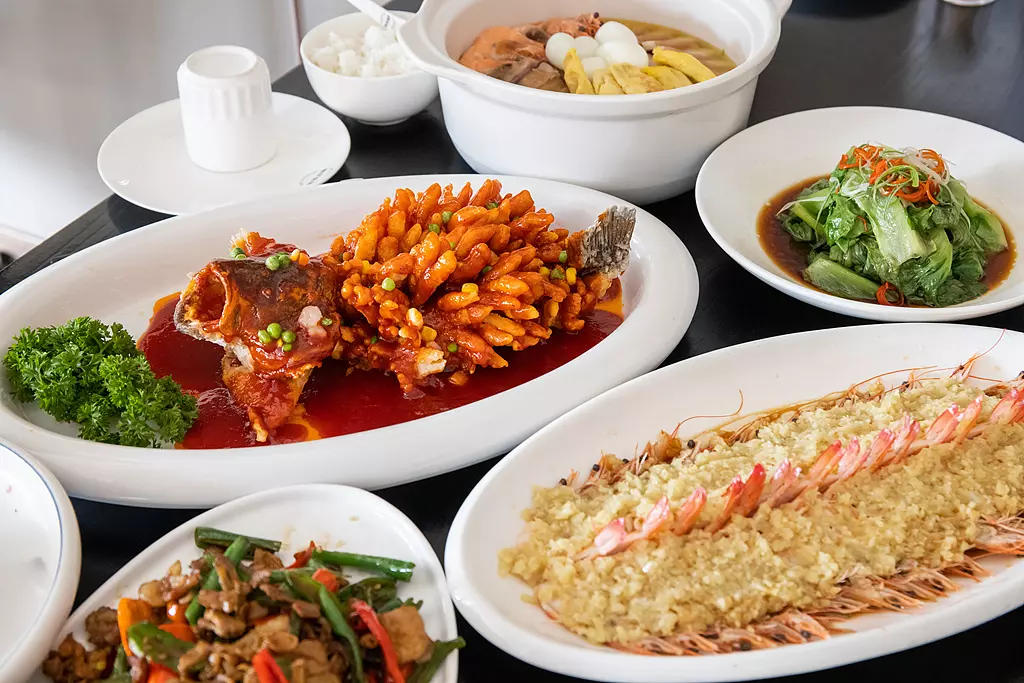
| Visualization of 2D localization results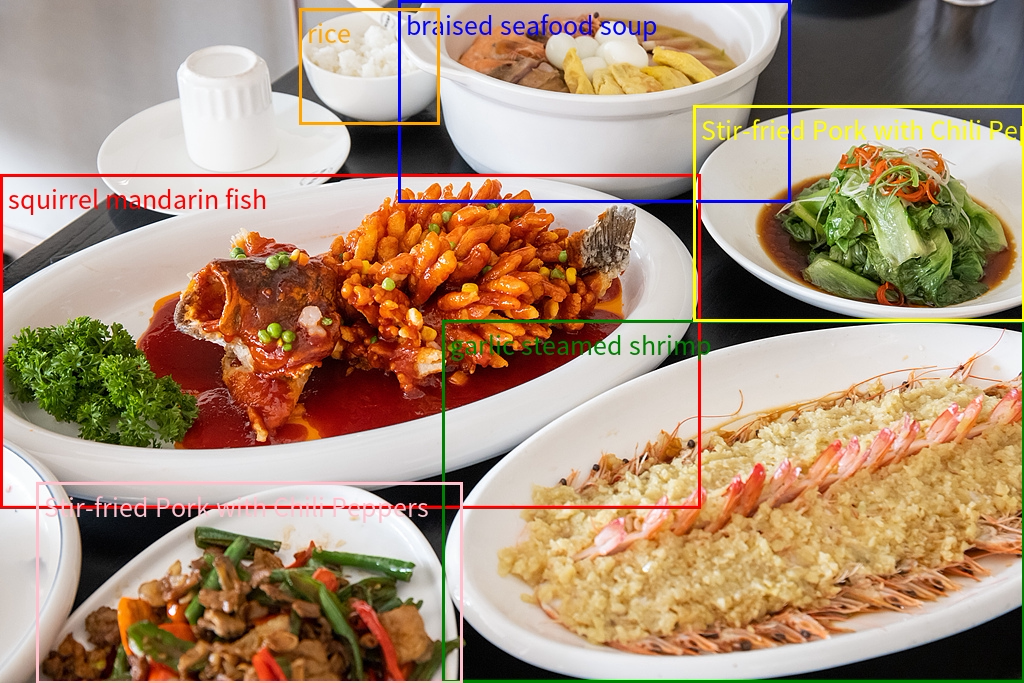 |
3D localization
3D localization
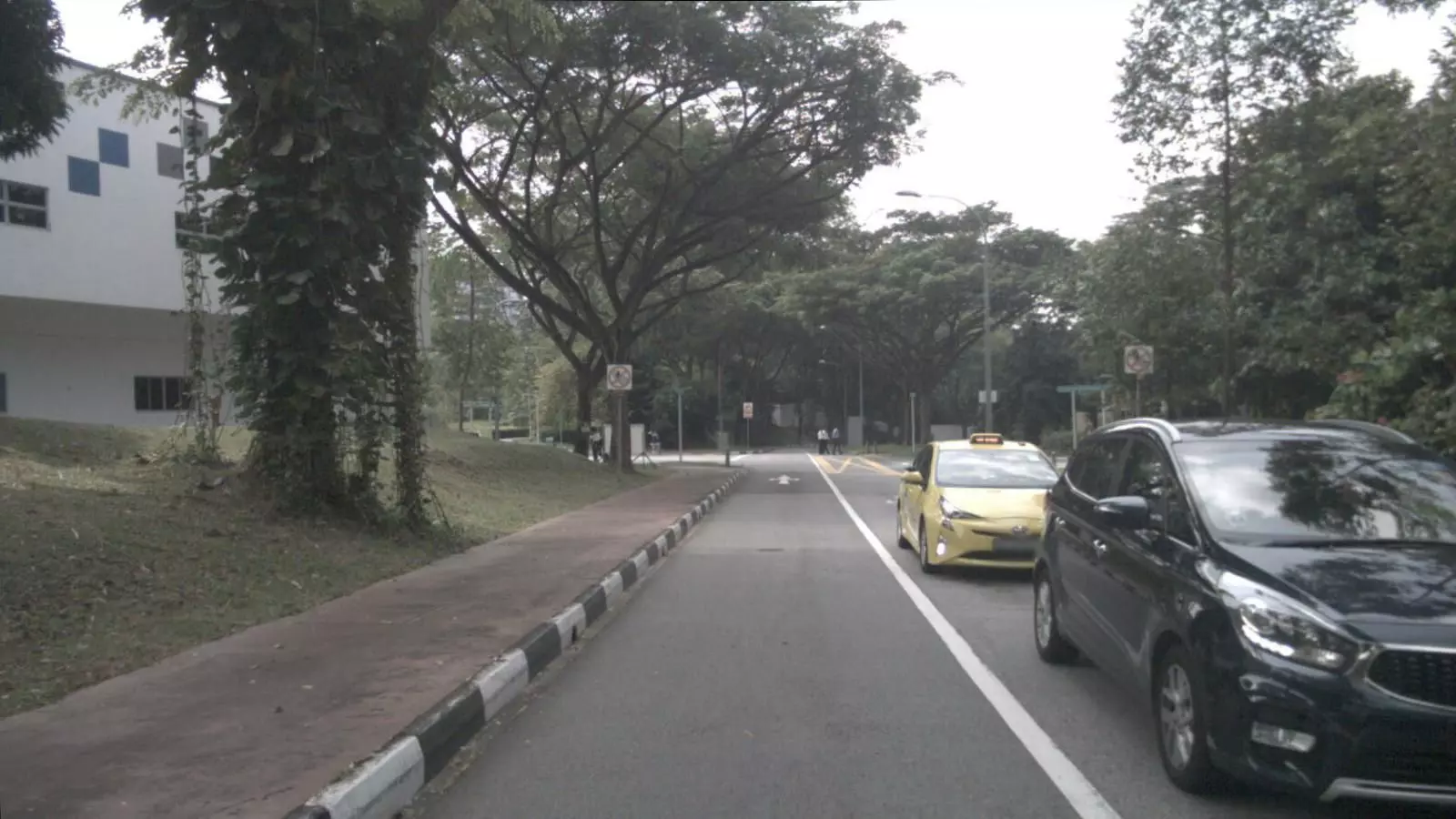
[{"bbox_3d": [x_center, y_center, z_center, x_size, y_size, z_size, roll, pitch, yaw], "label": "category"}].Visualization of 3D localization results
Visualization of 3D localization results
Parse documents and PDFs
Parse image-based documents, such as scans or image PDFs, into QwenVL HTML or QwenVL Markdown format. This format not only accurately recognizes text but also obtains the position information of elements such as images and tables. The Qwen3-VL model adds the ability to parse documents into Markdown format.
qwenvl html (to parse into HTML format) or qwenvl markdown (to parse into Markdown format).| Input | Output |
|---|---|
 |  |
Analyze video content
Analyze video content, such as locating specific events and obtaining timestamps, or generating summaries of key time periods.
| Input | Output |
|---|---|
| Please describe the series of actions of the person in the video. Output in JSON format with start_time, end_time, and event. Use HH:mm:ss for timestamps. | {`{"events": [{"start_time": "00:00:00", "end_time": "00:00:05", "event": "The person walks towards the table holding a cardboard box and places it on the table."}, {"start_time": "00:00:05", "end_time": "00:00:15", "event": "The person picks up a scanner and scans the label on the cardboard box."}, {"start_time": "00:00:15", "end_time": "00:00:21", "event": "The person puts the scanner back in its place and then picks up a pen to write information in a notebook."}]}`} |
Work with visual content
Thinking mode
thinking_budget, see Thinking.qwen3-vl-plus and qwen3.6-flash, on for Qwen3.5 and later series. Models with a -thinking suffix always think.
Work with multiple images
Pass multiple images in a single request for tasks like product comparison and multi-page document processing. Include multiple image objects in the user message's content array.
- OpenAI compatible
- DashScope
- Python
- Node.js
- curl
Analyze video content
Visual understanding models support understanding video content. You can provide files in the form of an image list (video frames) or a video file. The following is an example of code for understanding an online video or image list specified by a URL. For more information about video limits or the number of images that can be passed in an image list, see the Video limits section.
- Video file
- Image list
- fps: Controls the frequency. One frame every
1/fpsseconds. The value range is [0.1, 10] and the default value is 2.0.- High-speed motion scenes: Set a higher fps value to capture more detail.
- Static or long videos: Set a lower fps value for efficiency.
- max_frames: The upper limit of frames extracted. When the number calculated based on fps exceeds max_frames, the system automatically and evenly samples frames to stay within the limit. This parameter is active only for the DashScope SDK.
- OpenAI compatible
- DashScope
"type" parameter in the user message to "video_url".- Python
- Node.js
- curl
Use local files
Visual understanding models provide two ways to upload local files: Base64 encoding and direct file path upload. Choose the upload method based on the file size and SDK type. For specific recommendations, see How to choose a file upload method. Both methods must meet the file requirements described in Image limits.
- Base64 encoding upload
- File path upload
Steps to pass a Base64-encoded string (image example)
Steps to pass a Base64-encoded string (image example)
File encoding
Example code for converting an image to Base64 encoding
Example code for converting an image to Base64 encoding
Construct a Data URL
data:[MIME_type];base64,<base64_image>.- Replace
MIME_typewith the actual media type. Ensure it matches theMIME typevalue in the Supported image formats table, such asimage/jpegorimage/png. base64_imageis the Base64 string generated in the previous step.
Call the model
Data URL through the image or image_url parameter and call the model.Image - Pass by file path (DashScope only)
Image - Pass by file path (DashScope only)
- Python
- Java
Image - Pass in Base64 encoding
Image - Pass in Base64 encoding
- OpenAI compatible
- DashScope
- Python
- Node.js
- curl
Video file - Pass by file path (DashScope only)
Video file - Pass by file path (DashScope only)
- Python
- Java
Video file - Base64-encoded input
Video file - Base64-encoded input
- OpenAI compatible
- DashScope
- Python
- Node.js
- curl
Image list - Pass by file path (DashScope only)
Image list - Pass by file path (DashScope only)
- Python
- Java
Image list - Base64-encoded input
Image list - Base64-encoded input
- OpenAI compatible
- DashScope
- Python
- Node.js
- curl
Handle high-resolution images
The visual understanding model API has a limit on the number of visual tokens for a single image after encoding. With default configurations, high-resolution images are compressed, which may result in a loss of detail and affect understanding accuracy. Enable vl_high_resolution_images or adjust max_pixels to increase the number of visual tokens, which preserves more image details and improves understanding.
View the pixels per visual token, token limit, and pixel limit for each model
View the pixels per visual token, token limit, and pixel limit for each model
| Model | Pixels per token | vl_high_resolution_images | max_pixels | Token limit | Pixel limit |
|---|---|---|---|---|---|
Qwen3.8, Qwen3.7, Qwen3.6, Qwen3.5 and Qwen3-VL series models | 32*32 | true | max_pixels is invalid | 16384 tokens | 16777216 (which is 16384*32*32) |
Qwen3.8, Qwen3.7, Qwen3.6, Qwen3.5 and Qwen3-VL series models | 32*32 | false (default) | Customizable. The default is 2621440, and the maximum is 16777216. | Determined by max_pixels, which is max_pixels/32/32. | max_pixels |
QVQ and other Qwen2.5-VL models | 28*28 | Not supported | Customizable. The default is 1003520, and the maximum is 12845056. | Determined by max_pixels, which is max_pixels/28/28. | max_pixels |
- When
vl_high_resolution_images=true, the API uses a fixed resolution policy and ignores themax_pixelssetting. This is suitable for recognizing fine text, small objects, or rich details in images. - When
vl_high_resolution_images=false, the final pixel limit depends on the value of themax_pixelsparameter.- For cost-sensitive scenarios where you want to reduce visual token consumption: Use the default value of
max_pixelsor set it to a smaller value. - If you want to focus on certain details and can accept a lower processing speed, increase the value of
max_pixelsas needed.
- For cost-sensitive scenarios where you want to reduce visual token consumption: Use the default value of
- OpenAI compatible
- DashScope
- Python
- Node.js
- curl
Advanced features
CLI
A single command invokes QwenCloud's vision understanding capabilities from the terminal — parsing images, documents, and long videos.
--help to any command for full parameter details, e.g. bl vision describe --help. Every parameter that accepts a file URL also accepts a local path — the CLI auto-uploads it to temporary storage (valid for 48 hours), so you never need to host files as URLs yourself. Command details on this page are verified against bl 2.2.1.bl vision describe
Describe an image or video using Qwen-VL. Requires API Key authentication.
Usage
| Parameter | Type | Required | Description |
|---|---|---|---|
--image <path-or-url> | string | no | Local image path or URL |
--video <url> | array | no | Video file URL or local path (mp4/mov/avi/mkv/webm) |
--prompt <text> | string | no | Question about the content (default: auto-detected) |
--model <model> | string | no | Vision model (default: qwen3-vl-plus) |
Limits
Input file limits
- Image limits
- Video limits
-
Image resolution:
- Minimum size: The width and height of the image must both be greater than
10pixels. - Aspect ratio: The ratio of the long side to the short side of the image cannot exceed
200:1. - Pixel limit:
- We recommend keeping the image resolution within
8K (7680x4320). Images that exceed this resolution may cause API call timeouts because of large file sizes and long network transmission times. - Automatic scaling: The model can adjust the image size using
max_pixelsandmin_pixels. Therefore, providing ultra-high-resolution images does not improve recognition accuracy but increases the risk of call failures. We recommend scaling the image to a reasonable size on the client in advance.
- We recommend keeping the image resolution within
- Minimum size: The width and height of the image must both be greater than
-
Supported image formats
-
For resolutions below
4K (3840x2160), the supported image formats are as follows:Image format Common extensions MIME type BMP .bmp image/bmp JPEG .jpe, .jpeg, .jpg image/jpeg PNG .png image/png TIFF .tif, .tiff image/tiff WEBP .webp image/webp HEIC .heic image/heic -
For resolutions between
4K (3840x2160)and8K (7680x4320), only the JPEG, JPG, and PNG formats are supported.
-
For resolutions below
-
Image size:
The total request body for all interfaces must not exceed
64 MB; when passing multiple images, they share this overall request body quota.- When passed as a public URL: A single image cannot exceed
20 MBfor Qwen3.8, Qwen3.7, Qwen3.6, and Qwen3.5 and Qwen3-VL series models. For other models, a single image cannot exceed10 MB. - When passed as a local path: A single image cannot exceed
10 MB. - When passed as Base64 encoding: For Qwen3.8, Qwen3.7, Qwen3.6, Qwen3.5 and Qwen3-VL series models, the original image file before encoding cannot exceed
20 MB. For other models, it cannot exceed10 MB. The resulting Data URI string cannot exceed20 MBon the OpenAI-compatible API and DashScope, or32 MBon the Anthropic-compatible API.
- When passed as a public URL: A single image cannot exceed
-
Number of supported images:
- When passed as public URLs or local paths:
- Qwen3.8-Max, Qwen3.8-Flash, Qwen3.7-Plus series: Up to 2,048 images
- Qwen3.7-Flash, Qwen3.6-Plus, Qwen3.6-Flash, Qwen3.5-Plus, Qwen3.5-Flash, Qwen3-VL, Qwen-VL, QVQ series: Up to 256 images
- When passed as Base64-encoded strings: Up to 250 images
- When passed as public URLs or local paths:
File input methods
- Public URL: Provide a publicly accessible file address that supports the HTTP or HTTPS protocol. For optimal stability and performance, upload the file to OSS to get a public URL. QwenCloud cannot access OSS internal endpoints, whose addresses contain
-internal, such ashttps://<bucket>.oss-cn-hangzhou-internal.aliyuncs.com/image.jpg. If you pass an internal address, the file download fails andInvalidParameteris returned with the messageFailed to download multimodal content. Use an OSS public endpoint instead, such ashttps://<bucket>.oss-cn-hangzhou.aliyuncs.com/image.jpg, or a presigned OSS URL.
- Pass as a Base64-encoded string: Convert the file to a Base64-encoded string and then pass it.
- Pass as a local file path (DashScope SDK only): Pass the path of the local file.
Deploy to production
- Image/video pre-processing: Visual understanding models have size limits for input files. For more information about how to compress files, see Image or video compression methods.
- Process text files: Visual understanding models support processing files only in image format and cannot directly process text files. Convert the text file to an image format. We recommend using an image processing library, such as
Python'spdf2image, to convert the file page by page into multiple high-quality images. Then pass them to the model using the multiple image input method. - Fault tolerance and stability
-
Timeout handling: In non-streaming calls, if the model does not finish outputting within 300 seconds, a timeout error is usually triggered. To improve the user experience, the response body returns any content already generated after a timeout. If the response header contains
x-dashscope-partialresponse:true, the response triggered a timeout. You can use the partial mode feature (supported by some models) to add the generated content to the messages array and send the request again. This lets the large model continue generating content. For more information, see Continue writing based on incomplete output. -
Client-side timeout configuration: The preceding timeout is a server-side timeout that occurs when the model does not finish generating output within the limit. It is different from the default client-side timeout of the SDK. When you process large images, such as a 4000 x 4000 pixel image, a request may take longer than the default client-side timeout of the SDK and be interrupted with an
APITimeoutError, even though the server-side limit is not reached. To avoid this, usewith_optionsin the OpenAI Python SDK to extend the client-side timeout: -
Streaming output: Set
stream=Trueso that the model returns content incrementally instead of waiting for a single complete response. This prevents client-side timeouts caused by long-running non-streaming calls when you process large images: - Retry mechanism: Design a reasonable API call retry logic, such as exponential backoff, to handle network fluctuations or temporary service unavailability.
-
Timeout handling: In non-streaming calls, if the model does not finish outputting within 300 seconds, a timeout error is usually triggered. To improve the user experience, the response body returns any content already generated after a timeout. If the response header contains
Billing rules
- Billing: The total cost is based on the total number of input and output tokens. For input and output prices, see the Model Marketplace.
- Token composition: Input tokens consist of text tokens and tokens converted from images or videos. Output tokens are the text that the model generates. In thinking mode, the model's thought process also counts toward the output tokens. If the thought process is not an output in thinking mode, the price for non-thinking mode applies.
- Calculate image and video tokens: Use the following code to estimate the token consumption for an image or video. The estimate is for reference only. The actual usage is based on the API response.
Calculate image and video tokens
Calculate image and video tokens
- Image
- Video
Image Token = h_bar * w_bar / token_pixels + 2h_bar, w_bar: The height and width of the scaled image. Before processing an image, the model pre-processes it by scaling it down to a specific pixel limit. The pixel limit depends on the values of themax_pixelsandvl_high_resolution_imagesparameters. For more information, see Process high-resolution images.token_pixels: The pixel value that corresponds to each visualtoken. This value varies by model:Qwen3.8,Qwen3.7,Qwen3.6,Qwen3.5,Qwen3-VL: Eachtokencorresponds to32x32pixels.QVQand otherQwen2.5-VLmodels: Each token corresponds to28x28pixels.
- View bills: View your bills in the Billing section.
Reference
For the input and output parameters of visual understanding models, see Chat API.
FAQ
How do I choose a file upload method?
How do I choose a file upload method?
| Type | Specifications | DashScope SDK (Python, Java) | OpenAI compatible / DashScope HTTP |
|---|---|---|---|
| Image | Greater than 7 MB and less than 10 MB | Pass the local path | Only public URLs are supported. We recommend using Object Storage Service. |
| Image | Less than 7 MB | Pass the local path | Base64 encoding |
| Video | Greater than 100 MB | Only public URLs are supported. We recommend using Object Storage Service. | Only public URLs are supported. We recommend using Object Storage Service. |
| Video | Greater than 7 MB and less than 100 MB | Pass the local path | Only public URLs are supported. We recommend using Object Storage Service. |
| Video | Less than 7 MB | Pass the local path | Base64 encoding |
How do I compress an image or video to the required size?
How do I compress an image or video to the required size?
- Online tools: Use online tools such as CompressJPEG or TinyPng.
- Local software: Use software such as Photoshop to adjust the quality during export.
- Code implementation:
- Online tools: Use online tools such as FreeConvert.
- Local software: Use software such as HandBrake.
- Code implementation: Use the FFmpeg tool. For more information, see the FFmpeg official website.
After the model outputs object localization results, how do I draw the bounding boxes on the original image?
After the model outputs object localization results, how do I draw the bounding boxes on the original image?
- Qwen2.5-VL: Returns coordinates as absolute values in pixels. These coordinates are relative to the top-left corner of the scaled image. To draw the bounding boxes, see the code in qwen2_5_vl_2d.py.
- Qwen3-VL: Returns relative coordinates that are normalized to the range
[0, 999]. To draw the bounding boxes, see the code in qwen3_vl_2d.py (for 2D localization) or qwen3_vl_3d.zip (for 3D localization).