Realtime API

Real-time speech translation with qwen3.8-livetranslate-flash-realtime over AOQ

This tutorial uses Android to show how to integrate the AOQ Client SDK with qwen3.8-livetranslate-flash-realtime for real-time speech translation. Other platforms use similar integration and model-event handling flows with their corresponding SDK methods. All client-side examples below use Java.

For model capabilities, see Real-time speech and audio/video translation. For the roles of media and model events, see AOQ access.

Download the SDK

For the AOQ Client SDK and the Opus audio plugin, see SDK download. The audio transmission examples in this tutorial use Opus, so you must also import the plugin for your platform. For supported regions, languages, pricing, and rate limits, see Real-time speech and audio/video translation.

Import the SDK

  • Android
  • iOS
  • HarmonyOS
Place AoqClientSdk-release.aar in app/libs/. Place libPluginOpus.so in app/libs/armeabi-v7a/ and app/libs/arm64-v8a/, according to the ABI.Declare the dependency in app/build.gradle:
android {
    defaultConfig {
        minSdk 21
        ndk { abiFilters 'armeabi-v7a', 'arm64-v8a' }
    }
    sourceSets { main { jniLibs.srcDirs = ['libs'] } }
}

dependencies {
    implementation fileTree(dir: 'libs', include: ['*.aar'])
}
If the host project already contains native libraries with the same names, check their versions and dependencies before packaging them to avoid including different versions of the same library.Declare the permissions in AndroidManifest.xml:
<uses-permission android:name="android.permission.INTERNET" />
<uses-permission android:name="android.permission.ACCESS_NETWORK_STATE" />
<uses-permission android:name="android.permission.RECORD_AUDIO" />
<uses-permission android:name="android.permission.MODIFY_AUDIO_SETTINGS" />
Request RECORD_AUDIO permission at runtime and obtain user authorization. Speech-only translation does not require camera permission. Declare and request CAMERA only when you enable visual enhancement.The Java examples use the following imports:
import com.alibaba.aoq.clientsdk.AoqClientEngine;
import com.alibaba.aoq.clientsdk.AoqClientEngine.*;
import com.alibaba.aoq.clientsdk.AoqClientListener;
import java.nio.charset.StandardCharsets;
import java.util.HashMap;
import java.util.Map;
import org.json.JSONException;
import org.json.JSONObject;

Obtain a token through your AppServer

Do not store the QwenCloud API key on the client. Your AppServer uses the API key for the corresponding region and workspace to request temporary credentials for each translation connection. It returns the credentials over HTTPS to a client that has passed your application's authentication. Set up an AppServer by following the AOQ authentication steps for Qwen-LiveTranslate-Realtime. Real-time translation uses the Realtime protocol. Specify the following when requesting credentials:
model=qwen3.8-livetranslate-flash-realtime
Run the following command only on your AppServer. Set QWENCLOUD_ENDPOINT to ap-southeast-1.maas.qwencloudapi.com for Singapore or cn-beijing.maas.qwencloudapi.com for China North 2 (Beijing) (see Regions), and use the API key for the same region. Read DASHSCOPE_API_KEY from a server-side environment variable or a secrets management service.
curl --fail-with-body --request POST \
  "https://${QWENCLOUD_ENDPOINT}/api/v1/webrtc/realtime?model=qwen3.8-livetranslate-flash-realtime" \
  --header "Content-Type: application/json" \
  --header "Authorization: Bearer ${DASHSCOPE_API_KEY}" \
  --header "x-dashscope-rtc-transport: moq" \
  --data '{}'
If your AppServer can obtain the client's actual public IP address from a trusted proxy chain, include clientIp in the request body for access point scheduling. Map the response fields to AoqConnectConfig on the client:
Gateway response fieldSDK fieldDescription
aoqTokenForClienttokenTemporary token for this connection
sidsidIdentifier of this session
clientRelayCertFingerprintcertFingerprintUse the certificate fingerprint exactly as returned
clientRelayEndpointsrelayEndpointsConvert the complete access point list to the SDK structure
extraInfo.workspaceIdHashworkspaceIdHashUse the returned value. If it is absent, follow the SDK's requirements

Implement real-time speech translation

Interaction flow
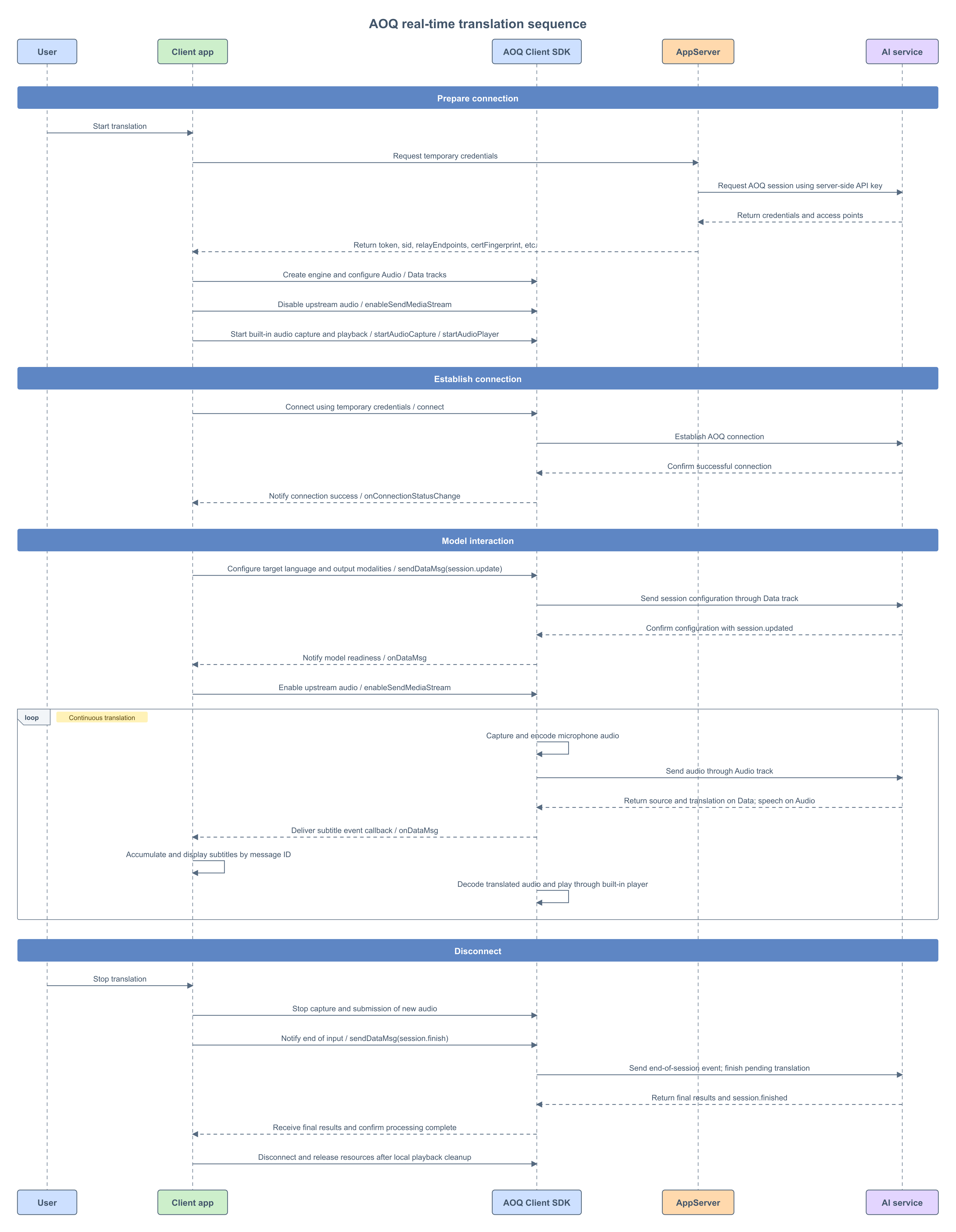
AOQ real-time speech translation sequence

Create the engine and set callbacks

Call createEngine to create the engine and register callbacks for connection status, Data messages, and errors. Your application must retain the engine and listener objects throughout the session.
// Configure the engine working directory.
AoqCreateConfig createConfig = new AoqCreateConfig();
createConfig.workDir = appCtx.getFilesDir().getAbsolutePath();
// Create the engine and register the event listener.
engine = AoqClientEngine.createEngine(appCtx, createConfig, listener);
Implement AoqClientListener to receive connection, model-message, and media-device events, and pass it when creating the engine.
AoqClientListener listener = new AoqClientListener() {
    // Receive audio capture and playback device states.
    @Override
    public void onAudioDeviceStateChanged(AoqAudioDeviceState state) {

    }

    // Receive audio route changes such as headphones, Bluetooth, and speaker.
    @Override
    public void onAudioDeviceRouteChanged(int routeType) {
        android.util.Log.i("LiveTranslate", "Audio route: " + AoqAudioDeviceRouteType.fromValue(routeType));
    }

    // Receive audio device interruption start and end notifications.
    @Override
    public void onAudioDeviceInterrupted(boolean interrupt) {
        android.util.Log.i("LiveTranslate", "Audio device interrupted: " + interrupt);
    }

    // Receive Android audio focus changes.
    @Override
    public void onAudioDeviceFocusChanged(int audioFocus) {
        android.util.Log.i("LiveTranslate", "Audio focus: " + audioFocus);
    }

    // Receive asynchronous SDK errors.
    @Override
    public void onError(int code, String message) {
        android.util.Log.e("LiveTranslate", "SDK error: " + code + ", " + message);
    }
};

Start audio capture and playback

After obtaining microphone permission, prepare audio capture and playback. Disable audio transmission before starting capture to prevent the engine from sending media automatically after connecting. Starting capture does not mean the model is ready to receive audio. Prompt the user to speak only after receiving session.updated and successfully enabling transmission. This tutorial does not implement audio buffering before connection.
// Disable upstream audio until the model confirms the configuration.
engine.enableSendMediaStream(AoqTrackType.AoqTrackTypeAudio, false);

AoqAudioCaptureConfig audioCaptureConfig = new AoqAudioCaptureConfig();
audioCaptureConfig.channel = 1;
audioCaptureConfig.isExternal = false;
// Start capture with the SDK built-in microphone.
engine.startAudioCapture(audioCaptureConfig);

AoqAudioPlaybackConfig audioPlaybackConfig = new AoqAudioPlaybackConfig();
audioPlaybackConfig.channel = 1;
audioPlaybackConfig.isExternal = false;
// Start the SDK built-in player to play translated speech.
engine.startAudioPlayer(audioPlaybackConfig);

Configure codecs and establish the connection

The main scenario requires the following tracks:
DirectionTrackPurpose
PublishAudioSend speech to the model
PublishDataSend session configuration and completion events
SubscribeAudioReceive translated speech
SubscribeDataReceive source text, translated text, and status events
Configure upstream and downstream audio separately. The following example uses Opus, 16 kHz, and mono audio for transmission.
AoqAudioCodecConfig audioEncoderConfig = new AoqAudioCodecConfig();
audioEncoderConfig.codecType = AoqEncoderType.AoqEncoderTypeAudioOpus;
audioEncoderConfig.sampleRate = 16000;
audioEncoderConfig.channel = 1;
// Set upstream audio encoding parameters.
engine.setAudioEncoderConfig(audioEncoderConfig);

AoqAudioCodecConfig audioDecoderConfig = new AoqAudioCodecConfig();
audioDecoderConfig.codecType = AoqEncoderType.AoqEncoderTypeAudioOpus;
audioDecoderConfig.sampleRate = 16000;
audioDecoderConfig.channel = 1;
// Set downstream audio decoding parameters.
engine.setAudioDecoderConfig(audioDecoderConfig);

AoqTrackParam audioTrackParam = new AoqTrackParam();
audioTrackParam.trackType = AoqTrackType.AoqTrackTypeAudio;
AoqTrackParam dataTrackParam = new AoqTrackParam();
dataTrackParam.trackType = AoqTrackType.AoqTrackTypeData;
// Publish the Audio and Data tracks to send speech and model events.
connectConfig.publishTracks.add(audioTrackParam);
connectConfig.publishTracks.add(dataTrackParam);
// Subscribe to the Audio and Data tracks to receive translated speech and subtitle events.
connectConfig.subscribeTracks.add(audioTrackParam);
connectConfig.subscribeTracks.add(dataTrackParam);

// Start the AOQ connection. The result is returned through onConnectionStatusChange.
engine.connect(connectConfig);
A successful return from connect means that the call was accepted. Wait for onConnectionStatusChange to report a successful connection before sending the model configuration.

Configure the translation session

After connecting, send the following session.update event through the Data track. This configuration uses the default voice and does not enable voice cloning:
{
  "type": "session.update",
  "session": {
    "output_modalities": ["text", "audio"],
    "audio": {
      "input": {
        "turn_detection": {
          "type": "speaker_detection",
          "threshold": 0.5
        }
      }
    },
    "translation": {
      "language": "en"
    }
  }
}
For the interaction flow, see Real-time translation. For all session.update parameters, see Real-time translation client events. Encode the JSON as UTF-8 bytes and send it with sendDataMsg.
private static final String SESSION_UPDATE_JSON =
        "{\"type\":\"session.update\",\"session\":{"
        + "\"output_modalities\":[\"text\",\"audio\"],"
        + "\"audio\":{\"input\":{\"turn_detection\":{"
        + "\"type\":\"speaker_detection\",\"threshold\":0.5}}},"
        + "\"translation\":{\"language\":\"en\"}}}";

// Receive AOQ connection status changes.
@Override
public void onConnectionStatusChange(AoqConnectionStatus status) {
    if (status == AoqConnectionStatus.AoqConnectionStatusConnected) {
        AoqDataMsg message = new AoqDataMsg();
        message.data = SESSION_UPDATE_JSON.getBytes(StandardCharsets.UTF_8);
        // Send the translation session configuration over the Data track.
        engine.sendDataMsg(message);
    }
}

Enable media transmission after receiving session.updated

Parse the event type in onDataMsg. The following snippet routes control events. For source-text and translated-text events, see Server events. After receiving session.finished, set your application's completion state and use the release method described in "Disconnect and destroy the engine" to finish cleanup.
// Receive model events from the Data track.
@Override
public void onDataMsg(AoqDataMsg message) {
    if (message == null || message.data == null) { return; }
    try {
        JSONObject event = new JSONObject(new String(message.data, StandardCharsets.UTF_8));
        String type = event.optString("type");
        if ("session.updated".equals(type)) {
            // Enable upstream audio after the model configuration takes effect.
            engine.enableSendMediaStream(AoqTrackType.AoqTrackTypeAudio, true);
        } else if ("session.finished".equals(type)) {
            android.util.Log.i("LiveTranslate", "The server has finished processing this translation");
        } else if ("error".equals(type)) {
            android.util.Log.e("LiveTranslate", "Translation model error: " + event.optJSONObject("error"));
        }
    } catch (JSONException error) {
        android.util.Log.e("LiveTranslate", "Failed to parse the model event", error);
    }
}
AOQ and WebSocket differences: This example sends and receives audio directly through Audio tracks. Do not send input_audio_buffer.append to upload the same audio again, or copy the WebSocket example and start another player when response.audio.delta is received. Translated audio is handled by the SDK audio subscription and player. The Data track carries subtitles and model events. For media and Data track usage, see AOQ access.

Finish input and wait for the final translation

When the user stops translation, follow this order:
  1. Stop capture so that no new input is submitted.
  2. After finalizing input, disable upstream audio and send session.finish once. Keep the AOQ connection, Data subscription, and audio playback active.
  3. Continue receiving the final source text, translated text, and translated speech. Wait for session.finished.
  4. Disconnect and release resources according to your local playback completion policy.
For the requirements for sending session.finish, see Real-time translation client events. For the fields and meaning of session.finished, see Real-time translation server events.
AoqDataMsg message = new AoqDataMsg();
message.data = "{\"type\":\"session.finish\"}".getBytes(StandardCharsets.UTF_8);
// Notify the model that input has ended, then wait for session.finished.
engine.sendDataMsg(message);

Disconnect and destroy the engine

After session.finished is received, the server has finished processing this session. This does not mean the local speaker has finished playing the last audio segment. If your application must play all translated speech, complete local playback before running the following methods.
// Stop translated speech playback.
engine.stopAudioPlayer();
// Disconnect the AOQ connection.
engine.disconnect();
// Destroy the engine used exclusively by this session.
AoqClientEngine.destroy();
Real-time speech translation with qwen3.8-livetranslate-flash-realtime over AOQ - QwenCloud